• ×
    Information
    Need Windows 11 help?
    Check documents on compatibility, FAQs, upgrade information and available fixes.
    Windows 11 Support Center.
  • post a message
  • ×
    Information
    Need Windows 11 help?
    Check documents on compatibility, FAQs, upgrade information and available fixes.
    Windows 11 Support Center.
  • post a message
Guidelines
Here is the solution for the error: "Encryption Credentials have expired" when attempting to print or scan from Mac OS or iOS devices: Click here to view the troubleshooting steps!
Check some of the most frequent questions about Instant Ink: HP INSTANT INK, HP+ PLANS: INK AND TONER.


Check out our WINDOWS 11 Support Center info about: OPTIMIZATION, KNOWN ISSUES, FAQs AND MORE.
HP Recommended
HP Officejet Pro 8720 Printger

My HP OfficePro Jet 8720 Printer allows me to adjust the paper tray for envelopes, in this case 6 3/4 size, but won't print them saying the printer only supports 3 different sizes of paper; letter, legal and A4.  

1 REPLY 1
HP Recommended

@DLH518 


Edits - Add example for 6x9 inch envelope - Windows, using Word


If you have the optional tray 2, this tray only supports plain paper.

If you are loading envelopes into the main tray, you need to tell the printer control panel about the paper type / size.


Check / Adjust / Retain the Paper at the Printer Panel


Open Printer Tray,

If you have not yet done so, add desired paper type

Close Tray

IF applicable for your printer:

On the printer control panel, Click Modify (wording varies), set the paper size and type, Click OK


NOTE:  If the size of the Paper Size is not in the Drop-down list, Select Custom


Set the Preferences - Windows


  1. The following assumes the Full Feature Software has been installed.
  2. Check / enable the printer as the “Default Printer”
  3. Select and adjust settings in each category for the Media (kind of paper), source (tray), and paper size.


Control Panel > icon view > Devices and Printers > Right-Click on your printer > Set as Default


Control Panel > icon view > Devices and Printers > Right-Click on your printer > Printing Preferences >

Tab Printing Shortcuts > Click / Highlight preferred shortcut > Click Apply > Click OK to exit


If the printer software supports the feature, change the settings as desired, then use “Save as” to create a Custom Shortcut.


OR

Windows key + S (search for) Printers and Scanners

Left-Click on (your) Printer > Manage >

Printing Preferences

Select a shortcut and / or set “preferred settings” for paper, source (tray), other settings

Optional (if / as supported on the printer): Save As > enter a name for your custom shortcut

Click OK to save the preferences


=============================================================

If the size of the envelope you are printing is not in the standard size list for supported envelopes, you must create a Custom Paper Size form for your envelope.


Allowed custom size range noted in the Specifications

Supported custom sizes

To avoid paper jams and other issues when printing on nonstandard custom paper sizes, make sure the dimensions fall within the parameters listed in the following table.
Paper size
Tray 1
ADF
76 to 216 mm (3.0 to 8.5 inches) wide and 127 to 356 mm (5.0 to 14.0 inches) long
 

☑️


127 to 216 mm (5.0 to 8.5 inches) wide and 241 to 305 mm (9.5 to 12.0 inches) long


☑️


HP Document:

HP Printers - Creating Custom Paper Sizes


  1. Availability (of the Custom Form feature) and how the form is created depends on printer model and software and Operating System / Version.
  2. Custom Paper form as described requires that the Full Feature Software has been installed.


Windows


  1. If the feature is at least partially supported the Custom Setup will be available in Devices and Printers OR in Printer Preferences.
  2. If the feature is fully supported, the custom form can be created AND then used with the printer software.


Where Located

  • Devices and Printers > Print Server Properties

OR (newer printers / newer printer software)

  • Printer Preferences > Print Dialog > Paper / Quality > Custom setting box


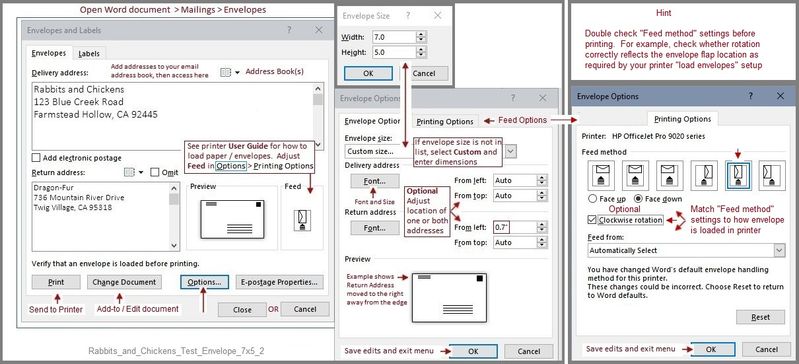
General Example - Officejet Pro 8740 - Windows 10 - Custom Paper Size Form for  7x5 inch envelope


Printing_Preferences_Custom_Envelope_7x5Printing_Preferences_Custom_Envelope_7x5

Create and Print 

Rabbits_and_Chickens_Test_Envelope_7x5_2Rabbits_and_Chickens_Test_Envelope_7x5_2


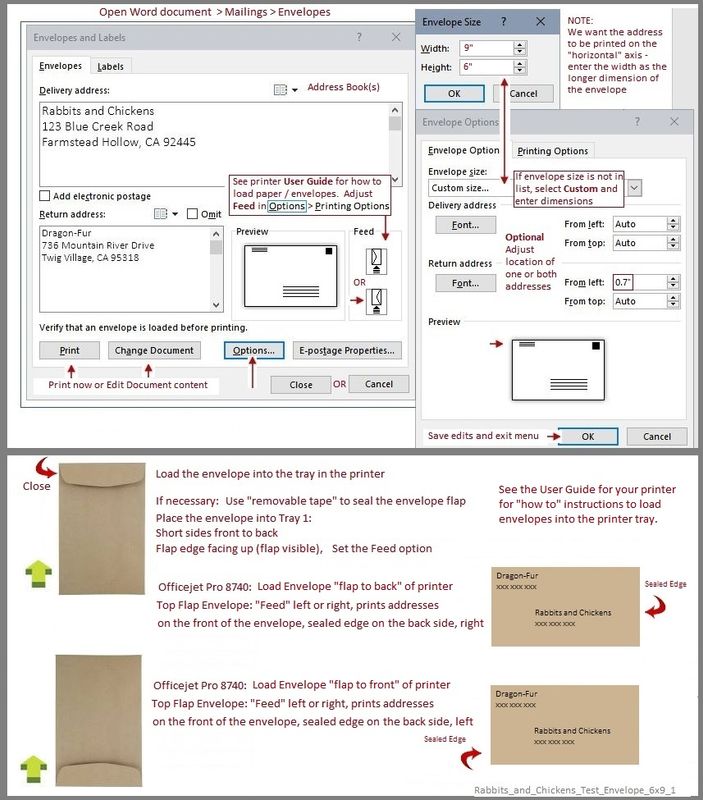
One more general example - Officejet Pro 8740 -  6x9 envelope  (9 inches wide / 6 inches tall - address on horizontal)

Rabbits_and_Chickens_Test_Envelope_6x9_1Rabbits_and_Chickens_Test_Envelope_6x9_1


Reference and Resources – Places to find help and learn how to use your Printer

Clarification of terms and "what the printer can do" (Specifications)

Printer Homepage – “Things that are your printer”

NOTE:  Content depends on device type and Operating System

HP Drivers / Software / Firmware Updates, How-to Videos, Bulletins/Notices, Lots of How-to Documents, Troubleshooting, Access to the Print and Scan Doctor (Windows), User Guides, Product Information (Specifications), more

When the website support page opens, Select (as available) a Category > Topic > Subtopic

HP OfficeJet Pro 8720 All-in-One Printer series


Thank you for participating in the HP Community Forum.

We are a world community of HP enthusiasts dedicated to supporting HP technology.


Dragon-Fur

† The opinions expressed above are the personal opinions of the authors, not of HP. By using this site, you accept the <a href="https://www8.hp.com/us/en/terms-of-use.html" class="udrlinesmall">Terms of Use</a> and <a href="/t5/custom/page/page-id/hp.rulespage" class="udrlinesmall"> Rules of Participation</a>.