
-
×InformationNeed Windows 11 help?Check documents on compatibility, FAQs, upgrade information and available fixes.
Windows 11 Support Center. -
-
×InformationNeed Windows 11 help?Check documents on compatibility, FAQs, upgrade information and available fixes.
Windows 11 Support Center. -
- HP Community
- Printers
- Printer Setup, Software & Drivers
- “Reinstall indicated ink”

Create an account on the HP Community to personalize your profile and ask a question
Your account also allows you to connect with HP support faster, access a personal dashboard to manage all of your devices in one place, view warranty information, case status and more.
Check some of the most frequent questions about Instant Ink: HP INSTANT INK, HP+ PLANS: INK AND TONER.
Check out our WINDOWS 11 Support Center info about: OPTIMIZATION, KNOWN ISSUES, FAQs AND MORE.

It has been a while since anyone has replied. Simply ask a new question if you would like to start the discussion again.

08-12-2020 07:06 PM
 HP Recommended
Product: Envy 5540
Operating System: iOS
I have tried all of the troubleshooting tips I’ve read
i keep getting “remove and reinstall the indicated ink cartridge, making sure it is correctly install, and then touch ok”
I’ve done a hard restart, I have it plugged in to the wall / not a surge protector, I’ve installed and uninstalled several times, I can’t do the clean cartridges bc I keep getting that message. I was able to take my black ink out and print only using the colored ink. That’s strange isn’t it? Do I only buy color from now on? I usually only print in black
7 REPLIES 7


08-15-2020 10:49 AM
HP Recommended
Welcome to HP Community
I have gone through your Post and would like to help
Please try these steps
- Turn on the printer.
- Wait until the printer is idle and silent before you continue.
- Disconnect the USB cable from the rear of the printer. If your printer has a network or wireless connection, leave it connected.
- Remove the ink cartridges from the printer and clean the electrical contacts with lint free cloth
- With the printer turned on, disconnect the power cord from the rear of the printer and from the wall outlet or power strip.
- Wait at least 60 seconds.
- Plug the power cord back into the wall outlet.
NOTE: HP recommends connecting the printer power cord directly to a wall outlet.
- Reconnect the power cord to the rear of the printer.
- Turn on the printer, if it does not automatically turn on.
- The printer might go through a warm-up period. The printer lights might flash, and the carriage might move.
- Wait until the warm-up period finishes and your printer is idle and silent before you proceed.
- Reinsert the ink cartridges, and then close the ink cartridge access door.
- If you receive a prompt to print a calibration page, do so.
Next ensure the printer has the latest Firmware. Link: https://support.hp.com/in-en/document/c02919168
Keep me posted
If the information I've provided was helpful, give us some reinforcement by clicking the "Solution Accepted" on this Post and it will also help other community members with similar issue.
KrazyToad
I Am An HP Employee
08-16-2020 02:00 PM
HP Recommended
Please try cleaning the Printhead
-
Make sure you have loaded plain white U.S. letter or A4-sized paper into the paper tray.
-
On the printer control panel, swipe the display to the left, and then touch Setup
 .
.The Setup menu displays.
-
Touch Tools, and then touch Clean Cartridges.
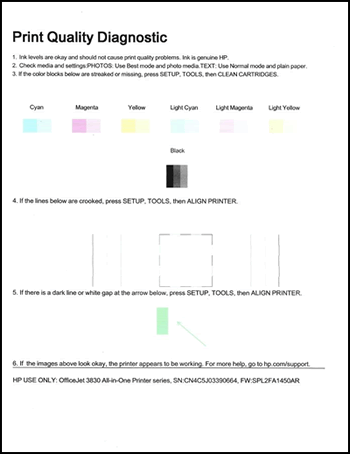
The printer cleans the ink cartridges, then prints a Print Quality Diagnostic report.
Figure : Example of the Print Quality Diagnostic report
-
Examine the Print Quality Diagnostic report.
-
If the print quality is not acceptable, touch Yes to continue the next level of cleaning. Repeat these steps for the third cleaning stage, if necessary.
NOTE: If the printhead is badly clogged, you might need to clean the ink cartridges several times for optimal print quality. If so, wait 30 minutes before you perform all three levels of cleaning again.
-
KrazyToad
I Am An HP Employee

08-31-2020 08:14 PM
HP Recommended
This seems to be a hardware issue.
I request you to talk to HP support.
They might have multiple options to help you with this.
- Click on this link - https://support.hp.com/us-en/contact-hp?openCLC=true
- Select the country.
- Enter the serial of your device.
- Select the country from the drop-down.
- Click on "Show Options".
- Fill the web-form. A case number and phone number will now populate for you.
I hope that helps.
To thank me for my efforts to help you, please mark my post as an accepted solution so that it benefits several others.
Cheers.
Sandytechy20
I am an HP Employee
09-10-2020 06:42 AM
HP Recommended
Did you contact HP Support in your Region for replacement Cartridges?
1) Click on this link - www.hp.com/contacthp/
2) Select your product type below.
3) Enter the serial of your device.
4) Select the country from the drop-down.
5) Select the chat or get phone number options based on your preferences.
6) Fill the web-form and proceed further.
Thank you
KrazyToad
I Am An HP Employee

Be alert for scammers posting fake support phone numbers and/or email addresses on the community.
If you think you have received a fake HP Support message, please report it to us by clicking on "Flag Post".
† The opinions expressed above are the personal opinions of the authors, not of HP. By using this site, you accept the Terms of Use and Rules of Participation.


Didn't find what you were looking for?
Ask the community
† The opinions expressed above are the personal opinions of the authors, not of HP. By using this site, you accept the <a href="https://www8.hp.com/us/en/terms-of-use.html" class="udrlinesmall">Terms of Use</a> and <a href="/t5/custom/page/page-id/hp.rulespage" class="udrlinesmall"> Rules of Participation</a>.