• ×
    Information
    Need Windows 11 help?
    Check documents on compatibility, FAQs, upgrade information and available fixes.
    Windows 11 Support Center.
  • post a message
  • ×
    Information
    Need Windows 11 help?
    Check documents on compatibility, FAQs, upgrade information and available fixes.
    Windows 11 Support Center.
  • post a message
Guidelines
Join the HP Community Solve‑a‑thon | Help Others & Share Your Solutions | Live on Zoom | 2:30 PM to 2:30 AM IST | Every Wednesday Click here to know more
Check some of the most frequent questions about Instant Ink: HP INSTANT INK, HP+ PLANS: INK AND TONER.


Check out our WINDOWS 11 Support Center info about: OPTIMIZATION, KNOWN ISSUES, FAQs AND MORE.
HP Recommended
ENVY Photo 7800
macOS 10.15 Catalina

The printer works fine, but when I try to access the scanner I get a "Failed to open a connection to the device" message. Is there a way to reconnect without reinstalling everything?

1 REPLY 1
HP Recommended

@Edstreeter Here's a few things that should help resolve the issue:


Step 1: Reset the print system

Resetting the print system clears any error states by removing all HP and non-HP printers, print jobs, and printer preferences.

  1. Click the Apple menu, and then click System Preferences.

  2. Click Print & Fax, Print & Scan, or Printers & Scanners.

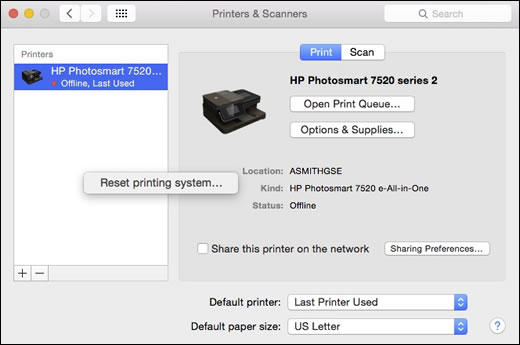
  3. Right-click (or Control + click) anywhere inside the Printers window, and then click Reset printing system.

     Resetting the print system on a Mac computer

  4. Click Reset in the confirmation window.

  5. Enter the Administrator name and password, and then click OK to complete the reset.

Try to scan. If the error persists, continue to the next step.


Step 2: Uninstall and reinstall the printer driver and software

Resolve scan connection issues by uninstalling the printer software before reinstalling the latest driver.

  1. Disconnect the USB cable from the printer, if necessary.

  2. Click Finder in the Dock.

  3. In the menu bar, click Go, click Applications, and then open the HP or Hewlett Packard folder.

    • If HP Uninstaller is in the folder, double click it to uninstall the software, and then skip to the step to prepare the printer for the driver installation.

    • If HP Uninstaller is not in the folder, continue to the next step.

  4. Click and drag the HP or Hewlett Packard folder to the Trash icon in the Dock.

  5. In the menu bar, click Go, click Go to Folder, type /Library/Printers, and then click Go.

  6. Click and drag the HP or Hewlett Packard folder to the Trash icon in the Dock.

  7. Right-click or Ctrl + click the Trash icon, and then select Empty Trash.

  8. Prepare the printer for the driver installation. Make sure it is turned on, cartridges are installed, and plain paper is loaded in the main tray.

  9. Go to 123.hp.com. This guided service automatically locates the correct print driver or app for your computer operating system version.

  10. Follow the instructions to download and install the driver or app. During the installation, select HP Smart or the full software option to get the most out of your HP printer, and then follow the steps to set up the printer connection.

Try to scan. If the error persists, continue to the next step.


Step 3: Troubleshoot the printer connection

At this point, the printer is probably not connected to your network or computer. Troubleshoot your printer connection type.

P.S: Welcome to HP Community 😉


Let me know how that pans out,

If you feel I was helpful, simply click on Accept as Solution to help the community grow,

That said, I will have someone follow-up on this to ensure you've been helped,

Just in case you don't get back to us, 

have a good day, ahead.

Riddle_Decipher
I am an HP Employee


Learning is a journey, not a destination.
Let's keep asking questions and growing together.
† The opinions expressed above are the personal opinions of the authors, not of HP. By using this site, you accept the <a href="https://www8.hp.com/us/en/terms-of-use.html" class="udrlinesmall">Terms of Use</a> and <a href="/t5/custom/page/page-id/hp.rulespage" class="udrlinesmall"> Rules of Participation</a>.