
-
×InformationNeed Windows 11 help?Check documents on compatibility, FAQs, upgrade information and available fixes.
Windows 11 Support Center. -
-
×InformationNeed Windows 11 help?Check documents on compatibility, FAQs, upgrade information and available fixes.
Windows 11 Support Center. -
- HP Community
- Printers
- Printer Setup, Software & Drivers
- Shadow printing

Create an account on the HP Community to personalize your profile and ask a question
Your account also allows you to connect with HP support faster, access a personal dashboard to manage all of your devices in one place, view warranty information, case status and more.
Check some of the most frequent questions about Instant Ink: HP INSTANT INK, HP+ PLANS: INK AND TONER.
Check out our WINDOWS 11 Support Center info about: OPTIMIZATION, KNOWN ISSUES, FAQs AND MORE.

It has been a while since anyone has replied. Simply ask a new question if you would like to start the discussion again.

04-28-2020 10:20 AM - edited 05-06-2020 03:11 AM
 HP Recommended
Product: HP EliteDesk 800
Operating System: Microsoft Windows 10 (64-bit)
PDF files are blurred:
- A PDF document printed on my HP Officejet 4500 produces the following "blurred" (characters are "echoed") result. It did not use to be the case up to quite recently. See picture.
- PDF printed on my HP Officejet Pro 8710 are flawless.
- Word documents printed on both HP Officejet 4500 & HP Officejet Pro 8710 are fine.
Anyone has a suggestion?
8 REPLIES 8


05-05-2020 01:23 PM
HP Recommended
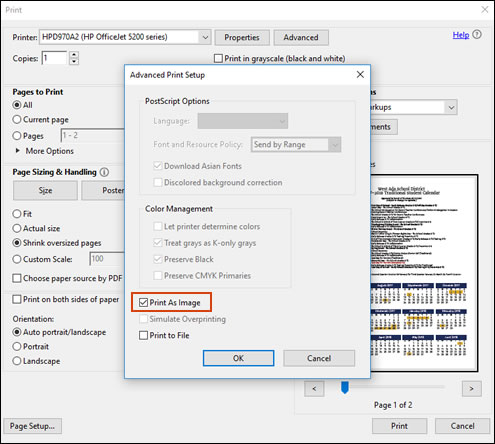
Print the PDF as an image
-
Open the original PDF file.
-
Click File, and then select Print from the list.
The Print window opens.
-
Click Advanced.
The Advanced Print Setup window opens.
-
Click the Print As Image checkbox, change any other settings as desired, and then click OK.
You can refer this HP document for more assistance:- Click here
I hope that helps.
To thank me for my efforts to help you, please mark my post as an accepted solution so that it benefits several others.
Cheers.
Sandytechy20
I am an HP Employee
05-06-2020 03:08 AM
HP Recommended
Thanks for your assistance.
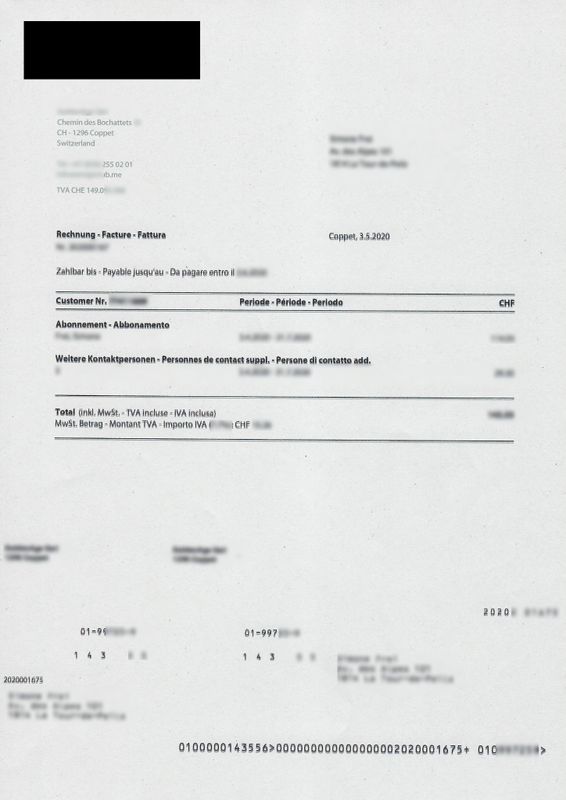
Printing as an image did not work, unfortunately. Have a look at the result. It probably points to the source of the problem.
Some fonts do not shadow (the top left corner seems to be fine), the rest does.
05-06-2020 05:12 PM
HP Recommended
Perform root level uninstallation to remove all the printer related software's.
- In Windows, search for and open Programs and Features.
- Select your HP printer.
- Select Uninstall.
- In Windows, search for and open Devices and Printers.
- In the Devices and Printers window look for your HP Printer. If you see it listed, right-click on it and choose "Delete" or "Remove Device.”
- Open up the run command with the "Windows Key + R" key combo.
- Type printui.exe /s and click OK.
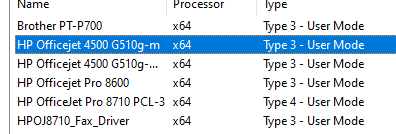
- Click on Drivers tab.
- Look for HP Printer driver. If you see it click on it and click Remove at the bottom.
- Select OK.
- Remove all instances of the same.
- Select Apply and OK on the Print Server Properties windows.
- Close Devices and Printers.
- Restart the PC again.
Download and run printer full feature driver
Click here to download the driver.
I hope that helps.
To thank me for my efforts to help you, please mark my post as an accepted solution so that it benefits several others.
Cheers.
Sandytechy20
I am an HP Employee
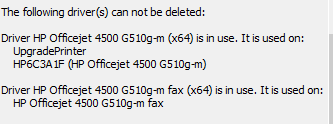
05-19-2020 04:37 PM
HP Recommended
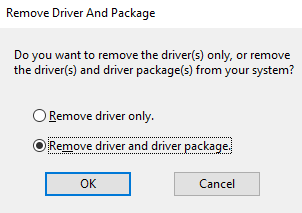
Select Remove driver and driver package and click OK.
Let me know how it goes.
Cheers.
Sandytechy20
I am an HP Employee
05-20-2020 11:58 AM
HP Recommended
This might require remote access of your computer to fix the issue.
I request you to talk to HP support.
They might have multiple options to help you with this.
- Click on this link - https://support.hp.com/us-en/contact-hp?openCLC=true
- Select the country.
- Enter the serial of your device.
- Select the country from the drop-down.
- Click on "Show Options".
- Fill the web-form. A case number and phone number will now populate for you.
I hope that helps.
To thank me for my efforts to help you, please mark my post as an accepted solution so that it benefits several others .
Cheers.
Sandytechy20
I am an HP Employee

Be alert for scammers posting fake support phone numbers and/or email addresses on the community.
If you think you have received a fake HP Support message, please report it to us by clicking on "Flag Post".
† The opinions expressed above are the personal opinions of the authors, not of HP. By using this site, you accept the Terms of Use and Rules of Participation.


Didn't find what you were looking for?
Ask the community
† The opinions expressed above are the personal opinions of the authors, not of HP. By using this site, you accept the <a href="https://www8.hp.com/us/en/terms-of-use.html" class="udrlinesmall">Terms of Use</a> and <a href="/t5/custom/page/page-id/hp.rulespage" class="udrlinesmall"> Rules of Participation</a>.