
-
×InformationNeed Windows 11 help?Check documents on compatibility, FAQs, upgrade information and available fixes.
Windows 11 Support Center. -
-
×InformationNeed Windows 11 help?Check documents on compatibility, FAQs, upgrade information and available fixes.
Windows 11 Support Center. -
- HP Community
- Printers
- Printer Setup, Software & Drivers
- Test Page does not print

Create an account on the HP Community to personalize your profile and ask a question
Your account also allows you to connect with HP support faster, access a personal dashboard to manage all of your devices in one place, view warranty information, case status and more.
Check some of the most frequent questions about Instant Ink: HP INSTANT INK, HP+ PLANS: INK AND TONER.
Check out our WINDOWS 11 Support Center info about: OPTIMIZATION, KNOWN ISSUES, FAQs AND MORE.

It has been a while since anyone has replied. Simply ask a new question if you would like to start the discussion again.

01-23-2026 03:15 PM - edited 01-23-2026 03:29 PM
 HP Recommended
New install of HP ENVY 7900 INSPIRE. New, but I purchased it several months ago, and I do not remember whether I installed ink cartridges. I do have a set of them. So, I need to now how to open the printer to view where the ink cartridges belong.
Thanks for your help,
Greenie6
Solved! Go to Solution.
1 ACCEPTED SOLUTION
Accepted Solutions


01-23-2026 09:20 PM
HP Recommended
Hi @Greenie6
Ok, then try with the steps from the next video:
>> https://www.youtube.com/watch?v=JIIBzUeZ2K4
* Click YES to say thank you,
* Click Accepted as Solution when question is answered.
Best regards,
ferRX.

@ferRX / I am a volunteer posting answers.
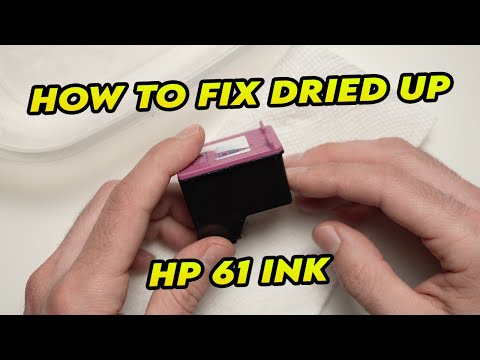
I will show how easy it is to fix and clean the HP 61 ink cartridge of your printer if it has dried out / clogged or is being blocked. Amazon link for replacement ink: https://amzn.to/32Kop6R Don't forget to like and subscribe if this was useful to you! The Amazon links above are affiliate, which
6 REPLIES 6
01-23-2026 05:52 PM
HP Recommended
I found how to access the area where the ink cartridges are installed, from the user manual. There were indeed cartridges already installed, but I decided to install new ones. I issued the PRINT command for a document. No error message, bit it's waiting in the print queue.

Thanks for your help,
Greenie6
01-23-2026 06:13 PM
HP Recommended
Hi @Greenie6
if the printer was purchased months ago and never used printer cartridges, then the cartridges maybe are dry and you need to replace with new ink cartridges.
Try to make a Printer report using options from the Front panel on the printer:
>> https://www.youtube.com/watch?v=AjiyD2AjM4Y
if the Print report shows ink levels, then you may need to install software.
* Click YES to say thank you,
* Click Accepted as Solution when question is answered.
Best regards,
ferRX.
@ferRX / I am a volunteer posting answers.

Learn how to print a Printer Status Report on HP OfficeJet Pro 7720, 7730, 7740 AIO printers. Chapters: 00:00 Introduction 00:33 Load paper 00:54 Confirm size and type of paper 01:05 Touch Printer Status Report 01:36 Check information about your printer For other helpful videos go to ...
01-23-2026 09:20 PM
HP Recommended
Hi @Greenie6
Ok, then try with the steps from the next video:
>> https://www.youtube.com/watch?v=JIIBzUeZ2K4
* Click YES to say thank you,
* Click Accepted as Solution when question is answered.
Best regards,
ferRX.
@ferRX / I am a volunteer posting answers.
I will show how easy it is to fix and clean the HP 61 ink cartridge of your printer if it has dried out / clogged or is being blocked. Amazon link for replacement ink: https://amzn.to/32Kop6R Don't forget to like and subscribe if this was useful to you! The Amazon links above are affiliate, which
01-24-2026 06:28 PM
HP Recommended
ferRX,
Unfortunately, I'm unable to execute the steps described in the video, because of connectivity issues. But there's no doubt in my mind that the remedial steps for dried-out ink cartridges would be successful. You deserve 5 stars for posting the video. Thanks for that.


Be alert for scammers posting fake support phone numbers and/or email addresses on the community.
If you think you have received a fake HP Support message, please report it to us by clicking on "Flag Post".
† The opinions expressed above are the personal opinions of the authors, not of HP. By using this site, you accept the Terms of Use and Rules of Participation.


Didn't find what you were looking for?
Ask the community
† The opinions expressed above are the personal opinions of the authors, not of HP. By using this site, you accept the <a href="https://www8.hp.com/us/en/terms-of-use.html" class="udrlinesmall">Terms of Use</a> and <a href="/t5/custom/page/page-id/hp.rulespage" class="udrlinesmall"> Rules of Participation</a>.