• ×
    Information
    Need Windows 11 help?
    Check documents on compatibility, FAQs, upgrade information and available fixes.
    Windows 11 Support Center.
  • post a message
  • ×
    Information
    Need Windows 11 help?
    Check documents on compatibility, FAQs, upgrade information and available fixes.
    Windows 11 Support Center.
  • post a message
Guidelines
Seize the moment! nominate yourself or a tech enthusiast you admire & join the HP Community Experts!
Check some of the most frequent questions about Instant Ink: HP INSTANT INK, HP+ PLANS: INK AND TONER.


Check out our WINDOWS 11 Support Center info about: OPTIMIZATION, KNOWN ISSUES, FAQs AND MORE.
HP Recommended
HP Officejet 8710
macOS 10.12 Sierra

When requesting print, I get "Unable to Communicate with Printer. The print job could not be completed because the printer is unavailable or not connected. Check your cable or wireless connection, and make sure the printer is powered on and ready. To cancel the print job, press Cancel on printer."


The printer is a brand new Officejet 8710, connecting to an iMac. I've followed all the online support docs to confirm that it's connected (the printer itself reports this), and I've rebooted the wireless modem, turned the printer on and off and rebooted the iMac (following various instructions) all to no avail. With my previous Officejet 8500 A910, the printer often needed to be powered on and off to reconnect, but this is well beyond that.

1 ACCEPTED SOLUTION

Accepted Solutions
HP Recommended

@Metadata_Maven


Welcome to HP Forums. This is a great place to get support, find answers and tips.


I understand that you are unable to print and you are getting the error " Unable to Communicate with Printer. The print job could not be completed because the printer is unavailable or not connected "


I'd like to help.


Let's remove and re-add the printer

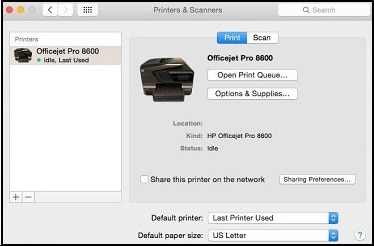
  1. Click the Apple menu, click System Preferences, and then click Print & Scan or Printers & Scanners.

    Figure : Example of the Printers & Scanners window

     Example of the Printers & Scanners window
  2. Check if your printer name displays in the Printers list, and then do one of the following steps.

    • If your printer is listed, remove and re-add the printer to confirm it is set up for AirPrint. Click the printer name, click the minus sign to delete the printer, click the plus sign , click Add Printer or Scanner, click the printer name and then continue to the next step.
    • If your printer is not listed, click the plus sign, click Add Printer or Scanner, click the name of your printer, and then continue to the next step.

    • If your printer is not listed in the Add Printer or Scanner window, go to the Frequently asked questions in this document to resolve connection issues, try to add the printer again, and then continue to the next step.

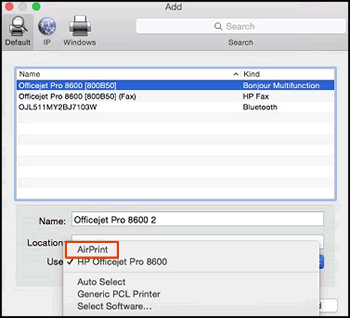
  3. Confirm AirPrint or Secure AirPrint displays in the Use or Print Using menu, and then click Add.

    Figure : AirPrint displays in the Use menu

    Select AirPrint from the Use menu
  4. Open a document or photo, click File, and then click Print.

Please try these steps and keep me posted if you need further assistance


Thank you 🙂


If the information I've provided was helpful, give us some reinforcement by clicking the "Solution Accepted" 


KrazyToad
I Am An HP Employee

View solution in original post

1 REPLY 1
HP Recommended

@Metadata_Maven


Welcome to HP Forums. This is a great place to get support, find answers and tips.


I understand that you are unable to print and you are getting the error " Unable to Communicate with Printer. The print job could not be completed because the printer is unavailable or not connected "


I'd like to help.


Let's remove and re-add the printer

  1. Click the Apple menu, click System Preferences, and then click Print & Scan or Printers & Scanners.

    Figure : Example of the Printers & Scanners window

     Example of the Printers & Scanners window
  2. Check if your printer name displays in the Printers list, and then do one of the following steps.

    • If your printer is listed, remove and re-add the printer to confirm it is set up for AirPrint. Click the printer name, click the minus sign to delete the printer, click the plus sign , click Add Printer or Scanner, click the printer name and then continue to the next step.

    • If your printer is not listed, click the plus sign, click Add Printer or Scanner, click the name of your printer, and then continue to the next step.

    • If your printer is not listed in the Add Printer or Scanner window, go to the Frequently asked questions in this document to resolve connection issues, try to add the printer again, and then continue to the next step.

  3. Confirm AirPrint or Secure AirPrint displays in the Use or Print Using menu, and then click Add.

    Figure : AirPrint displays in the Use menu

    Select AirPrint from the Use menu
  4. Open a document or photo, click File, and then click Print.

Please try these steps and keep me posted if you need further assistance


Thank you 🙂


If the information I've provided was helpful, give us some reinforcement by clicking the "Solution Accepted" 


KrazyToad
I Am An HP Employee

† The opinions expressed above are the personal opinions of the authors, not of HP. By using this site, you accept the <a href="https://www8.hp.com/us/en/terms-of-use.html" class="udrlinesmall">Terms of Use</a> and <a href="/t5/custom/page/page-id/hp.rulespage" class="udrlinesmall"> Rules of Participation</a>.