
-
×InformationNeed Windows 11 help?Check documents on compatibility, FAQs, upgrade information and available fixes.
Windows 11 Support Center. -
-
×InformationNeed Windows 11 help?Check documents on compatibility, FAQs, upgrade information and available fixes.
Windows 11 Support Center. -
- HP Community
- Printers
- Printer Setup, Software & Drivers
- Unsuccessful Network Installation - HP Deskjet Ink Advantage...

Create an account on the HP Community to personalize your profile and ask a question
Your account also allows you to connect with HP support faster, access a personal dashboard to manage all of your devices in one place, view warranty information, case status and more.
Check some of the most frequent questions about Instant Ink: HP INSTANT INK, HP+ PLANS: INK AND TONER.
Check out our WINDOWS 11 Support Center info about: OPTIMIZATION, KNOWN ISSUES, FAQs AND MORE.

It has been a while since anyone has replied. Simply ask a new question if you would like to start the discussion again.

02-23-2019
01:14 PM
- last edited on
02-02-2026
08:29 PM
by
 Raj_05
 HP Recommended
Product: HP Deskjet Ink Advantage 4535
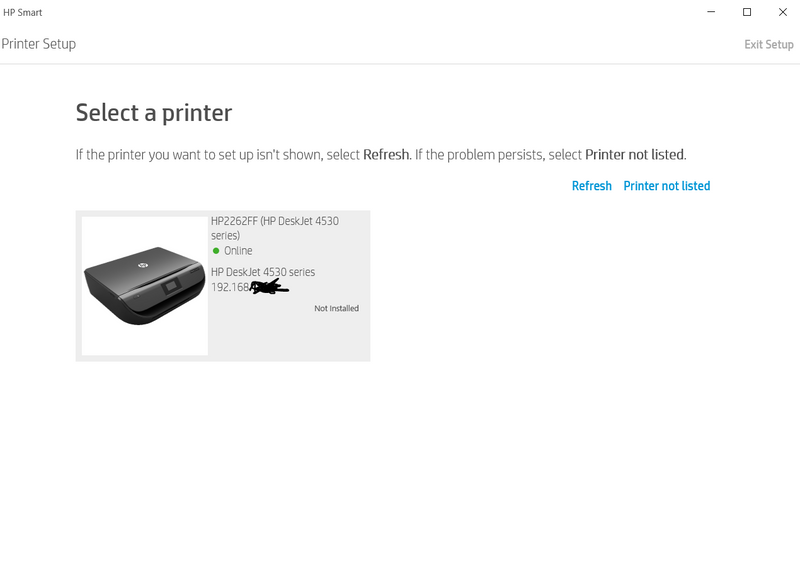
Hi, I've been troubleshooting this for a long time and I need help. I already checked the internet for a fix and I already followed the steps indicated here: https://support.hp.com/bg-en/document/c05032099. I already uninstalled all HP programs using revo uninstaller, removed the driver from printer server, rebooted my printer, PC, and router. I make sure both printer and my PC connected to the same wifi network/SSID. I checked the IP adress and manually inputted it in control panel and windows 10 settings but still it wont connect. The HP printer sometimes showed as online but when I click it, the response was my printer is offline even it is not. I can print and scan using my android's HP app but when I try to use the same app from windows app store "HP App", It won't work. Please help me solve this. I'll attach screenshots for reference. Thank you.


12 REPLIES 12


02-26-2019 08:25 AM
HP Recommended
Welcome to the HP Support Community.
Do try creating another Windows account and then try installing the Printer:
Once done, please download and install the software from here:
https://support.hp.com/in-en/drivers
If the information I've provided was helpful, give us some reinforcement by clicking the Accepted Solution and Kudos buttons, that'll help us and others see that we've got the answers!
Thanks!
Have a great day!
I am an HP Employee
03-04-2019 08:18 AM
HP Recommended
Hi Sorry for the late response. I just created new account today and installed the HP program from website. But still im getting error "Unsuccessful installation". I read it somewhere in the internet that some reinstalled windows and installed the printer first before applying windows update. But I cannot do that and it's too hassle for me to personalize my windows again from scratch. Kindly please help me. Thank you.
03-05-2019 12:45 PM
HP Recommended
Let's try to do a root uninstall and reinstall of the software:
Unplug any USB cable, if any, before doing this.
1.) In Windows, search for and open Programs and features
2.) Select your HP Printer
3.) Select Uninstall
4.) In Windows, search for and open Devices and printers
5.) In the Devices and Printers windows look for your HP printer. If you see it listed right-click on it and choose 'Delete' or 'Remove Device'
6.) Open up the run command with the "Windows key + R" key combo.
7.) Type printui.exe /s and click Ok. (Note: there is a space in between “printui.exe” and “/s”)
8.) Click on the "Drivers" tab
9.) Look for HP Printer driver. If you see it Click on it and click Remove at the bottom
10.) Select Ok
11.) Select Apply and Ok on the Print Server Properties windows
12.) Close Devices and Printers
13.) Open up the run command with the "Windows key + R" key combo
14.) Type c:/programdata and click Ok. Go to Hewlett Packard folder, remove any printer related folders & files.
15.) Restart the computer.
Once done, please download and install the software from here:
https://support.hp.com/in-en/drivers
Let me know if this helps.
If the information I've provided was helpful, give us some reinforcement by clicking the Accepted Solution and Kudos buttons, that'll help us and others see that we've got the answers!
Thanks!
I am an HP Employee
03-11-2019 02:53 PM
HP Recommended
Hi. I carefully followed your instructions but still "Unsuccessful Network Installation". I also checked the "file and priter sharing" in network and sharing center. It is turned on. I forgot to tell you it once miraculously work for like 3 days using windows store "HP Smart" but when I used it again it says my printer is "offline" even it is turned on. I dont know what I did to make it work but also suddenly it doesn't work after few days. That was more than a month ago. Is there any other solution? Thank you.

03-11-2019 05:31 PM
HP Recommended
I have the same exact issue on my HP Officejet pro 8610. Ithis all started after the last windows update in early January. It might be time for an updated version of the driver package maybe. use the HP Print and Scan doctor , uninstalled and reinstall software. nothin gseems to work. 

Be alert for scammers posting fake support phone numbers and/or email addresses on the community.
If you think you have received a fake HP Support message, please report it to us by clicking on "Flag Post".
† The opinions expressed above are the personal opinions of the authors, not of HP. By using this site, you accept the Terms of Use and Rules of Participation.


Didn't find what you were looking for?
Ask the community
† The opinions expressed above are the personal opinions of the authors, not of HP. By using this site, you accept the <a href="https://www8.hp.com/us/en/terms-of-use.html" class="udrlinesmall">Terms of Use</a> and <a href="/t5/custom/page/page-id/hp.rulespage" class="udrlinesmall"> Rules of Participation</a>.