• ×
    Information
    Need Windows 11 help?
    Check documents on compatibility, FAQs, upgrade information and available fixes.
    Windows 11 Support Center.
  • post a message
  • ×
    Information
    Need Windows 11 help?
    Check documents on compatibility, FAQs, upgrade information and available fixes.
    Windows 11 Support Center.
  • post a message
Guidelines
Seize the moment! nominate yourself or a tech enthusiast you admire & join the HP Community Experts!
Check some of the most frequent questions about Instant Ink: HP INSTANT INK, HP+ PLANS: INK AND TONER.


Check out our WINDOWS 11 Support Center info about: OPTIMIZATION, KNOWN ISSUES, FAQs AND MORE.
HP Recommended
HP
Microsoft Windows 10 (64-bit)

I very much would like to print wallet sized pictures from my brand new HP Envoy 700 printer, but there is just no option to do that! Can anyone help me with this dilemma or help me with a work around. Thank you  

1 REPLY 1
HP Recommended

@JohnThomas301 


This is one of those things that was super easy using Windows Photo Viewer (if you could still get a hold of it).


There are other methods / programs / applications out there.

Worth looking if you want to do this all the time, I think.


If you are satisfied to have just one little photo on your paper, it is still very easy to do.


The following assumes you have the Full Feature Software / full driver printer software installed and that you have also installed the HP Smart Windows application.


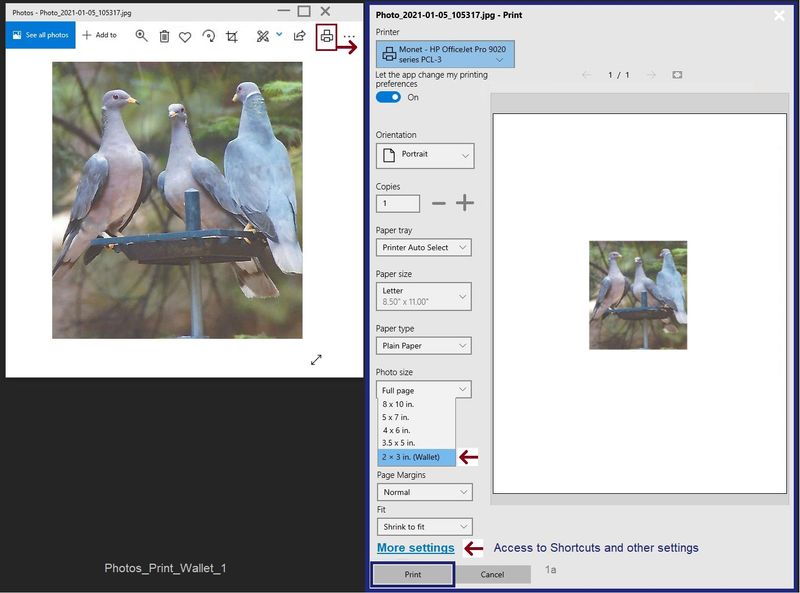
Open Windows Photos > Open your photo to print > Click Print icon

Adjust settings and Print...


The following example leaves the paper size to Letter and the paper type to plain.

It is easy enough to adjust those settings.

For example, printing on a little 4x6 photo paper would be nice.


Example

Photos_Print_Wallet_1Photos_Print_Wallet_1


HP Printer Home Page - References and Resources – Learn about your Printer  - Solve Problems

 “Things that are your printer”

NOTE:  Content depends on device type and Operating System

Categories:  Alerts, Access to the Print and Scan Doctor (Windows), Warranty Check, HP Drivers / Software / Firmware Updates, How-to Videos, Bulletins/Notices, Lots of How-to Documents, Troubleshooting, Manuals > User Guides, Product Information (Specifications), more

When the website support page opens, Select (as available) a Category > Topic > Subtopic

Product Home

Enter the type and name of your HP device


Thank you for participating in the HP Community.

The Community is a separate wing of the HP website - We are not an HP business group.

Our Community is comprised of volunteers - people who own and use HP devices.

Click Thumbs Up to say Thank You.

Question / Concern Answered, Click "Accept as Solution"

Dragon-Fur

† The opinions expressed above are the personal opinions of the authors, not of HP. By using this site, you accept the <a href="https://www8.hp.com/us/en/terms-of-use.html" class="udrlinesmall">Terms of Use</a> and <a href="/t5/custom/page/page-id/hp.rulespage" class="udrlinesmall"> Rules of Participation</a>.