
-
×InformationNeed Windows 11 help?Check documents on compatibility, FAQs, upgrade information and available fixes.
Windows 11 Support Center. -
-
×InformationNeed Windows 11 help?Check documents on compatibility, FAQs, upgrade information and available fixes.
Windows 11 Support Center. -
- HP Community
- Printers
- Printer Setup, Software & Drivers
- Re: Will my printer work?

Create an account on the HP Community to personalize your profile and ask a question
Your account also allows you to connect with HP support faster, access a personal dashboard to manage all of your devices in one place, view warranty information, case status and more.
Check some of the most frequent questions about Instant Ink: HP INSTANT INK, HP+ PLANS: INK AND TONER.
Check out our WINDOWS 11 Support Center info about: OPTIMIZATION, KNOWN ISSUES, FAQs AND MORE.

It has been a while since anyone has replied. Simply ask a new question if you would like to start the discussion again.

07-11-2020 04:10 PM
 HP Recommended
Product: HP psc 1200 series all-in-one
Hello.
I am trying to install an old printer (psc 1217 all-in-one) on a new laptop (Windows 10), and it isn't working. I've been at it for over an hour now and I'm pretty sure I've tried everything. I noticed someone else had the same issue before, but a solution was not provided. There was one reply and it was not helpful. The advice was the same information that was copy/pasted from the HP website, which I have already tried and it didn't work. Here was the other post: https://h30434.www3.hp.com/t5/Printer-Software-and-Drivers/Does-psc-1200-work-with-windows-10-64-bit.... Can someone just confirm if this is possible or not? I don't want to waste any more time on this if someone can just confirm it is not possible to install. Thanks in advance.
10 REPLIES 10


07-14-2020 10:30 AM
HP Recommended
Hi @OldPrinterFan
Welcome to the HP Support Community.
We do not have drivers available for HP PSC 1200 All-in-One Printer series to be used on windows 10.
Install the built-in print driver over a network connection with Windows 10
-
In Windows, search for and open Control Panel.
-
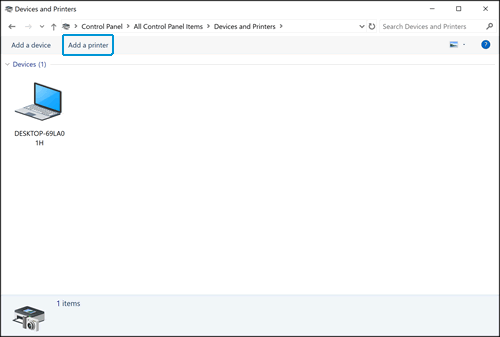
Click Devices and Printers, and then click Add a printer.
-
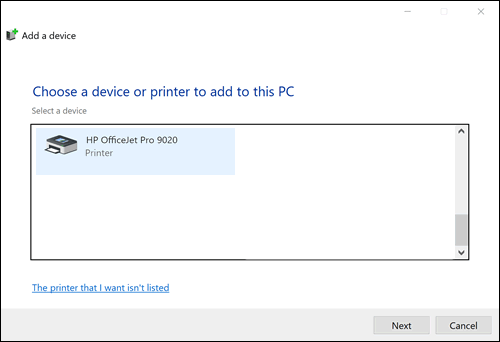
On the Choose a device or printer to add to this PC window, select your printer, click Next, and then follow the on-screen instructions to install the driver. If your printer is not in the list, continue with these steps.
-
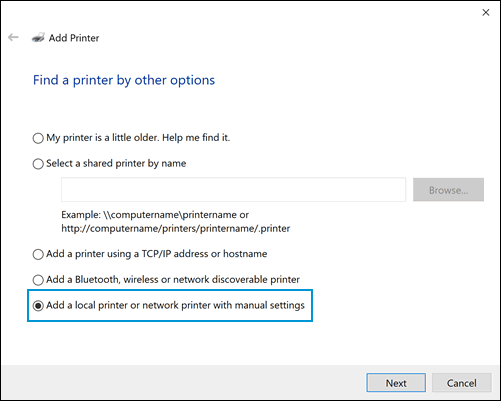
Click The printer I want isn't listed, and then select Add a local printer or network printer with manual settings.
-
Click Next.
-
Select the port to be used by your printer, such as USB001 for a USB connected printer, and then click Next.
-
Click Windows Update, and then wait for the print drivers to update.
-
Click HP, Hewlett-Packard, or Hewlett Packard in the Manufacturer pane, and then click the name of your printer in the Printers pane.
-
If your printer is in the list, select it, click Next, and then follow the on-screen instructions to install the driver.
-
If your printer is not in the list, click the back arrow in the upper left corner of the window two times to return to the Find a printer by other options step, and then continue with these steps.
-
-
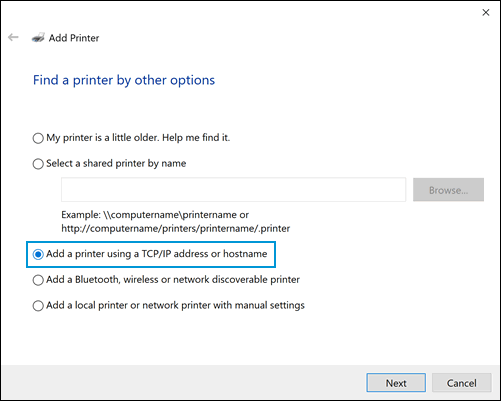
Select Add a printer using TCP/IP address or hostname, and then click Next.
-
Select Autodetect from the Device type drop-down list.
-
Type your printer IP address into the text box, and then click Next.
To find the printer IP address, print a Wireless Network Test report or a Network Configuration page.
-
Wait for the computer to connect to the printer, and then click Next to install the print driver.
Try and print
Hope this helps! Keep me posted.
Please click “Accept as Solution” if you feel my post solved your issue, it will help others find the solution.
Click the “Kudos, Thumbs Up" on the bottom right to say “Thanks” for helping
07-16-2020 08:17 AM
HP Recommended
Hello,
#7 in your list does not show up, but that doesn't seem to matter.
#11 "Type your printer IP address into the text box, and then click Next.
To find the printer IP address, print a Wireless Network Test report or a Network Configuration page."
I don't know what to do regarding step 11. Are you instructing me to print? My printer is not on a network, it is plugged in to my computer with a USB, and I can't print anything, which is why I am posting here. I don't know how I'm supposed to complete step 11.
07-16-2020 08:18 AM
HP Recommended
Hello,
#7 in your list does not show up, but that doesn't seem to matter.
#11 "Type your printer IP address into the text box, and then click Next.
To find the printer IP address, print a Wireless Network Test report or a Network Configuration page."
I don't know what to do regarding step 11. Are you instructing me to print? My printer is not on a network, it is plugged in to my computer with a USB, and I can't print anything, which is why I am posting here. I don't know how I'm supposed to complete step 11.
07-16-2020 08:19 AM
HP Recommended
Hello,
#7 in your list does not show up, but that doesn't seem to matter.
#11 "Type your printer IP address into the text box, and then click Next.
To find the printer IP address, print a Wireless Network Test report or a Network Configuration page."
I don't know what to do regarding step 11. Are you instructing me to print? My printer is not on a network, it is plugged in to my computer with a USB, and I can't print anything, which is why I am posting here. I don't know how I'm supposed to complete step 11.
07-16-2020 08:21 AM
HP Recommended
Hello,
#7 in your list does not show up, but that doesn't seem to matter.
#11 "Type your printer IP address into the text box, and then click Next.
To find the printer IP address, print a Wireless Network Test report or a Network Configuration page."
I don't know what to do regarding step 11. Are you instructing me to print? My printer is not on a network, it is plugged in to my computer with a USB, and I can't print anything, which is why I am posting here. I don't know how I'm supposed to complete step 11.
07-16-2020 10:47 AM
HP Recommended
Can you plug in the usb cable ?
Install the built-in print driver for a USB connection with Windows 10
-
In Windows, search for and open Control Panel.
-
Click Devices and Printers, and then click Add a printer.
-
On the Choose a device or printer to add to this PC window, select your printer, click Next, and then follow the on-screen instructions to install the driver. If your printer is not in the list, continue with these steps.
-
Click The printer I want isn't listed, and then select Add a local printer or network printer with manual settings.
-
Click Next.
-
Select Use an existing port (USB001: Virtual printer port for USB), and then click Next.
-
Click Windows Update, and then wait for the print drivers to update.
-
Click HP, Hewlett-Packard, or Hewlett Packard in the Manufacturer pane, and then click the name of your printer in the Printers pane.
-
Click Next, and then follow the on-screen instructions to install the driver.
-
Disconnect the printer USB cable from the computer, and then reconnect the cable.
Let me know how this goes!
07-17-2020 10:33 AM
HP Recommended
In that case, select the HP Deskjet 990c or Deskjet 6980 printer driver from the list and continue the installation. Later, you may rename the printer as HP Psc 1200 Series All-In-One.
Let me know how this goes.
KUMAR0307
I am an HP Employee
08-03-2020 06:29 PM
HP Recommended
Hello. This also did not work. I was able to get past the screen where I select a printer, but I get an error when I try to print anything. I don't think the driver that was downloaded is actually usable with my printer. I am giving up now.

Be alert for scammers posting fake support phone numbers and/or email addresses on the community.
If you think you have received a fake HP Support message, please report it to us by clicking on "Flag Post".
† The opinions expressed above are the personal opinions of the authors, not of HP. By using this site, you accept the Terms of Use and Rules of Participation.


Didn't find what you were looking for?
Ask the community
† The opinions expressed above are the personal opinions of the authors, not of HP. By using this site, you accept the <a href="https://www8.hp.com/us/en/terms-of-use.html" class="udrlinesmall">Terms of Use</a> and <a href="/t5/custom/page/page-id/hp.rulespage" class="udrlinesmall"> Rules of Participation</a>.