• ×
    Information
    Need Windows 11 help?
    Check documents on compatibility, FAQs, upgrade information and available fixes.
    Windows 11 Support Center.
  • post a message
  • ×
    Information
    Need Windows 11 help?
    Check documents on compatibility, FAQs, upgrade information and available fixes.
    Windows 11 Support Center.
  • post a message
Guidelines
Seize the moment! nominate yourself or a tech enthusiast you admire & join the HP Community Experts!
Check some of the most frequent questions about Instant Ink: HP INSTANT INK, HP+ PLANS: INK AND TONER.


Check out our WINDOWS 11 Support Center info about: OPTIMIZATION, KNOWN ISSUES, FAQs AND MORE.
HP Recommended
officejet Pro 8720
Microsoft Windows 10 (64-bit)

Ever since I undated windows 10 version 1903 for x64 KB4515384 my Officejet Pro 8720 will periodically not allow the printer to scan to my laptop. I am continually receiving a message that the communication can not be established. I have uninstalled and reinstalled the driver software several times and also had HP Tech Support complete checks, removing the software, reinstalling. It seems to "communicate" the first time when the software is reinstalled, then crashes... Can anyone please help?  

1 REPLY 1
HP Recommended

@Scooter781, Welcome to HP Support Community!


Are you able to print from the PC?

Is there any antivirus/security software installed on your PC?


Use HP Print and Scan Doctor

Download HP Print and Scan Doctor and run the program. It will automatically diagnose and fix any printer connectivity issues. 

For more information, go to https://support.hp.com/us-en/topic/printscandoctor


Update the printer firmware

Download available firmware updates from the HP website

With the printer on and connected to the computer, go to HP Customer Support - Software and Driver Downloads, and then identify your printer. Look for and install any available firmware updates.

For more information, go to Updating or Upgrading Printer Firmware.


Check Windows Image Acquisition settings

Windows Image Acquisition (WIA) is a Windows service that helps communication between the computer and scanners. If WIA is not activated, scan jobs can fail.

  1. In Windows, search for and open View local services.

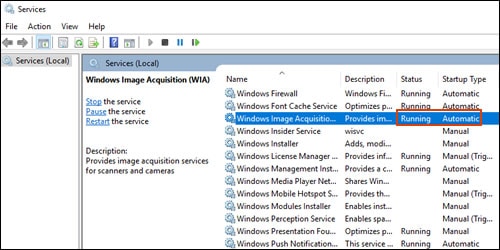
  2. In the Services window, scroll down the list and find Windows Image Acquisition (WIA).

  3. Look at the Status and Startup Type values.

    • If the status is Started or Running and the Startup Type is Automatic, WIA is running correctly. Skip to the next step.

      Making sure WIA Status is Running and Startup Type is Automatic

    • If the status is Disabled or no status displays, right-click Windows Image Acquisition (WIA), click Properties, click the General tab, select Automatic from the Startup type dropdown menu, and then click Start.

      If the Start button is grayed out, go back to the Services menu, make sure Remote Procedure Call, Shell Hardware Detection, RPC Endpoint Mapper, and DCOM Server Process Launcher are running and set as Automatic, and then start WIA.

Try to scan. 


If the issue persists, you can try scanning using the HP Smart app and see if that works.


Hope this helps! Keep me posted. 


Please click “Accept as Solution” if you feel my post solved your issue, it will help others find the solution. Click the “Kudos/Thumbs Up" on the bottom right to say “Thanks” for helping!

TEJ1602
I am an HP Employee

† The opinions expressed above are the personal opinions of the authors, not of HP. By using this site, you accept the <a href="https://www8.hp.com/us/en/terms-of-use.html" class="udrlinesmall">Terms of Use</a> and <a href="/t5/custom/page/page-id/hp.rulespage" class="udrlinesmall"> Rules of Participation</a>.