• ×
    Information
    Need Windows 11 help?
    Check documents on compatibility, FAQs, upgrade information and available fixes.
    Windows 11 Support Center.
  • post a message
  • ×
    Information
    Need Windows 11 help?
    Check documents on compatibility, FAQs, upgrade information and available fixes.
    Windows 11 Support Center.
  • post a message
Guidelines
Join the HP Community Solve‑a‑thon | Help Others & Share Your Solutions | Live on Zoom | 2:30 PM to 2:30 AM IST | Every Wednesday Click here to know more
Check some of the most frequent questions about Instant Ink: HP INSTANT INK, HP+ PLANS: INK AND TONER.


Check out our WINDOWS 11 Support Center info about: OPTIMIZATION, KNOWN ISSUES, FAQs AND MORE.
HP Recommended
HP photosmart plus B209
Mac OS X 10.10 Yosemite

Hi I have just had to change my wireless router and can't get my printer to pick up the new wireless signal.  When I print the wireless network test report it says wireless is on and working, but says fail for "network name SSID found".  The printer works fine if I connect a USB cable between the printer and the laptop.   I have clicked restore factory settings on the printer but can't get the wireless working.  Any advice on this would be very gratefully received please.  

3 REPLIES 3
HP Recommended

@Anna45


A warm welcome to HP Forums!This is a great place to get support, find answers and tips to your technical queries.
I believe we can use HP Utility and convert the USB connected printer to Wireless. Here is how to do it:

1.) On your Mac, open Finder, click Applications.

2.) Open HP or Hewlett Packard folder.

3.) Open HP Utility (If HP Utility is not available, download and install the HP Software package from here.)

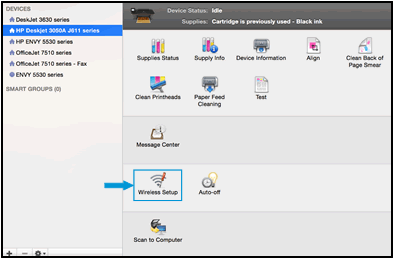
4.) Click Wireless Setup.

Image: Click Wireless Setup in  HP Utility


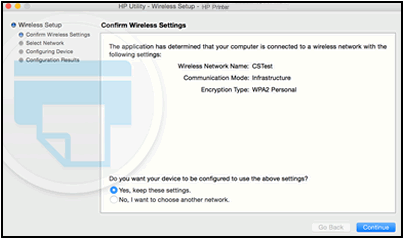
5.) Make sure your network is listed on the Confirm Wireless Settings screen, and then click Continue to complete the wireless configuration.

Image: Confirm your network displays to configure the connection


6) Disconnect the USB cable from the printer and the computer.

7.) Use the steps available here to update the software on Mac.

8.) Click the Apple menu, click System Preferences, and then click Print & Scan or Printers & Scanners.

9.) Check if your printer name displays in the Printers list, If your printer is listed, click the printer name, click the minus sign to delete the printer.

10.) If you see multiple printer queues for the same printer, remove all extra printers by selecting them one at a time, and then clicking the minus button  at the bottom of the list.

11.) Click the plus sign , click Add Printer or Scanner, click the printer name.
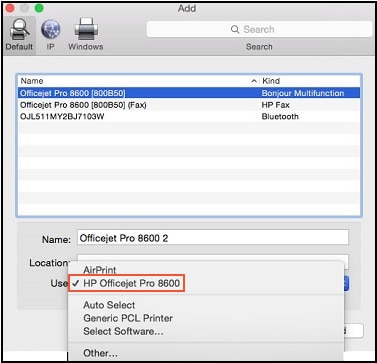

12.) Click the Use or Print Using menu, select the name of your printer in the pop-up menu. Then click Add.

Select the name of your printer in the Use menu


13.) Try to print.

Let me know how it goes!


If the information I've provided was helpful, give us some reinforcement by clicking the Accepted Solution and Kudos buttons, that'll help us and others see that we've got the answers!
Have a great day!

Senan6806


I am an HP Employee

HP Recommended

Hi 


Many thanks for your reply.   When I get to step 4 there is no option "wireless set up" to select so unfortunately this hasn't resolved this.


By searching on the web it looks like it might be something to do with the fact that the new router is 5.5ghz and the printer works at 2.2ghz

HP Recommended

@Anna45


HP Consumer Printers do not work on 5.5 Ghz. Both printer and router should be on the same frequency


Thank you and have a great weekend 😊


If the information I've provided was helpful, give us some reinforcement by clicking the "Solution Accepted" on this Post and it will also help other community members with similar issue.
 

KrazyToad
I Am An HP Employee

† The opinions expressed above are the personal opinions of the authors, not of HP. By using this site, you accept the <a href="https://www8.hp.com/us/en/terms-of-use.html" class="udrlinesmall">Terms of Use</a> and <a href="/t5/custom/page/page-id/hp.rulespage" class="udrlinesmall"> Rules of Participation</a>.