• ×
    Information
    Need Windows 11 help?
    Check documents on compatibility, FAQs, upgrade information and available fixes.
    Windows 11 Support Center.
  • post a message
  • ×
    Information
    Need Windows 11 help?
    Check documents on compatibility, FAQs, upgrade information and available fixes.
    Windows 11 Support Center.
  • post a message
Guidelines
Seize the moment! nominate yourself or a tech enthusiast you admire & join the HP Community Experts!
Check some of the most frequent questions about Instant Ink: HP INSTANT INK, HP+ PLANS: INK AND TONER.


Check out our WINDOWS 11 Support Center info about: OPTIMIZATION, KNOWN ISSUES, FAQs AND MORE.
HP Recommended
Laserjet m29w
Mac OS X 10.11 El Capitan

hi!  we just bought an m29w and we can’t figure out how to set up the email the scanner send to.


I confirmed on the official m29w product page:

 
Easily scan files directly to PDF and email with preloaded business apps.
 
I followed the instructions in this support page.  And was able to open up the EWS (embedded web server) for our printer.
I was able to navigate to the System tab and the Administration item on the left and i don’t see “enabled features”
HP LaserJet MFP M29w - web config - Administration - System.png


How can we enable/config Scan to Email on our m29w?

1 REPLY 1
HP Recommended

@udance4ever, Welcome to the HP Support Community!


According to the printer specifications and the user guide, this printer does not support scan to email from the printer as it does not have a touch screen.


To assist you better, have you tried scanning to the MAC and check if that works?

  1. Confirm the following requirements for the scan to email feature. If you do not meet these requirements, you can manually attach the file to an email message by saving the scan to a folder on the computer.

    • Scan to email works best when a local email client, such as Apple Mail, is installed and set up on the computer.

    • Web-based email accounts (**bleep**, Yahoo Mail, Hotmail) must be configured through your local email client to scan to them. Check your local email support site for additional information.

  2. Start the scan.

    • Printers with touchscreen or LCD menu control panels: From the Scan menu on the printer, select your computer name, and then select Email as PDF or Email as JPEG A new email message automatically opens on the computer.

      Some Web-enabled HP printers have a Scan to Email app in the Apps menu that sends emails from the printer using your printer's ePrint email address.

    • Printers with buttons only or printers without scan to email menu options: Continue to the next step to start the scan from the computer.

  3. Open Finder , click Go in the top menu bar, click Applications, and then double-click Image Capture.
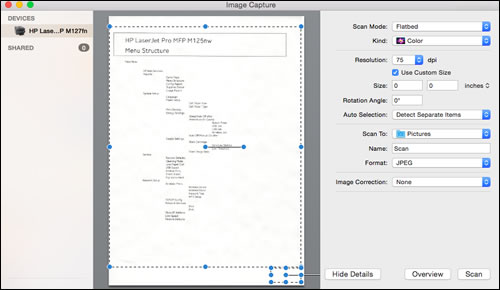
     Apple Image Capture

  4. Click your printer name in the Devices or Shared list, and then click Show Details at the bottom of the screen, if necessary.

    After the preview of the scan displays, change the following settings:

    • Scan Mode: Select the scanning bed or automatic document feeder.

    • Scan to: Select Mail.

    • Name: Type a name for the scan file.

    • Format: Select the file type for the scan. When you select the PDF or TIFF format, the Combine into single document feature is available to save multiple page documents or multiple images into a single file.

  5. Click Scan.

    A new email message automatically opens with the scan attached.

Hope this helps! Keep me posted. 


Please click “Accept as Solution” if you feel my post solved your issue, it will help others find the solution.

Click the “Kudos, Thumbs Up" on the bottom right to say “Thanks” for helping!

Have a great day! 

KUMAR0307
I am an HP Employee

† The opinions expressed above are the personal opinions of the authors, not of HP. By using this site, you accept the <a href="https://www8.hp.com/us/en/terms-of-use.html" class="udrlinesmall">Terms of Use</a> and <a href="/t5/custom/page/page-id/hp.rulespage" class="udrlinesmall"> Rules of Participation</a>.


