• ×
    Information
    Need Windows 11 help?
    Check documents on compatibility, FAQs, upgrade information and available fixes.
    Windows 11 Support Center.
  • post a message
  • ×
    Information
    Need Windows 11 help?
    Check documents on compatibility, FAQs, upgrade information and available fixes.
    Windows 11 Support Center.
  • post a message
Guidelines
Join the HP Community Solve‑a‑thon | Help Others & Share Your Solutions | Live on Zoom | 2:30 PM to 2:30 AM IST | Every Wednesday Click here to know more
Check some of the most frequent questions about Instant Ink: HP INSTANT INK, HP+ PLANS: INK AND TONER.


Check out our WINDOWS 11 Support Center info about: OPTIMIZATION, KNOWN ISSUES, FAQs AND MORE.
HP Recommended
OfficeJet Pro 7740
macOS 10.14 Mojave

Hello,

I am running Mojave 10.14.3  

When I install HP Easy Start 2.9.0 from the HP website for my OfficeJet Pro 7740 , it installs just fine, but when it goes to the screen "retrieving data" - the blue circle just spins and spins & doesn't go past that.


 I recently upgraded to Mojave, when I went to print, the dialog box would say " Ready to Print - 'Filter' failed. In the printer dialog box. So I decided to reinstall a driver to fix this problem - but now there is another problem.


I have uninstalled all HP software & tried again, but nothing is working. Any suggestions?


T

1 REPLY 1
HP Recommended
Hello,

In order to compensate for this incident, 
restart the printer, computer, and router.
  1. Turn the printer off, and then wait 10 seconds.
  2. Disconnect the printer power cord from the printer.
  3. Turn off the computer or the device you are trying to print from.
  4. Connect the printer power cord to the printer, and then turn on the printer.
  5. Disconnect the power cord from your wireless router, and then wait 30 seconds.
  6. Reconnect the power cord to the router.
     NOTE: 
    Wait until internet service is restored. Internet service is interrupted while the router is off.
  7. Wait at least 3 minutes, then turn on the Mac.
  8. Take the next step.


Resetting the printing system can help resolve some error states by removing all printers, print tasks and HP and third-party printer preferences.

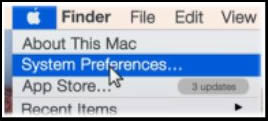
  1. Click on the Apple (e043ddf1a45711e13f0b30612db65e21) menu, then click System Preference.
  2. Click on Printers and scanners.
  3. Click right (or Control-click) anywhere in the Printers window, then click Reset printing system.

  4. Click Reset in the window
  5. Identify yourself as an administrator, then click OK to confirm the reset.
  6. Restart your Mac.
  7. Take the next step.


Some HP software components may not be installed properly, even if the driver and printer configuration is not complete.

  1. Click Finder (c05835001) in the Dock.
  2. In the menu bar, click Go, click Applications, and then open the HP or Hewlett Packard folder.
  3. Double-click on the HP Uninstall Program,then follow the on-screen instructions to remove HP software from the computer.

    NOTE:
    If you have problems uninstalling HP software, go to the HP Uninstalling HP Printer Software (Mac) for additional help.
  4. Restart the Mac.
  5. Start a new installation with HP Easy Start.
  6. Try printing.

Don't hesitate to ask us if you need us.


Best regards,


I'm not an HP employee. Did this message answer your question? Include it below as an Accept As Solution! Did you find this message useful?  Click on the thumbs up set to give a Compliment! Follow us on Facebook Assistance customers HP.

† The opinions expressed above are the personal opinions of the authors, not of HP. By using this site, you accept the <a href="https://www8.hp.com/us/en/terms-of-use.html" class="udrlinesmall">Terms of Use</a> and <a href="/t5/custom/page/page-id/hp.rulespage" class="udrlinesmall"> Rules of Participation</a>.