
-
×InformationNeed Windows 11 help?Check documents on compatibility, FAQs, upgrade information and available fixes.
Windows 11 Support Center. -
-
×InformationNeed Windows 11 help?Check documents on compatibility, FAQs, upgrade information and available fixes.
Windows 11 Support Center. -
- HP Community
- Printers
- Printer Setup, Software & Drivers
- fingerprint sensor stopped work

Create an account on the HP Community to personalize your profile and ask a question
Your account also allows you to connect with HP support faster, access a personal dashboard to manage all of your devices in one place, view warranty information, case status and more.
Check some of the most frequent questions about Instant Ink: HP INSTANT INK, HP+ PLANS: INK AND TONER.
Check out our WINDOWS 11 Support Center info about: OPTIMIZATION, KNOWN ISSUES, FAQs AND MORE.

It has been a while since anyone has replied. Simply ask a new question if you would like to start the discussion again.

05-01-2021 02:18 PM
 HP Recommended
Product: Exemplo: Pavilion x360 14mdh1
Operating System: Microsoft Windows 10 (64-bit)
fingerprint biometric stopped work after antivirus insttalation
Solved! Go to Solution.
1 ACCEPTED SOLUTION
Accepted Solutions


05-04-2021 12:15 PM
HP Recommended
Hi@Mabbud, Welcome to the HP Support Community!
I understand that the notebook fingerprint reader stopped working.
To see if Windows supports the fingerprint reader on your computer:
-
At the Start screen, type device manager to open the Search charm, and then select Device Manager in the search results.
Figure : Search results list

-
In Device Manager, click Biometric or Biometric Devices to expand the list of recognized biometric sensor devices. The fingerprint sensor is listed as a Validity Sensor or AuthenTec Sensor, depending on the model number of your computer.
Figure : Biometric Validity Sensor

-
If there is no Biometric entry, then Windows cannot identify the fingerprint reader hardware. This is because the hardware may not be installed on the notebook, or it may be damaged. Contact HP for technical support or repair service.
If there is a Biometric entry, then Windows supports the device.
To make sure the Windows device driver for the fingerprint reader is up-to-date; follow the steps in Updating the device driver.
Cleaning the fingerprint reader
Periodically clean the fingerprint reader sensor to remove dirt and oil.
CAUTION:Do not use a wet cloth because moisture may damage the sensor. Do not use a paper towel because the paper may scratch the surface of the sensor.
NOTE:Before using the fingerprint reader, be sure that your fingers are clean.
Wipe the area with a soft cloth, dampened with an ammonia-based glass cleaner.
Press the sticky side of a piece of adhesive cellophane tape on the sensor and then peel it away to collect the dust and dirt particles.
Updating the fingerprint reader device driver in Windows 8
The fingerprint reader hardware requires a device driver to allow software to control it. For best performance, check hp.com for device driver updates for your specific model. Depending on the model, HP computers use Validity or AuthenTec drivers.
To update the fingerprint reader device driver:
-
Identify the version of the fingerprint reader device driver currently installed. Open the Device Manager, and then expand the Biometric list of recognized sensor devices.
-
Right-click the device, and then select Properties. Select the Driver tab. The driver version is displayed.
Figure : Sensor driver version

-
To find driver updates for your notebook model, open a web browser and go to hp.com.
-
Select Support & Drivers, and then enter your product number.
-
Select the operating system currently on the computer, scroll down, and then expand Drivers - Keyboard, Mouse and Input Devices. The fingerprint sensor driver is listed. Note the version number and date.
-
If the driver available on the web site is a later version, download and install it. If the installed driver is the same version, right-click the device driver, and then select Update driver software to refresh the driver.
If your device driver is up-to-date, see if your access manager software is compatible with your fingerprint reader.
Please share the info I can share the troubleshooting step to resolve the issue
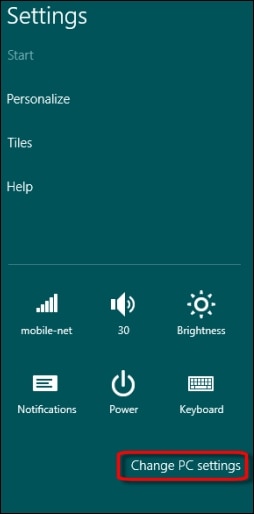
Click the Settings charm, click Change PC Settings, and then click Accounts.
Figure : Opening the Accounts page
-
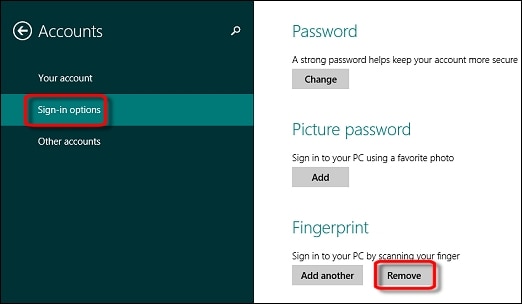
Under Accounts, click Sign-in options, under Fingerprint, click Remove, and then close Accounts.
Figure : Removing fingerprints
-
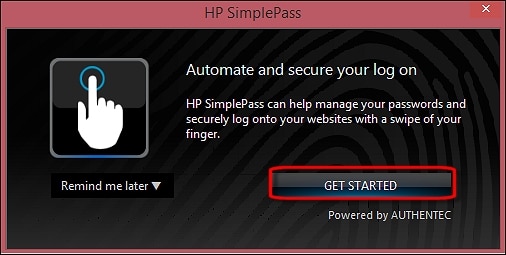
At the Windows 8 Start screen, type HP SimplePass. In the search results, click HP SimplePass to open the program.
-
SimplePass opens on the desktop. Follow the on-screen instructions to enroll your fingerprints.
Figure : HP SimplePass
Keep me posted. Happy to help!
Please click “Accept as Solution” if you feel my post solved your issue, it will help others find the solution.
Click the “Kudos, Thumbs Up" on the bottom right to say “Thanks” for helping!
Have a great day!
2 REPLIES 2
05-04-2021 12:15 PM
HP Recommended
Hi@Mabbud, Welcome to the HP Support Community!
I understand that the notebook fingerprint reader stopped working.
To see if Windows supports the fingerprint reader on your computer:
-
At the Start screen, type device manager to open the Search charm, and then select Device Manager in the search results.
Figure : Search results list
-
In Device Manager, click Biometric or Biometric Devices to expand the list of recognized biometric sensor devices. The fingerprint sensor is listed as a Validity Sensor or AuthenTec Sensor, depending on the model number of your computer.
Figure : Biometric Validity Sensor
-
If there is no Biometric entry, then Windows cannot identify the fingerprint reader hardware. This is because the hardware may not be installed on the notebook, or it may be damaged. Contact HP for technical support or repair service.
If there is a Biometric entry, then Windows supports the device.
To make sure the Windows device driver for the fingerprint reader is up-to-date; follow the steps in Updating the device driver.
Cleaning the fingerprint reader
Periodically clean the fingerprint reader sensor to remove dirt and oil.
CAUTION:Do not use a wet cloth because moisture may damage the sensor. Do not use a paper towel because the paper may scratch the surface of the sensor.
NOTE:Before using the fingerprint reader, be sure that your fingers are clean.
Wipe the area with a soft cloth, dampened with an ammonia-based glass cleaner.
Press the sticky side of a piece of adhesive cellophane tape on the sensor and then peel it away to collect the dust and dirt particles.
Updating the fingerprint reader device driver in Windows 8
The fingerprint reader hardware requires a device driver to allow software to control it. For best performance, check hp.com for device driver updates for your specific model. Depending on the model, HP computers use Validity or AuthenTec drivers.
To update the fingerprint reader device driver:
-
Identify the version of the fingerprint reader device driver currently installed. Open the Device Manager, and then expand the Biometric list of recognized sensor devices.
-
Right-click the device, and then select Properties. Select the Driver tab. The driver version is displayed.
Figure : Sensor driver version
-
To find driver updates for your notebook model, open a web browser and go to hp.com.
-
Select Support & Drivers, and then enter your product number.
-
Select the operating system currently on the computer, scroll down, and then expand Drivers - Keyboard, Mouse and Input Devices. The fingerprint sensor driver is listed. Note the version number and date.
-
If the driver available on the web site is a later version, download and install it. If the installed driver is the same version, right-click the device driver, and then select Update driver software to refresh the driver.
If your device driver is up-to-date, see if your access manager software is compatible with your fingerprint reader.
Please share the info I can share the troubleshooting step to resolve the issue
Click the Settings charm, click Change PC Settings, and then click Accounts.
Figure : Opening the Accounts page
-
Under Accounts, click Sign-in options, under Fingerprint, click Remove, and then close Accounts.
Figure : Removing fingerprints
-
At the Windows 8 Start screen, type HP SimplePass. In the search results, click HP SimplePass to open the program.
-
SimplePass opens on the desktop. Follow the on-screen instructions to enroll your fingerprints.
Figure : HP SimplePass
Keep me posted. Happy to help!
Please click “Accept as Solution” if you feel my post solved your issue, it will help others find the solution.
Click the “Kudos, Thumbs Up" on the bottom right to say “Thanks” for helping!
Have a great day!
05-10-2021 08:42 AM
HP Recommended
Try doing this reconfigure fingerprint reader Under Accounts, click Sign-in options, under Fingerprint, click Remove, and then close Accounts.
-
Figure : Removing fingerprints
-
At the Windows 8 Start screen, type HP SimplePass. In the search results, click HP SimplePass to open the program.
-
SimplePass opens on the desktop. Follow the on-screen instructions to enroll your fingerprints.
Figure : HP SimplePass

Be alert for scammers posting fake support phone numbers and/or email addresses on the community.
If you think you have received a fake HP Support message, please report it to us by clicking on "Flag Post".
† The opinions expressed above are the personal opinions of the authors, not of HP. By using this site, you accept the Terms of Use and Rules of Participation.


Didn't find what you were looking for?
Ask the community
† The opinions expressed above are the personal opinions of the authors, not of HP. By using this site, you accept the <a href="https://www8.hp.com/us/en/terms-of-use.html" class="udrlinesmall">Terms of Use</a> and <a href="/t5/custom/page/page-id/hp.rulespage" class="udrlinesmall"> Rules of Participation</a>.