• ×
    Information
    Need Windows 11 help?
    Check documents on compatibility, FAQs, upgrade information and available fixes.
    Windows 11 Support Center.
  • post a message
  • ×
    Information
    Need Windows 11 help?
    Check documents on compatibility, FAQs, upgrade information and available fixes.
    Windows 11 Support Center.
  • post a message
Guidelines
Seize the moment! nominate yourself or a tech enthusiast you admire & join the HP Community Experts!
Check some of the most frequent questions about Instant Ink: HP INSTANT INK, HP+ PLANS: INK AND TONER.


Check out our WINDOWS 11 Support Center info about: OPTIMIZATION, KNOWN ISSUES, FAQs AND MORE.
HP Recommended
hp officejet 4500
Microsoft Windows 10 (64-bit)

how to make a half card envelope

1 REPLY 1
HP Recommended

@CathyMP 


Welcome to the HP Community.


What size envelope?

That means, what are the dimensions of the envelope?


Read the following and decide whether what you want to do has any chance of working.


Side Bar:

Personally, I cannot offer any advice on using "Stamps.com" to create / print envelopes.

Don't use it and cannot comment on its use...


If you are intending to create a Word document as a template to print your envelope, let me know.

I have an example of how that looks / works.


Start...

==========================================================================

References

 Printer Specifications for HP Officejet 4500 Advantage and Officejet 4575 All-in-One Printer Series


Media Size (facet)Letter; A4; Legal; B5
Media Sizes Custom (imperial)3 x 4 to 8.5 x 30 in
Media Sizes Custom (metric)77 x 102 to 216 x 762 mm
Media TypesPaper (inkjet, photo, plain), envelopes, cards, transparencies, iron-on transfers, HP premium media


and

Supported envelope sizes

Paper type
Paper size
U.S. #10 Envelope
105 x 241 mm (4.12 x 9.5 in)
Monarch Envelope
98 x 191 mm (3.88 x 7.5 in)
Card Envelope
111 x 152 mm (4.4 x 6 in)
A2 Envelope
111 x 146 mm (4.37 x 5.75 in)
DL Envelope
110 x 220 mm (4.3 x 8.7 in)
C6 Envelope
114 x 162 mm (4.5 x 6.4 in)
No. 6 3/4 Envelope
92.2 x 165.1 mm (3.63 x 6.5 in)
C5 Envelope


Notes

  • The PRINTER supports custom size paper
  • Printer is old (product introduced in 2010)
  • The Printer Software is old ( HP Officejet Full Feature Software and Driver )
  • It is unclear whether Windows actually supports custom paper sizes - you will have to discover this for yourself and go from there...


Paper type
Paper size
Custom-sized paper
Between 76.2 to 210 mm wide and 102 to 762 mm long (3 to 8.5 in wide and 4 to 30 in long)


What else?

Assuming the printer will support your custom size,

The printer must be told about the paper you are loading into the printer tray.


Load the envelopes according to the instructions in the  User Guide

Next, tell the printer about the paper.


===========================================================================


  • After you change the paper in the printer, be sure to tell the printer about the paper as best it can understand the setup.
  • Note the mention of selecting "Custom" size in the printer display / EWS when exact dimensions are not listed.
  • Ignore the mention of "Mobile" access to EWS - your printer does not support mobile printing.


Check / Adjust / Retain the Paper at the Printer Display Panel


Section is not applicable to printers lacking a printer display panel.


Open Printer Tray,

If you have not yet done so, add desired paper type

Wait a couple of seconds…

Close Tray


IF applicable for your printer:

Look for a message on the Printer Control / Display Panel,

Click Modify (wording varies), set the paper size and type, Click OK


Note  – Printer Display Panel > Adjusting the paper size:

If the size of your Paper Size is not in the Drop-down menu,

If available: Select Custom (likely the last selection in the list)


=-=-=-=-=-=-=-=-=-=-=-=-=-=-=-=-=-=-=-=-=-=-=-=-=-=-=-=-=-=-=-=-=-=-=-=-=-=-=

Embedded Web Server (EWS)


EWS option is applicable to network connected printers.


If the printer is on the network,

If the EWS feature is supported on your printer,

Use the Embedded Web Server (EWS) to view / configure your printer.


EWS – Browser – Tray and Paper Management

Open your favorite browser > type / enter Printer IP address into URL / Address bar

Tab Settings > Preferences > Tray and Paper Management

If applicable, check the Advanced section (at the bottom of the Tray and Paper Management menu)

Click Apply to save changes


EWS - HP Smart for Mobile - iOS

Reminder: The EWS Tray and Paper settings must be updated before you open the object to be printed.

Open HP Smart (for mobile)

Open Settings

Open Add / Set Up a Printer 

Scroll down, Click, Tray and Paper

As Available:  Check / Adjust settings in Advanced

Click Apply to save changes


EWS - HP Smart – Windows

Start HP Smart Application

Printer Settings

In section Settings > Advanced

Tab Settings > Preferences

Tray and Paper Management

As Available:  Check / Adjust settings in Advanced

Click Apply to save changes


If applicable, check the Advanced section (at the bottom of the Tray and Paper Management menu)

Click Apply to save changes


NOTES

  • Size not listed in the Drop-down menu?  If available:  Select Custom (likely the last selection in the list)
  • EWS is also available in HP Smart Windows and HP Smart Mobile > Settings > Advanced
  • Features and options differ by printer model and type.


=-=-=-=-=-=-=-=-=-=-=-=-=-=-=-=-=-=-=-=-=-=-=-=-=-=-=-=-=-=-=-=-=-=-=-=-=-=-=

Set the Preferences – Windows


This section is not applicable to Mobile Printing.


Printing Preferences are available directly from the driver and / or might be called "Printer Properties" / "Shortcuts" (or similar) from within printing software / applications.


Preferences and Envelopes: 

Select / leave Printing Preferences shortcut to "Everyday Printing" or something equally benign. 


- - - - - - - - - - - - - - - - - - - - - - - - - - - - - - - - - - - - - - - - - - - - - - - - - - - - - - - - - -

Preparation > Check / enable the printer as the “Default Printer”


Settings > Devices > Printers and scanners

UNCHECK (clear box) Let Windows manage my default printer

Select (Left-Click) your printer from the list of printers > Manage > Set as Default


- - - - - - - - - - - - - - - - - - - - - - - - - - - - - - - - - - - - - - - - - - - - - - - - - - - - - - - - - -

Printing Preferences - Selections


Settings > Devices > Printers and scanners

Left-Click on (your) Printer > Manage > Printing Preferences


Next

Tab Printing Shortcuts > Click / Highlight your preferred shortcut > Click Apply > Click OK to exit


Make changes to a Shortcut (Model Dependent)

  • Select shortcut (locked or custom) >
  • Adjust the settings for paper, source (tray), other settings
  • Check all sub-menus in all Tabs
  • Click OK to save / leave sub menu


Custom Shortcut

Save the edited shortcut or use “Save As” or “Create Custom Shortcut” to save as a new / different file name

Click OK to save the setup


Side Bar:  Scan Menu for HP Scan

Open More > section,

Check / adjust settings in each sub-section

Click OK to save sub-menu changes


 =-=-=-=-=-=-=-=-=-=-=-=-=-=-=-=-=-=-=-=-=-=-=-=-=-=-=-=-=-=-=-=-=-=-=-=-=-=


What if?


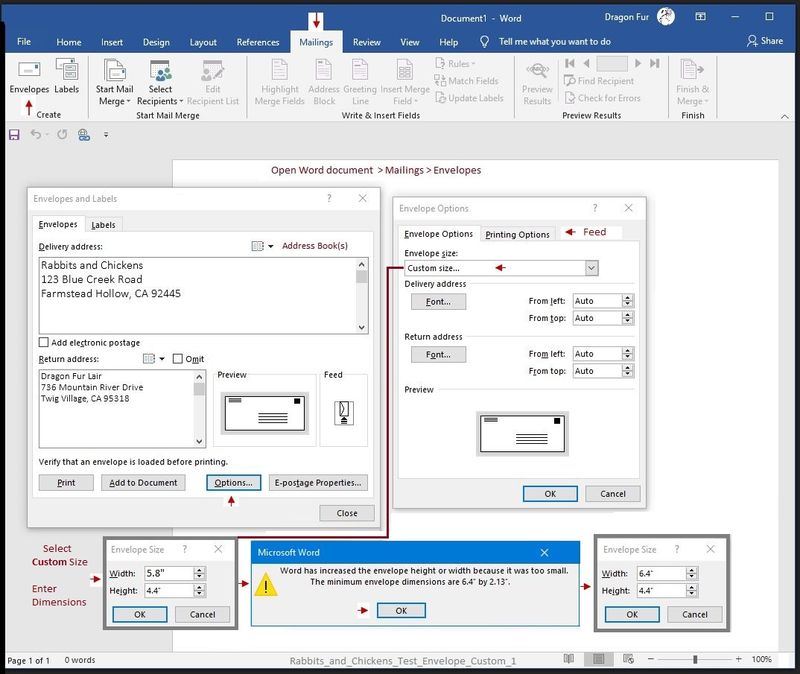
Using Word > Mailings > Envelopes > Custom Envelope Size setup and print


You have already tried "Everything" (but just failed to mention that detail).

The envelope won't print and gives an error.


Reminder:  Although the specification for custom paper size is likely accurate, know that envelopes have their own secret rules about what works and what does not work. 


For example,

If you are using Word > Mailings > Envelopes

If you have properly set up the Custom envelope size,

If the printer is loaded with the envelopes and all the Feed settings are correct,

If the printer has been told about the custom paper size loaded in the printer,

The envelope setup might still manage to fail if the envelope is too small (or too large) in either length or height.

Example - "Looks good" and then fails...

Rabbits_and_Chickens_Test_Envelope_Custom_1Rabbits_and_Chickens_Test_Envelope_Custom_1


OK - Try it...

Example - Word > Mailings > Envelopes - A7 envelope with information for "custom" dimensions setup

Rabbits_and_Chickens_Test_Envelope_A7_3Rabbits_and_Chickens_Test_Envelope_A7_3


HP Printer Home Page - References and Resources – Learn about your Printer  - Solve Problems

 “Things that are your printer”

NOTE:  Content depends on device type and Operating System

Categories:  Alerts, Access to the Print and Scan Doctor (Windows), Warranty Check, HP Drivers / Software / Firmware Updates, How-to Videos, Bulletins/Notices, Lots of How-to Documents, Troubleshooting, Manuals > User Guides, Product Information (Specifications), more

When the website support page opens, Select (as available) a Category > Topic > Subtopic

HP Officejet 4500 All-in-One Printer series - K710 


Thank you for participating in the HP Community.

The Community is a separate wing of the HP website - We are not an HP business group.

Our Community is comprised of volunteers - people who own and use HP devices.

Click Thumbs Up to say Thank You.

Question / Concern Answered, Click "Accept as Solution"

Dragon-Fur

† The opinions expressed above are the personal opinions of the authors, not of HP. By using this site, you accept the <a href="https://www8.hp.com/us/en/terms-of-use.html" class="udrlinesmall">Terms of Use</a> and <a href="/t5/custom/page/page-id/hp.rulespage" class="udrlinesmall"> Rules of Participation</a>.