• ×
    Information
    Need Windows 11 help?
    Check documents on compatibility, FAQs, upgrade information and available fixes.
    Windows 11 Support Center.
  • post a message
  • ×
    Information
    Need Windows 11 help?
    Check documents on compatibility, FAQs, upgrade information and available fixes.
    Windows 11 Support Center.
  • post a message
Guidelines
Join the HP Community Solve‑a‑thon | Help Others & Share Your Solutions | Live on Zoom | 2:30 PM to 2:30 AM IST | Every Wednesday Click here to know more
Check some of the most frequent questions about Instant Ink: HP INSTANT INK, HP+ PLANS: INK AND TONER.


Check out our WINDOWS 11 Support Center info about: OPTIMIZATION, KNOWN ISSUES, FAQs AND MORE.
HP Recommended
Deskjet 4675
Microsoft Windows 10 (64-bit)

I see how to set the printer to copy at the size I want (125%). But I do not see how to start the print once I set a size.


If I hit "back" it reverts to default. If I hit "home" it reverts to default. Pressing "copy" at the top of the touchscreen does nothing. I do not see any other way to start the print. What am I missing?

1 REPLY 1
HP Recommended

@BigMamaH 


Does seem odd.

Stubborn thing.


Reference

 User Guide

Page 21


OK.

If the copy setup is stubborn,

If your printer is in your network,

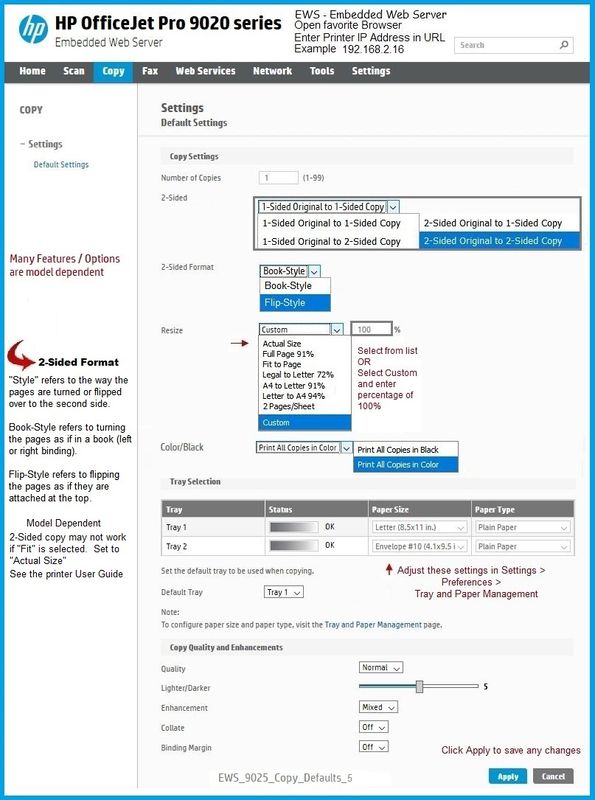
Use the Embedded Web Server (EWS) to adjust the Copy Defaults / Default Settings

After the defaults are set the way you want,

Click Apply to save the changes,

Try your Copy again.


Example


In the case of an "image" copy,

Select 1 sided to 1 sided

Select Resize > Custom (from the drop down menu ) > Enter 125% in the box to the right

Check / Adjust other settings, Click Apply to save

Make sure your paper setup will accommodate the custom sizing, too.

EWS_9025_Copy_Defaults_5EWS_9025_Copy_Defaults_5


HP Printer Home Page - References and Resources – Learn about your Printer  - Solve Problems

 “Things that are your printer”

NOTE:  Content depends on device type and Operating System

Categories:  Alerts, Access to the Print and Scan Doctor (Windows), Warranty Check, HP Drivers / Software / Firmware Updates, How-to Videos, Bulletins/Notices, Lots of How-to Documents, Troubleshooting, Manuals > User Guides, Product Information (Specifications), more

When the website support page opens, Select (as available) a Category > Topic > Subtopic

  HP DeskJet Ink Advantage 4675 All-in-One Printer 


Thank you for participating in the HP Community.

The Community is a separate wing of the HP website - We are not an HP business group.

Our Community is comprised of volunteers - people who own and use HP devices.

Click Thumbs Up to say Thank You.

Question Resolved / Answered, Click "Accept as Solution"

Dragon-Fur

† The opinions expressed above are the personal opinions of the authors, not of HP. By using this site, you accept the <a href="https://www8.hp.com/us/en/terms-of-use.html" class="udrlinesmall">Terms of Use</a> and <a href="/t5/custom/page/page-id/hp.rulespage" class="udrlinesmall"> Rules of Participation</a>.