• ×
    Information
    Need Windows 11 help?
    Check documents on compatibility, FAQs, upgrade information and available fixes.
    Windows 11 Support Center.
  • post a message
  • ×
    Information
    Need Windows 11 help?
    Check documents on compatibility, FAQs, upgrade information and available fixes.
    Windows 11 Support Center.
  • post a message
Guidelines
Seize the moment! nominate yourself or a tech enthusiast you admire & join the HP Community Experts!
Check some of the most frequent questions about Instant Ink: HP INSTANT INK, HP+ PLANS: INK AND TONER.


Check out our WINDOWS 11 Support Center info about: OPTIMIZATION, KNOWN ISSUES, FAQs AND MORE.
HP Recommended
HP8600
macOS 10.14 Mojave

I have been using my macbook for weeks with my hp8600 printer without issue. I downloaded and installed the HP drivers replacing the mac drivers because they were advertised as being better. Now my printouts are broken.


Logo images that have transparent backgrounds such as when I print out my insurance cards (from Geico) the transparent parts print as BLACK instead of not printing (or coming out white.) this destroys the  pdf printouts horribly.


How can I reinstall the default macbook drivers from apple?

1 REPLY 1
HP Recommended

@SOHO1


A warm welcome to HP Forums! This is a great place to get support, find answers and tips to your technical queries.

HP Officejet 8600 printer is AirPrint compatible. With AirPrint you can print full quality photos and documents from your Mac. If the printer is connected to your home WiFi, then you may use the steps below to remove exiting printer driver and setup the printer with Apple AirPrint:

Please ensure that the printer is up to date with its firmware and Mac is up to date with it's software. If you are unsure you may use the links below to update the printer and Mac software:

Update printer firmware

Update software on Mac 


1.) Click the Apple menu, click System Preferences, and then click Print & Scan or Printers & Scanners.

2.) Check if your printer name displays in the Printers list, If your printer is listed, click the printer name, click the minus sign to delete the printer.

3.) If you see multiple printer queues for the same printer, remove all extra printers by selecting them one at a time, and then clicking the minus button  at the bottom of the list.

4.) Click the plus sign , click Add Printer or Scanner, click the printer name.
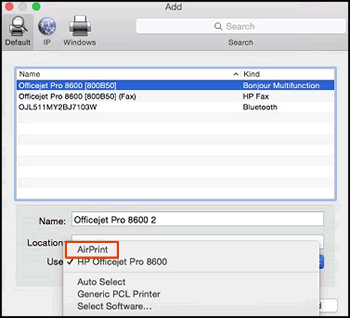
5.) Click the Use or Print Using menu, select AirPrint or Secure AirPrint in the pop-up menu. Then click Add.

Select AirPrint from the Use menu


6.) Try to print.

Let me know how it goes!


If the information I've provided was helpful, give us some reinforcement by clicking the Accepted Solution and Kudos buttons, that'll help us and others see that we've got the answers!
Have a great day!

Senan6806


I am an HP Employee

† The opinions expressed above are the personal opinions of the authors, not of HP. By using this site, you accept the <a href="https://www8.hp.com/us/en/terms-of-use.html" class="udrlinesmall">Terms of Use</a> and <a href="/t5/custom/page/page-id/hp.rulespage" class="udrlinesmall"> Rules of Participation</a>.

