• ×
    Information
    Need Windows 11 help?
    Check documents on compatibility, FAQs, upgrade information and available fixes.
    Windows 11 Support Center.
  • post a message
  • ×
    Information
    Need Windows 11 help?
    Check documents on compatibility, FAQs, upgrade information and available fixes.
    Windows 11 Support Center.
  • post a message
Guidelines
Seize the moment! nominate yourself or a tech enthusiast you admire & join the HP Community Experts!
Check some of the most frequent questions about Instant Ink: HP INSTANT INK, HP+ PLANS: INK AND TONER.


Check out our WINDOWS 11 Support Center info about: OPTIMIZATION, KNOWN ISSUES, FAQs AND MORE.
HP Recommended
Example: Pavilion 6

Hp 310 Ink tank problem

Yellow color problem faces in that case


1 REPLY 1
HP Recommended

@Moni12


Welcome to HP support community.


Did you make a copy and check if that prints fine?


Meanwhile:

  1. Press and hold the Start Copy Color button  on the printer control panel for 3 seconds to print a Print Quality Diagnostic page.
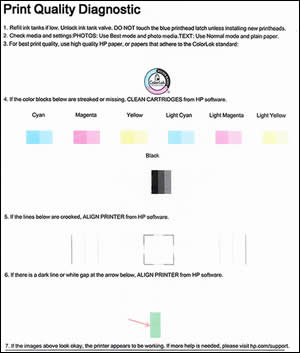
    Example of a Print Quality Diagnostic page

  2. Review the Cyan, Magenta, Yellow, and Black boxes, checking for missing colors, fading, and white lines.

If that does not print fine, follow the below steps:

Run the printhead cleaning utility using the HP Software

Clean the printheads using the HP software, and then evaluate the results.

  1. Open or search for the HP folder in your list of installed software applications, click the folder for your printer, and then click the name of your printer.

    HP Printer Assistant opens.

  2. On the HP Printer Assistant window, click Maintain Your Printer.

  3. Click the Device Services tab, and then click Clean Ink Cartridges.

    A Print Quality Diagnostic page prints.

    Example of a Print Quality Diagnostic page

  4. Examine the Print Quality Diagnostic page.

    • If the print quality is acceptable, click Done. You can stop troubleshooting.

    • If the print quality is unacceptable, click Second-level Clean when prompted to continue the next level of cleaning.

You can refer this HP document for more assistance:- Click here


Let me know how it goes.

To thank me for my efforts to help you, please mark my post as an accepted solution so that it benefits several others.

Cheers.

Sandytechy20
I am an HP Employee

† The opinions expressed above are the personal opinions of the authors, not of HP. By using this site, you accept the <a href="https://www8.hp.com/us/en/terms-of-use.html" class="udrlinesmall">Terms of Use</a> and <a href="/t5/custom/page/page-id/hp.rulespage" class="udrlinesmall"> Rules of Participation</a>.


