• ×
    Information
    Need Windows 11 help?
    Check documents on compatibility, FAQs, upgrade information and available fixes.
    Windows 11 Support Center.
  • post a message
  • ×
    Information
    Need Windows 11 help?
    Check documents on compatibility, FAQs, upgrade information and available fixes.
    Windows 11 Support Center.
  • post a message
Guidelines
Join the HP Community Solve‑a‑thon | Help Others & Share Your Solutions | Live on Zoom | 2:30 PM to 2:30 AM IST | Every Wednesday Click here to know more
Check some of the most frequent questions about Instant Ink: HP INSTANT INK, HP+ PLANS: INK AND TONER.


Check out our WINDOWS 11 Support Center info about: OPTIMIZATION, KNOWN ISSUES, FAQs AND MORE.
HP Recommended
HP MFP M277dw
Microsoft Windows 10 (64-bit)

down loaded all the updates did the file scans restarted the computer unplugged the printer while it was on.

still won't scan from the feed roller.

1 REPLY 1
HP Recommended

@HELP191 Welcome to HP Community!

I suggest we start with cleaning the feed rollers using the below steps to resolve the issue:

  1. Pull out the tray to access the rollers.

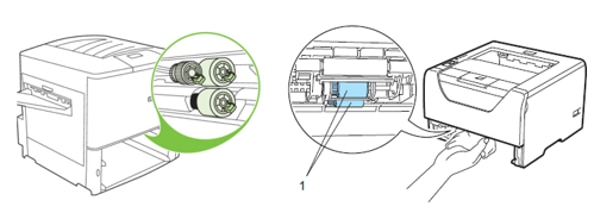
    Examples of the roller location for various printers.
    NOTE: 

    The following images are examples of where the tray rollers can be located. Your printer might be slightly different.

    Figure : Roller locations for Tray 1 or the multipurpose tray

    Roller locations for Tray 1 or the multipurpose tray

    Figure : Roller locations of the cassette trays

    Roller locations of the cassette trays
  2. Check if the rollers above the tray are contaminated or dirty.

    1. Use distilled water, if it is available.

    2. Spray water on the lint free cloth or dab the cloth in water and wring it out before cleaning the rollers.

         WARNING: 

      Do not spray water directly on to the printer.

    3. Wipe the rollers with the dampened cloth to remove the dust, debris, or contamination.

  3. Check if the tray rollers might be worn.

    1. Inspect the rollers for any extremely smooth surface, either completely around the circumference, or just on one side.

    2. If there are any smooth areas, check the Supplies Status Page to see if the Fuser (Maintenance kit) or roller kit is low and needs to be replaced.

  4. Replace the tray rollers, if worn or damaged.

  5. Load paper and try to print.

    After performing the above steps on an HP LaserJet Pro printer, if the error still persists or an "Out of Paper" error message displays, go to the following support document HP LaserJet Pro Printers - "Out of Paper" displays, Printer does not pick paper to resolve the issue.
     

    1. Also, try upgrading the firmware using the steps in this link: click here

Let me know how that pans out,

If you feel I was helpful, simply click on Accept as Solution to help the community grow,

That said, I will have someone follow-up on this to ensure you've been helped,

Just in case you don't get back to us within 24 - 48hrs, and have a good day, ahead.

Riddle_Decipher
I am an HP Employee


Learning is a journey, not a destination.
Let's keep asking questions and growing together.
† The opinions expressed above are the personal opinions of the authors, not of HP. By using this site, you accept the <a href="https://www8.hp.com/us/en/terms-of-use.html" class="udrlinesmall">Terms of Use</a> and <a href="/t5/custom/page/page-id/hp.rulespage" class="udrlinesmall"> Rules of Participation</a>.