• ×
    Information
    Need Windows 11 help?
    Check documents on compatibility, FAQs, upgrade information and available fixes.
    Windows 11 Support Center.
  • post a message
  • ×
    Information
    Need Windows 11 help?
    Check documents on compatibility, FAQs, upgrade information and available fixes.
    Windows 11 Support Center.
  • post a message
Guidelines
Here is the solution for the error: "Encryption Credentials have expired" when attempting to print or scan from Mac OS or iOS devices: Click here to view the troubleshooting steps!
Check some of the most frequent questions about Instant Ink: HP INSTANT INK, HP+ PLANS: INK AND TONER.


Check out our WINDOWS 11 Support Center info about: OPTIMIZATION, KNOWN ISSUES, FAQs AND MORE.
HP Recommended
HP Envy Desktop
Microsoft Windows 10 (64-bit)

I have tried just about everything in the HP Print and Scan Doctor, but I cannot get my printer to print.  I have an HP Envy with a brand new HP OfficeJet5258.  I've run the scan three times rearranged my cable and power cables and double checked the connections.  I even got smart tried scanning and lo and behold it works so it can't be the cable or the printer.  I'm thinking it's the Envy desktop.  Can anybody help?

1 REPLY 1
HP Recommended

Hi @DuzChoBilly


Welcome to the HP Support Community. I'd be happy to assist you.


Set your default printer in Windows 10.

  1. Search Windows for devices, and then click Printers & scanners from the list of results.

  2. If it is checked, uncheck the box beside Let Windows manage my default printer.

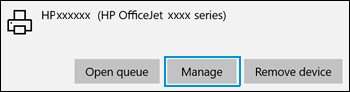
  3. From the list of printers, click the printer name that matches the name of your printer, and then click Manage. If there are multiple names listed, select the printer that has a status of idle or online.

    Clicking the Manage  selection

  4. Under Manage your device, click Set as default.

    Clicking Set as default

  5. Try to print. If the printer remains offline, continue to the next step.

Try steps 3-5 in the document to resolve the issue -Printer is Offline 


Hope this helps! Keep me posted. 


Please click “Accept as Solution” if you feel my post solved your issue, it will help others find the solution.

Click the “Kudos, Thumbs Up" on the bottom right to say “Thanks” for helping!


Have a great day! 

† The opinions expressed above are the personal opinions of the authors, not of HP. By using this site, you accept the <a href="https://www8.hp.com/us/en/terms-of-use.html" class="udrlinesmall">Terms of Use</a> and <a href="/t5/custom/page/page-id/hp.rulespage" class="udrlinesmall"> Rules of Participation</a>.