• ×
    Information
    Need Windows 11 help?
    Check documents on compatibility, FAQs, upgrade information and available fixes.
    Windows 11 Support Center.
  • post a message
  • ×
    Information
    Need Windows 11 help?
    Check documents on compatibility, FAQs, upgrade information and available fixes.
    Windows 11 Support Center.
  • post a message
Guidelines
Seize the moment! nominate yourself or a tech enthusiast you admire & join the HP Community Experts!
Check some of the most frequent questions about Instant Ink: HP INSTANT INK, HP+ PLANS: INK AND TONER.


Check out our WINDOWS 11 Support Center info about: OPTIMIZATION, KNOWN ISSUES, FAQs AND MORE.
HP Recommended
hp 4620
Chrome OS

i can print from Word, Excell ... but not scan

1 REPLY 1
HP Recommended

@SteveC911, Welcome to HP Support Community!


I see that you're trying to scan to Chromebook, follow the steps below-


Scan with Webscan

Access the Webscan feature in the printer's Embedded Web Server (EWS) to save scans to a Chromebook.

  1. Connect the printer to the same wireless network that the Chromebook is connected to.

    • Printers with a touchscreen or text-based menus: Select the Setup, Network, or Wireless menu to start the Wireless Setup Wizard. When prompted, select the name of your local network, and then follow the on-screen instructions to enter the network password to complete the connection.

    • Printers with buttons only: Press and hold the Wireless button for at least 3 seconds or until the light starts blinking, and then press the WPS button on the router. When the wireless light on the printer is solid, the connection is complete.

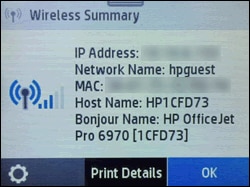
  2. Obtain the printer's IP address, the unique identification number assigned to the printer on the network.

    On printers with touchscreen or menu-based control panels, find the IP address in the Wireless menu or in network settings. For printers without a control panel menu, print a network configuration page to obtain the IP address.

    Example of the IP address on a printer control panel

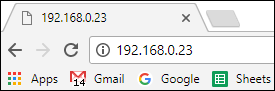
  3. Type the IP address in the Chrome browser address line, and then press Enter to open the printer Embedded Web Server (EWS).

    Example of an IP address entered into the Chrome address bar

  4. Click Scan in the top menu.

    A 'You cannot use this function because it has been disabled' message displays.

    Webscan error displays in the EWS

  5. Click Settings in the top menu, click Security, and then click Administrator Settings.

    A message displays that you are being redirected to a secure HTTPS-enabled page. Click OK or Redirect to HTTPS.

  6. If a 'Your connection is not private' message displays, click Advanced, and then click Proceed to [Printer IP address].

  7. In the Administrator Settings, select the box next to Webscan or Webscan from EWS, click Apply, and then click OK.

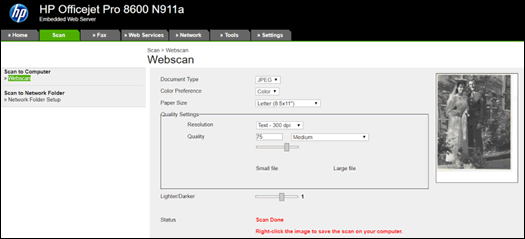
  8. Return to the Scan menu, select from the available scan settings, and then click Start Scan.

    Scanned item in Webscan

  9. Right click the scanned item, and then click Save as to select the file type, name, and destination folder or cloud-based service.

Additional scanning options

If your printer does not support Webscan, use these other methods to access scans on a Chromebook.

  • Scan to a USB flash drive or SD card: If your printer has a USB or SD card port on the front panel, insert the storage device into the port, and then select the USB or SD card option from the Scan control panel menu. Once the scan is saved to the storage device, remove it from the printer and then insert it into an available port on the Chromebook to open the scan file.

  • Scan to Email or the Cloud: Some HP ePrint-capable printers with touchscreen control panels have built-in apps to send scans directly to an email account or to Google Drive. Open the Apps or Scan menus to access the Scan to Email or Drive app, and then follow any on-screen instructions to set up and use the apps.

    For additional information on using the Drive app, go to Setting Up and Using the Google Drive App on Your HP Printer.

I hope that answers your concern adequately. Let me know!


Please click “Accepted Solution” if you feel my post solved your issue, it will help others find the solution. Click the “Kudos/Thumbs Up" on the bottom right to say “Thanks” for helping!

TEJ1602
I am an HP Employee

† The opinions expressed above are the personal opinions of the authors, not of HP. By using this site, you accept the <a href="https://www8.hp.com/us/en/terms-of-use.html" class="udrlinesmall">Terms of Use</a> and <a href="/t5/custom/page/page-id/hp.rulespage" class="udrlinesmall"> Rules of Participation</a>.