• ×
    Information
    Need Windows 11 help?
    Check documents on compatibility, FAQs, upgrade information and available fixes.
    Windows 11 Support Center.
  • post a message
  • ×
    Information
    Need Windows 11 help?
    Check documents on compatibility, FAQs, upgrade information and available fixes.
    Windows 11 Support Center.
  • post a message
Guidelines
Join the HP Community Solve‑a‑thon | Help Others & Share Your Solutions | Live on Zoom | 2:30 PM to 2:30 AM IST | Every Wednesday Click here to know more
Check some of the most frequent questions about Instant Ink: HP INSTANT INK, HP+ PLANS: INK AND TONER.


Check out our WINDOWS 11 Support Center info about: OPTIMIZATION, KNOWN ISSUES, FAQs AND MORE.
HP Recommended
HP desktop 3630
Microsoft Windows 7 (64-bit)

When trying to print LABELS, the paper delays feeding  in the print process and only prints about the last third of labels on page.  Is there a way to adjust paper feeding?


THANKS 

1 REPLY 1
HP Recommended

@DELCAR 


I've not seen Windows 7 for a long time.

At least some of the following is perhaps relevant to your OS...


Paper Types and Paper Weights are supported as noted in the Specifications

Printer Specifications for HP DeskJet 3630, 4720 Printers


and

Media TypesPlain paper, photo paper, brochure paper, envelopes and other specialty inkjet papers


Media Weights Supported, By Paper Path (Imperial)Letter: 16 to 32 lb; HP envelopes: 20 to 24 lb; HP cards: up to 110 lb; HP 4 x 6 inch photo paper: up to 145 lb
Media Weights Supported, By Paper Path (metric)A4: 60 to 90 g/m²; HP envelopes: 75 to 90 g/m²; HP cards: up to 200 g/m²; HP 10 x 15 cm photo paper: up to 300 g/m²


Yes, the paper settings can be adjusted.

Exactly how this is done depends on a couple of factors...


If the printer is connected to the network,

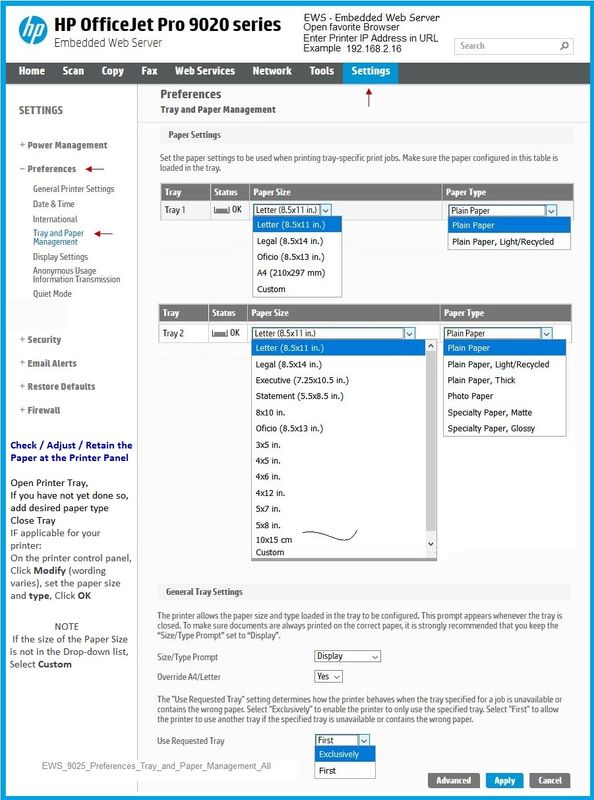
You might be able to use the Embedded Web Server (EWS) to view / adjust the Preferences / Tray and Paper settings.


User Guide

Page 19


Example


Open your favorite browser > type / enter Printer IP address into URL / Address bar

Tab Settings > Preferences > Tray and Paper Management

If applicable, check the Advanced section (at the bottom of the Tray and Paper Management menu)

Click Apply to save changes


EWS_9025_Preferences_Tray_and_Paper_Management_AllEWS_9025_Preferences_Tray_and_Paper_Management_All


EWS is also available using HP Smart

NOTE:  For readers who are using Windows 10...

Example - HP Smart - Windows - Main Menu

HP_Smart_W10_Start_Screen_3HP_Smart_W10_Start_Screen_3


What else?


Check / Adjust the Printing Preferences


Which Paper Type (Media)?

Select a paper type that is "thicker" than normal paper.  For example, depending on what you find in the list, try Brochure matte (or glossy) or "Card" paper.


Set the Preferences - Windows


NoteIgnore this section when not relevant – for example, when using Word > Mailings > Envelopes


Check / enable the printer as the “Default Printer”


(Windows 10)

Settings > Devices > Printers and scanners

UNCHECK (clear box) Let Windows manage my default printer

Select (Left-Click) your printer from the list of printers > Manage > Set as Default


  1. Select and adjust settings in each category for the Media (kind of paper), source (tray), and paper size.


Settings > Devices > Printers and scanners

Left-Click on (your) Printer > Manage > Printing Preferences


--------------------------------------------------------------------------------------------------------

Next ( Windows 10 AND likely Windows 7 -the older OS setup might at least look / behave in a similar manner)


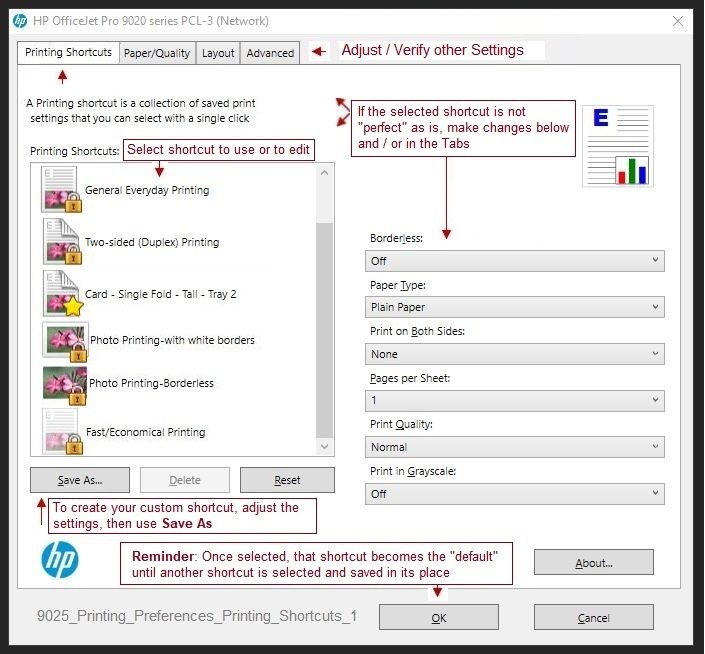
Tab Printing Shortcuts > Click / Highlight your preferred shortcut > Click Apply > Click OK to exit


NOTE - Make changes to a Shortcut

  • Select a shortcut and adjust the settings for paper, source (tray), other settings / Tabs
  • Scan Menu for HP Scan >>  If there is a More > section, check / adjust settings in the sub-sections > Click OK to save sub-menu changes
  • If supported, save the edited shortcut or use “Save As” or “Create Custom Shortcut” to save as a new / different file name
  • Click OK to save the setup


General Examples - Printing Preferences

(Assumes the Full Feature Software is installed)


9025_Printing_Preferences_Printing_Shortcuts_19025_Printing_Preferences_Printing_Shortcuts_19025_Printing_Preferences_Media_Types_3.jpg


What else?


If you have trouble, Export the document to a PDF file.

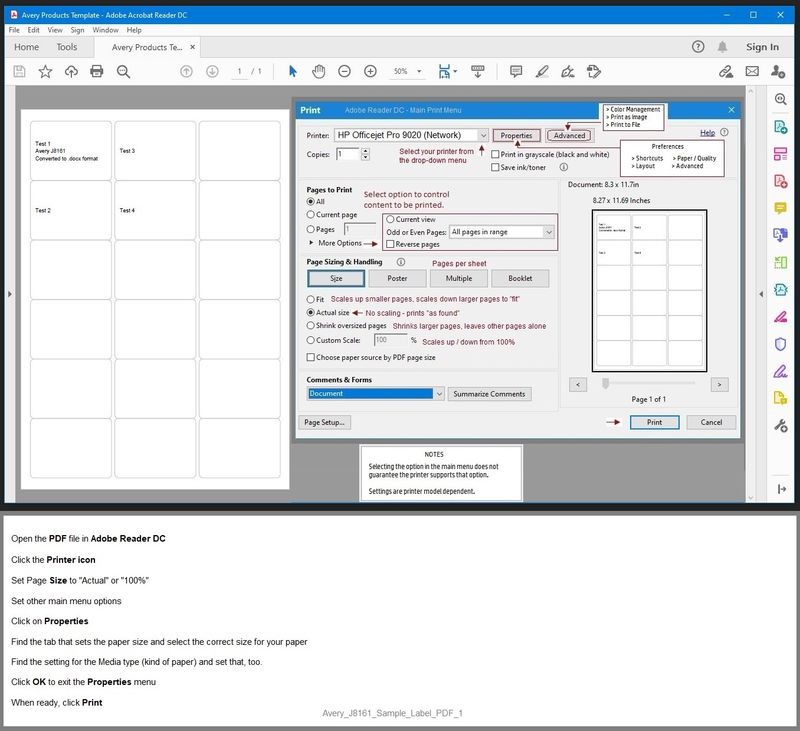
Open the PDF file in Adobe Reader DC 

Click the printer icon Set Page Size > Actual size

Click on Properties Find and Check / Adjust tab(s) for paper size

Find and Check / Adjust the settings for Media (kind of paper) - set to thick, HP Brochure matte, or whatever is closest

Click OK to exit the Properties menu

When ready, Click Print


General Example

Avery_J8161_Sample_Label_PDF_1Avery_J8161_Sample_Label_PDF_1


References / Resources


Adobe Reader DC – Needed Whether You Use It or Not

If you have not done so,

Reinstall / Update your PDF Reader (Adobe Reader DC /Optional  Foxit Reader)

HINT:  Watch out for and UNCHECK unwanted extra software


NOTE:  Adobe Reader DC software should be installed even if you do not normally open / view / print PDF files directly from the Adobe Reader DC software.


Printer  Home Page - References and Resources – Learn about your Printer  - Solve Problems

 “Things that are your printer”

NOTE:  Content depends on device type and Operating System

Categories:  Alerts, Access to the Print and Scan Doctor (Windows), Warranty Check, HP Drivers / Software / Firmware Updates, How-to Videos, Bulletins/Notices, Lots of How-to Documents, Troubleshooting, User Guides / Manuals, Product Information (Specifications), more

When the website support page opens, Select (as available) a Category > Topic > Subtopic

HP DeskJet 3630 All-in-One Printer series 


Thank you for participating in the HP Community.

Our Community is comprised of volunteers - people who own and use HP devices.

Click Thumbs Up to say Thank You.

If the answer helped resolve your issue, Click "Accept as Solution" .


Dragon-Fur

† The opinions expressed above are the personal opinions of the authors, not of HP. By using this site, you accept the <a href="https://www8.hp.com/us/en/terms-of-use.html" class="udrlinesmall">Terms of Use</a> and <a href="/t5/custom/page/page-id/hp.rulespage" class="udrlinesmall"> Rules of Participation</a>.