• ×
    Information
    Need Windows 11 help?
    Check documents on compatibility, FAQs, upgrade information and available fixes.
    Windows 11 Support Center.
  • post a message
  • ×
    Information
    Need Windows 11 help?
    Check documents on compatibility, FAQs, upgrade information and available fixes.
    Windows 11 Support Center.
  • post a message
Guidelines
Seize the moment! nominate yourself or a tech enthusiast you admire & join the HP Community Experts!
Check some of the most frequent questions about Instant Ink: HP INSTANT INK, HP+ PLANS: INK AND TONER.


Check out our WINDOWS 11 Support Center info about: OPTIMIZATION, KNOWN ISSUES, FAQs AND MORE.
HP Recommended
deskjet 2136
Microsoft Windows 10 (64-bit)

There's a way I can scan without HPsmart? a way to save scans automatically without 'opening'?  On HPsmart I have to see each page before save, I know I can, at least, add the next one, but there's also no option to Not create a new folder at each save. Bit annoying app. 

1 REPLY 1
HP Recommended

@hqbrum 


Welcome to the HP Community Forum.


If you have not done so,

Install the Full Feature Software / full printer software.


==============================

Printer Software -


If the printer software is installed and needs to be reinstalled,

Uninstall the printer software from Programs and Features

Restart the computer and log in

Check that all the pieces of the printer software have been removed - if anything is deleted, Restart computer and log in


Next,

Download, Save, Install new copy of the printer software

Restart the computer and log in


Details Page - Driver - For your Printer

>>> Full Feature Software - Web Pack Installation Package - Information and Download <<<

HP DeskJet 2130 series Print and Scan Driver and Accessories 


The full driver includes and installs HP Scan

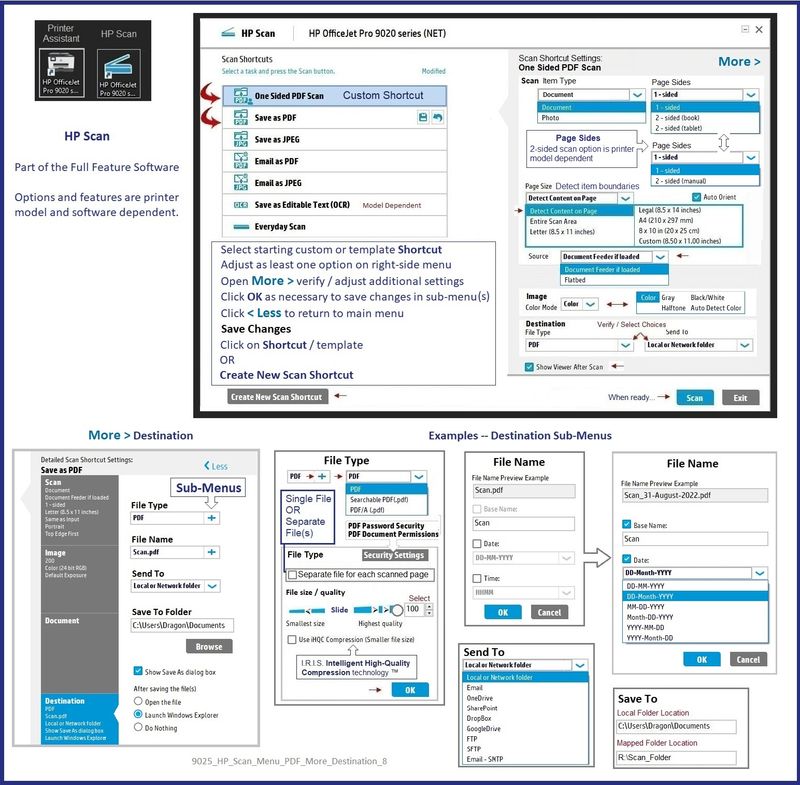
Set the default destination


Example - HP Scan - Menu > More > Destination

9025_HP_Scan_Menu_PDF_More_Destination_89025_HP_Scan_Menu_PDF_More_Destination_8


======================================

Printer - Scan to Computer -


The Full Feature Software provides access to Scan to Computer

For example,

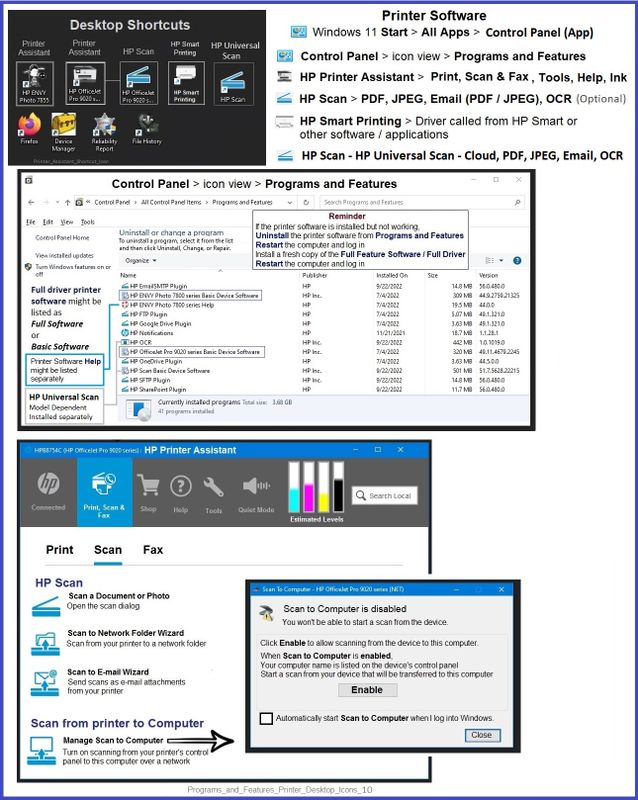
Open the Printer Assistant (shortcut) > tab Scan > Manage Scan to Computer > Enable


Example - Windows - Full Feature Software - Installed

Programs_and_Features_Printer_Desktop_Icons_10Programs_and_Features_Printer_Desktop_Icons_10


======================================

Printer - HP Scan and Capture - Optional -


After the full driver is installed, optionally install other scan software / applications.


For example,

HP Scan and Capture

Available from the Microsoft Store (formally Windows Store) - Requires Windows 8 or higher

Download-Save-Install   HP Scan and Capture

 Description

HP Scan and Capture is a simple and fun application that captures photos or documents from any* HP scanning device or your computer's built-in camera.  These images can be previewed, edited, saved, and shared to other applications.


HP Scan and Capture features an adjustable screen size.


* NOTE:  The correct HP print software drivers for your scanner must be installed from HP's Support Website.


Application controls / options


Windows 10 -

Settings > Apps > Apps and Features


Windows 11 - 

Settings > Apps > Installed Apps


Scroll / Search for HP Scan and Capture

Left-click on the App for options associated with this app.

If available, Click Advanced for additional controls.


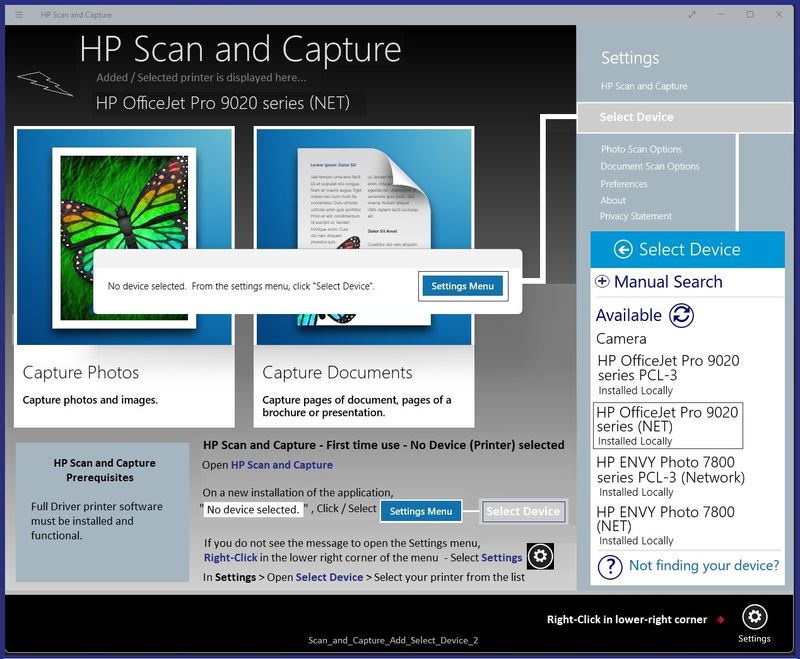
Example - HP Scan and Capture - Menu / Add-Device

Scan_and_Capture_Add_Select_Device_2Scan_and_Capture_Add_Select_Device_2


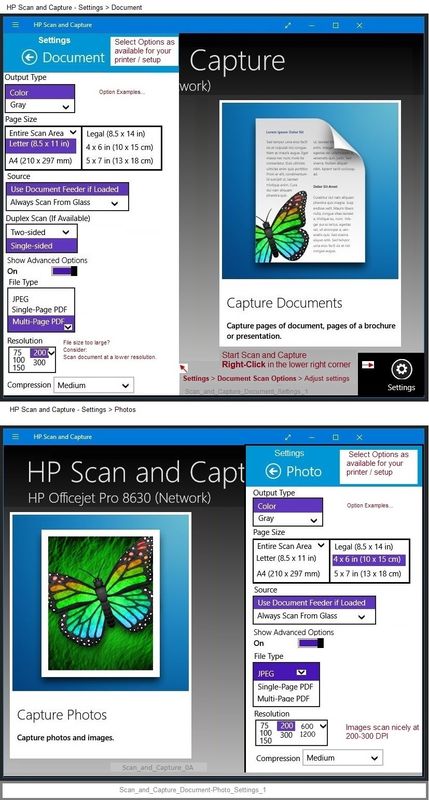
Example - HP Scan and Capture - Menu Settings

Scan_and_Capture_Document-Photo_Settings_1Scan_and_Capture_Document-Photo_Settings_1


========================================

References / Resources


HP Printer Home Page - References and Resources

Learn about your Printer  - Solve Problems

“Things that are your printer”

When the website support page opens, Select (as available) a Category > Topic Subtopic

NOTE:  Content depends on device type and Operating System

Categories:  Alerts, Access to the Print and Scan Doctor (Windows), Warranty Check, HP Drivers / Software / Firmware Updates, How-to Videos, Bulletins/Notices, Lots of How-to Documents, Troubleshooting, Manuals > User Guides, Product Information (Specifications), Supplies, and more

Open

HP DeskJet 2136 All-in-One Printer 


Thank you for participating in the HP Community --

People who own, use, and support HP devices.

Click Yes to say Thank You

Question / Concern Answered, Click "Accept as Solution"


Dragon-Fur

† The opinions expressed above are the personal opinions of the authors, not of HP. By using this site, you accept the <a href="https://www8.hp.com/us/en/terms-of-use.html" class="udrlinesmall">Terms of Use</a> and <a href="/t5/custom/page/page-id/hp.rulespage" class="udrlinesmall"> Rules of Participation</a>.