
-
×InformationNeed Windows 11 help?Check documents on compatibility, FAQs, upgrade information and available fixes.
Windows 11 Support Center. -
-
×InformationNeed Windows 11 help?Check documents on compatibility, FAQs, upgrade information and available fixes.
Windows 11 Support Center. -
- HP Community
- Printers
- Printer Setup, Software & Drivers
- scan to folder with duplex option

Create an account on the HP Community to personalize your profile and ask a question
Your account also allows you to connect with HP support faster, access a personal dashboard to manage all of your devices in one place, view warranty information, case status and more.
Check some of the most frequent questions about Instant Ink: HP INSTANT INK, HP+ PLANS: INK AND TONER.
Check out our WINDOWS 11 Support Center info about: OPTIMIZATION, KNOWN ISSUES, FAQs AND MORE.

It has been a while since anyone has replied. Simply ask a new question if you would like to start the discussion again.

05-04-2021 06:01 AM
 HP Recommended
Product: HP Color LaserJet Enterprise Flow M880z
Operating System: Microsoft Windows 10 (64-bit)
Hi there,
i need help to setup duplex option in scan to network folder.
Scan to network folder is running but there is the need to choose the duplex scan (double printed side).
Cant find the setting.
Regards
8 REPLIES 8


05-04-2021 10:23 AM
HP Recommended
Disclaimer:
The following is a guess based on having used InkJet Printers.
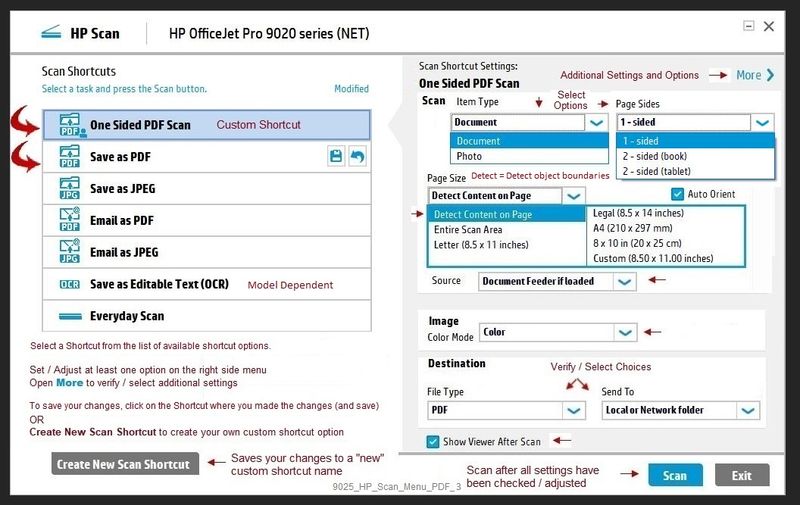
I believe the setting you are seeking is the Page Sides setting in HP Scan.
First,
If you have not done so,
Download-Save-Install the Full Software (full driver) for the printer.
HP LaserJet Enterprise/Managed flow M880 Multifunction Printer Series Full Software and Drivers
After the software is installed, Restart the computer and log in.
Next,
Having set up the Scan to Network Folder using the Embedded Web Server (EWS),
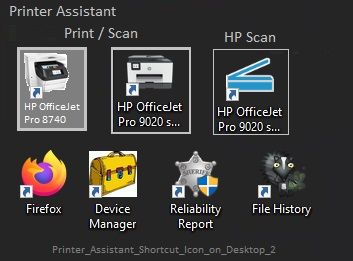
Use HP Scan (part of the full driver, though I cannot guarantee the name is the same)
Select / Create "Save as PDF" Shortcut (left side of menu)
Select / Adjust the settings on the right side menu, including Page Sides and Page Size
Click into the More > sub-menu sections
Select / Adjust the settings in any sub-menu section
If needful, click OK in that sub-menu to save the change and leave that menu
Click "Less" to come back to the main menu
Use "Save-As" to create a Custom Shortcut for your adjusted settings.
When ready, Click Scan
General Example - HP Scan shortcut icon - HP Scan Main Menu - OfficeJet Pro 9025
HP Printer Home Page - References and Resources – Learn about your Printer - Solve Problems
“Things that are your printer”
NOTE: Content depends on device type and Operating System
Categories: Alerts, Access to the Print and Scan Doctor (Windows), Warranty Check, HP Drivers / Software / Firmware Updates, How-to Videos, Bulletins/Notices, Lots of How-to Documents, Troubleshooting, Manuals > User Guides, Product Information (Specifications), more
When the website support page opens, Select (as available) a Category > Topic > Subtopic
HP Color LaserJet Enterprise flow MFP M880z
Thank you for participating in the HP Community.
The Community is a separate wing of the HP website - We are not an HP business group.
Our Community is comprised of volunteers - people who own and use HP devices.
Click Thumbs Up to say Thank You.
Question Resolved / Answered, Click "Accept as Solution"
Dragon-Fur

05-05-2021 02:42 AM
HP Recommended
@dragon-fur
Thank you for quick response.
I should describe the situation:
The printer is located in a different room. The users standing infront of the network printer and want to scan double sided bills.
(scan and send to network folder) Every scan is a single file. The want to create a single file of a double sided sheet.
If they start a easy copy job it is possible to define: scan both sides of a sheet. (duplex scan)
It is not available in "scan to network folder".
Regards
rg2rg
05-05-2021 08:54 AM - edited 05-05-2021 09:14 AM
HP Recommended
Edits - Updates
Might be here...
In Category Manuals
Reference Pages 146-147
HP Color LaserJet Enterprise Flow MFP M880 - User Guide
If your Operating System supports the option, consider Quick Sets
Starting on Page 76
The actual "2-sided" bits mentioned on Page 80
It's apparently a matter of finding the way to set this up so standing in front the the printer can find the job setup...
Open your favorite browser > type / enter Printer IP address into URL / Address bar
Original Content
You are now outside of my limited skill set with Laser Printers.
This model sounds like a particularly brilliant printer - that said, I don't think Laser Printers provide the same options in EWS access as would a less intelligent (but smart in other ways) OfficeJet Pro printer. Worse, I've never seen this model - aside from reading the User Guide, I'd not have any idea how to use the hardware while standing in front of the machine.
Respectfully, I shall have to withdraw.
Hopefully one of our actual LaserJet people will be able to help.
Thank you for participating in the HP Community.
The Community is a separate wing of the HP website - We are not an HP business group.
Our Community is comprised of volunteers - people who own and use HP devices.
Click Thumbs Up to say Thank You.
Question Resolved / Answered, Click "Accept as Solution"
Dragon-Fur
05-07-2021 07:57 AM - edited 05-07-2021 08:41 AM
HP Recommended
You are welcome.
It's not a new printer - it makes sense you know all the documentation. 🙂
I've exhausted the tiny bit of advice I uncovered.
I hope someone can help clarify what the printer should be doing in this situation.
References
| Duplex ADF Scanning | Yes, single pass duplexing ADF |
| Digital Sending Standard Features | Scan to e-mail; Save-to-Network Folder; Scan to SharePoint; Save-to-USB drive; Send to FTP; Send to LAN Fax; Send to Internet Fax; OCR; Local Address Book; SMTP over SSL |
Thank you for participating in the HP Community.
The Community is a separate wing of the HP website - We are not an HP business group.
Our Community is comprised of volunteers - people who own and use HP devices.
Click Thumbs Up to say Thank You.
Question Resolved / Answered, Click "Accept as Solution"
Dragon-Fur
05-11-2021 01:45 AM
HP Recommended
@Dragon-Fur
Done by try and error.
In "printer admin menu" i could enable more options for "scan to network folder".
1. 1-side or 2-side printed sheet
2. create as a job
3. ignore empty sides
Thats it. Thank you for helping me.
05-11-2021 07:28 AM
HP Recommended
You are welcome.
Stay Safe.
Thank you for participating in the HP Community.
The Community is a separate wing of the HP website - We are not an HP business group.
Our Community is comprised of volunteers - people who own and use HP devices.
Click Thumbs Up to say Thank You.
Question Resolved / Answered, Click "Accept as Solution"
Dragon-Fur

Be alert for scammers posting fake support phone numbers and/or email addresses on the community.
If you think you have received a fake HP Support message, please report it to us by clicking on "Flag Post".
† The opinions expressed above are the personal opinions of the authors, not of HP. By using this site, you accept the Terms of Use and Rules of Participation.


Didn't find what you were looking for?
Ask the community
† The opinions expressed above are the personal opinions of the authors, not of HP. By using this site, you accept the <a href="https://www8.hp.com/us/en/terms-of-use.html" class="udrlinesmall">Terms of Use</a> and <a href="/t5/custom/page/page-id/hp.rulespage" class="udrlinesmall"> Rules of Participation</a>.