• ×
    Information
    Need Windows 11 help?
    Check documents on compatibility, FAQs, upgrade information and available fixes.
    Windows 11 Support Center.
  • post a message
  • ×
    Information
    Need Windows 11 help?
    Check documents on compatibility, FAQs, upgrade information and available fixes.
    Windows 11 Support Center.
  • post a message
Guidelines
Seize the moment! nominate yourself or a tech enthusiast you admire & join the HP Community Experts!
Common problems for Connectivity Issues
We would like to share some of the most frequently asked questions about Printer Wi-Fi, Connectivity Issues and Offline Status. Check out this link: HP printer is offline or unavailable.
HP Recommended
HP officejet pro 8610
macOS 11.0 Big Sur

I am NOT computer literate. Recent APPLE Book Air upgrade to BIG SUR.

Execution of HP SMART, Apple Screenshot, Apple Image Capture (error message damage to your HP Printer

HP Smart and Screenshot when trying to connect to MAIL the hourglass (rotating) for 3-4 minutes before connection.

Is it a BIG SUR problem..?  All worked well with previous OS System Catalina.

Is there a FIX for this?

The HP printer seens to be scanning and emailing ok... but takes a long time to connect to the MAIL application. Poor Veteran in Texas


J Port
1 REPLY 1
HP Recommended

@MedCollGA


Welcome to HP Support Community


I would like to help


Please ensure your Mac and Printer have the latest updates


Printer Firmware: https://support.hp.com/in-en/document/c02919168


Next Remove and Re-add the printer using Airprint. AirPrint is an Apple technology that helps you create full-quality printed output without the need to download or install drivers.


1.) Click the Apple Menu, click System Preferences, and then click Print & Scan or Printers & Scanners.
2.) Check if your printer name displays in the Printers list, If your printer is listed, click the printer name, click the minus sign to delete the printer.

3.) If you see multiple printer queues for the same printer, remove all extra printers by selecting them one at a time, and then clicking the minus button  at the bottom of the list.

4.) Click the plus sign , click Add Printer or Scanner, click the printer name.
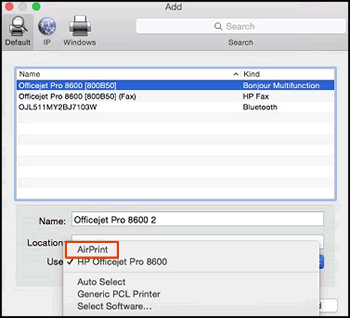
5.) Click the Use or Print Using menu, select AirPrint or Secure AirPrint in the pop-up menu. Then click Add.

Select AirPrint from the Use menu


6.) Try to print / scan


If the issue persists try assigning a Manual IP Address


- Print a Network Config Page from the printer. Note the printer's IP address.

- Type that IP address into a browser to reveal the printer's internal settings.

- Choose the Networking tab, then Wireless along the left side, then the IPv4 tab.

- On this screen you want to set a Manual IP. You need to set an IP address outside the range that the router automatically sets (called the DHCP range). If you do not know the range, change the last set of numbers (those after the last '.') to 250

- Use 255.255.255.0 for the subnet (unless you know it is different, if so, use that)

- Enter your router's IP (on the Network Config Page) for the gateway.

- Enter 8.8.8.8 for the first DNS and 8.8.4.4 for the second DNS. This is Google DNS.

- Click 'Apply'.


Let me know how it goes😊


If the information I've provided was helpful, give us some reinforcement by clicking the "Solution Accepted" on this Post and it will also help other community members with similar issue.

KrazyToad
I Am An HP Employee

† The opinions expressed above are the personal opinions of the authors, not of HP. By using this site, you accept the <a href="https://www8.hp.com/us/en/terms-of-use.html" class="udrlinesmall">Terms of Use</a> and <a href="/t5/custom/page/page-id/hp.rulespage" class="udrlinesmall"> Rules of Participation</a>.


