• ×
    Information
    Need Windows 11 help?
    Check documents on compatibility, FAQs, upgrade information and available fixes.
    Windows 11 Support Center.
  • post a message
  • ×
    Information
    Need Windows 11 help?
    Check documents on compatibility, FAQs, upgrade information and available fixes.
    Windows 11 Support Center.
  • post a message
Guidelines
Seize the moment! nominate yourself or a tech enthusiast you admire & join the HP Community Experts!
Common problems for Connectivity Issues
We would like to share some of the most frequently asked questions about Printer Wi-Fi, Connectivity Issues and Offline Status. Check out this link: HP printer is offline or unavailable.
HP Recommended
HP Envy Photo 7155
macOS 11.0 Big Sur

I recently got a new iMac, but now I can't scan any documents to it wirelessly using the touch interface on the printer itself, despite my printer being connected to my wifi network.  The scanner doesn't recognize my iMac, so I keep getting the message to download HP software and drivers.  However, I've done that multiple times, but it's not helping.  I've tried resetting the printer (HP Envy Photo 7155) to factory settings and then reconnecting to my network (which successfully connects), but the printer is interpreting missing software, relative to scanning from the touch screen.  I've powered the printer off and on to no avail.  The only way I can scan to my computer wirelessly is to use the HP Smart software on my iMac, but that means I keep having to move back and forth between my computer and my scanner for every additional document.  (Limited office space and I can't move my printer any closer to my iMac.)  Has anyone else run into this problem?  This is driving me nuts and I can't figure out what to do.

1 REPLY 1
HP Recommended

@Megs88


Welcome to the HP Support Community.


Enabling Scan to computer using HP Utility may resolve the issue. Let's try these steps:


1.) On your Mac, click Finder, click Applications, click the Hewlett-Packard or HP folder, then double-click HP Utility. (If HP Utility is not available, download and install the printer essential software from here

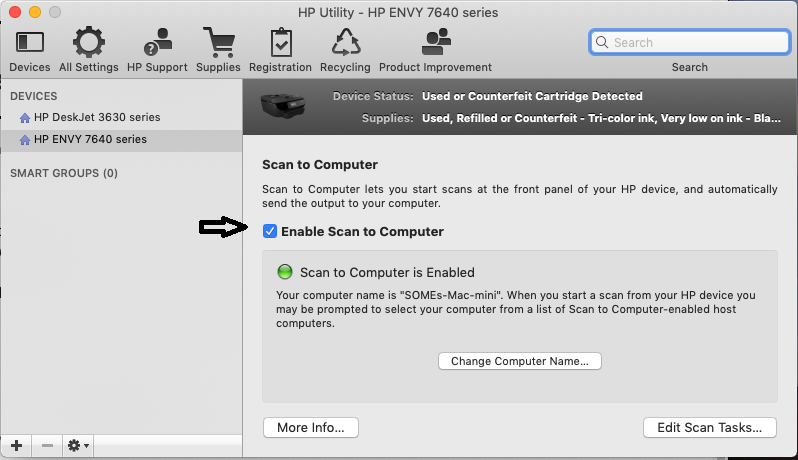
2.) Under Scan Settings, click Scan to Computer, then make sure the Enable Scan to Computer check box is selected.

https://lithium-response-prod.s3.us-west-2.amazonaws.com/hpcsc.response.lithium.com/RESPONSEIMAGE/946f6e5f-68db-4b93-a3ad-831e2c463488.default.png


3.) Try to scan.


Let me know if this helps.


If the information I've provided was helpful, give us some reinforcement by clicking the Accepted Solution and Kudos buttons, that'll help us and others see that we've got the answers!


Thanks!


Have a great day!


I am an HP Employee

† The opinions expressed above are the personal opinions of the authors, not of HP. By using this site, you accept the <a href="https://www8.hp.com/us/en/terms-of-use.html" class="udrlinesmall">Terms of Use</a> and <a href="/t5/custom/page/page-id/hp.rulespage" class="udrlinesmall"> Rules of Participation</a>.