• ×
    Information
    Need Windows 11 help?
    Check documents on compatibility, FAQs, upgrade information and available fixes.
    Windows 11 Support Center.
  • post a message
  • ×
    Information
    Need Windows 11 help?
    Check documents on compatibility, FAQs, upgrade information and available fixes.
    Windows 11 Support Center.
  • post a message
Guidelines
Seize the moment! nominate yourself or a tech enthusiast you admire & join the HP Community Experts!
Common problems for Connectivity Issues
We would like to share some of the most frequently asked questions about Printer Wi-Fi, Connectivity Issues and Offline Status. Check out this link: HP printer is offline or unavailable.
HP Recommended
HP ENVY Photo 7858 All-in-One Printer
Microsoft Windows 11

When I run a diagnostic with the HP AP it will only say "Driver Check Issue Not Fixed".  I can print from everything such as 5 different phones and others can print from their computers in the house, but I cannot print from my Dell Laptop.  My laptop is up to date on all software and updates.  Our printer is hooked up to our wireless system and it is not signed in under the guest wi fi.  For a few months I would have to uninstall the printer then reinstall to get it to work, and it would only work for a short time.  Now I can't even to that.  I have tried to reinstall the drivers but during the process it cannot even find the printer to install anything.  The operating system on my computer is not old and outdated.  The printer is not that old.  The ink cost a fortune for this printer and if it were not for having several unopened cartridges i would have already used the printer for target practice.  Any recommendations would be appreciated. 

1 REPLY 1
HP Recommended

@Bri5555 


Welcome to the HP Community --


Some Ideas - "If not done"


Some of these are related to each other.

All are offered FYI.

Unwanted, unsuitable, inscrutable?  Ignore it / revisit later if needed.


Start...


---------------------------------------


Restart everything, including the router that controls your network.


---------------------------------------


Check / Update  >> Every device (computer(s) and mobile) where the HP Smart application is installed should be running the latest version of the HP Smart application available for that device platform (Operating System / Version).


---------------------------------------


Make sure your router is up to the task of running many -- and different -- devices.

Update the firmware (on the router)

Check the router logs for disconnects or hints about problems

Check / review the configuration.

Time to replace and upgrade the router?

Weak, old, poorly configured, or even poorly located router can contribute to network, scan, connection, and job completion issues.


---------------------------------------

If possible, connect the printer to the router using Ethernet.  Yes, this means the printer must be near enough to the router to be doable.


---------------------------------------


Assign the printer a static / manual IP address.

Reference:   HP - Wireless Printing Center – Static IP Address


---------------------------------------


Make sure the printer is connecting to the SSID named network on the band / frequency you expect it to use.

Printer is dual-band capable and supports 5GHz or 2.4GHz.

Reference:   Product Specifications for the HP ENVY Photo 7858 All-in-One Printer (K7S00A)

Connectivity

Ports
1 USB 2.0 client and 1 USB host (for thumbdrive); 1 Wi-Fi 802.11b/g/n; 1 Ethernet; 1 RJ-11 (Fax), dual band wifi 2.4/5Ghz, BLE,SD card slot
Wireless capability
Yes, built-in Ethernet, dual band Wi-Fi 802.11b/g/n


NOTE:  SSID named networks are created on your router.


Additional information, scroll down to section References / Resources > Topic #2 Dual Band Network


---------------------------------------


You might have run into a limit for the number of connections to the printer that can be supported at a given time.

To test, shut off as many devices as you cans stand.

and

After completely uninstalling the printer software on the Dell, reinstall the full driver printer software. 

If you need help, scroll down to section References / Resources > Topic #3 Printer - Full Feature Software


---------------------------------------


If all else fails, consider using Wi-Fi Direct as described in the User Guide .

Depending on your printing needs on that Dell system, this connection type might be sufficient.

Additional reference:  HP printer setup (Wi-Fi Direct)


=+=+=+=+=+=+=+=+=+=+=+=+=+=+=+=+=+=+=+=+=+=

References / Resources / Examples


==========================

1) HP Smart - Windows - Application


If HP Smart does not open, hangs, balks, or issues errors,

Consider > Reset or even Uninstall / Reinstall the application.

Example - HP Smart - Windows - Check / Reset / Reinstall

HP_Smart_Win_Apps-and-Features_ Reset_12HP_Smart_Win_Apps-and-Features_ Reset_12


==========================

2) Dual Band Network


=-=-=-=-=-=-=-=-=-=-=-=-=-=-=-=-

Dual Band Network - Considerations


Reminders 


If the printer supports it, connecting using Ethernet is generally a better choice.


Some printers, particularly older models, only support Wireless at 2.4GHz

Some printers support Wireless at both 5GHz and 2.4GHz – but not at the same time


Regardless, if the printer won't work or cannot connect to your 5GHz SSID named network, connect to the 2.4GHz network.


If you are running a Dual Band Network,

 Check that the router is set up to broadcast all frequencies it supports.

Next,

If your router supports it,

On your router:

 Create a separate SSID named network for each frequency supported by the router

 What?  Create one SSID named network for 5GHz and one SSID named network for 2.4GHz

and

 Connect the printer to the SSID network on the frequency / band you want it to use.


In general,

  • 2.4GHz is less fussy about obstacles and supports a longer distance (separation) between router and device (printer)
  • 5GHz is faster

=-=-=-=-=-=-=-=-=-=-=-=-=-=-=-=


Example – EWS – IPv4

 EWS_9025_Network_IPv4_Configuration_3EWS_9025_Network_IPv4_Configuration_3


EWS > HP Document / How-to

Use the HP printer Embedded Web Server (EWS)


Ethernet

Open your Browser > Type / enter the Printer IP address into URL / Address bar

Tab Network > Wired (802.3) > IPv4 Configuration


Wireless

Open your Browser > Type / enter the Printer IP address into URL / Address bar

Tab Network > Wireless (802.11) > IPv4 Configuration

As Available:

Tab Network > Wireless (802.11) > Advanced

Network Interface on / off, Network SSID name, Security Settings, Passphrase / Password

Select and connect to the correct SSID / network name for the bandwidth you are using.


Note:   It is not mandatory that you use a manual / static IP address.  Doing so can improve stability.


==========================

3)  Printer - Full Feature Software


================================

 Remove / Install the full driver printer software


If not done by this point...


Restart everything, including the router that controls you network.


Can't stand it?  At least restart the printer and the computer and any device you can stand to be without for a short time.


Next,

Run Windows Updates  --  If any updates are installed, Restart the computer and log in.


Next,


Printer - Full Feature Software - Install


If you have not done so, consider


  • HP Full Feature Software / Full Driver printer software - supports printing and scanning from the web, printing in in other software and programs (for example, Word), and provides access to the full range of Printing Preferences / Shortcuts.  The full driver adds at least two shortcuts to the Desktop:  Printer Assistant and HP Scan.  If the printer model includes built-in Fax hardware, the software supports the setup and use of the Fax driver.  No Sign-in required.


If the full driver printer software is (already) installed but not working,

  • Uninstall any printer software from Control Panel > icon view > Programs and Features
  • Restart the computer and sign in.


What if?


NOTE: If software will not uninstall, appears to be removed and is “still hanging around” after you uninstall / Restart...

Microsoft: Fix problems that block programs from being installed or removed

OR

Revo Uninstaller (Free version)

then

Restart the computer and sign in


Next,

  • Check (for the Printer) in Devices and Printers  > If found, Right-Click Printer and Remove -- If any changes are made, that is, you remove anything, Restart the computer and sign in.


and...

What if?


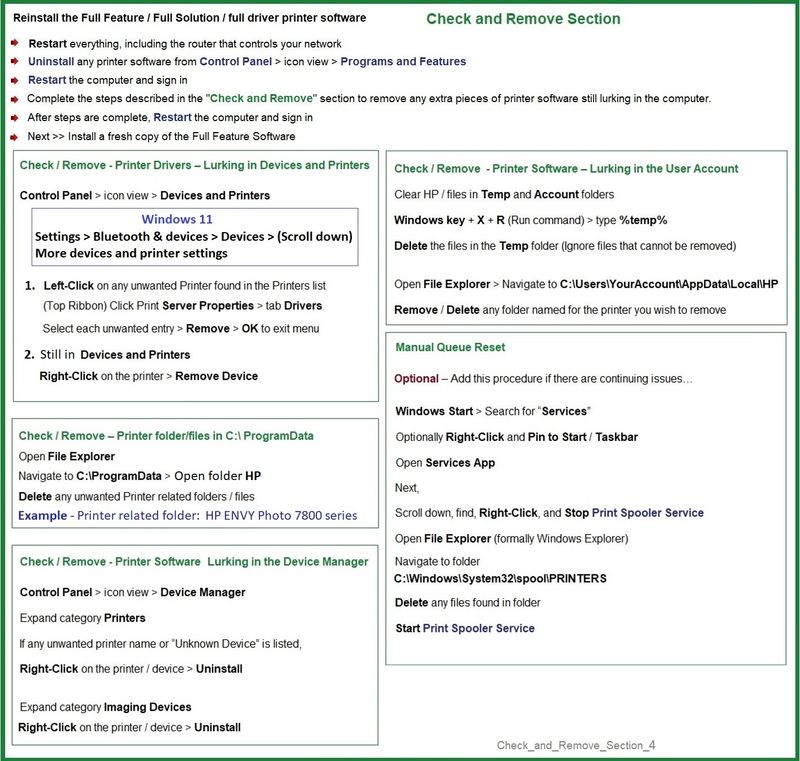
If you are having trouble using or installing the software, for example, everything goes along swimmingly and suddenly you see "Driver Unavailable" or other odd installation problems, Add the steps in the Check and Remove Section when uninstalling the printer software.

Check_and_Remove_Section_4Check_and_Remove_Section_4


Next,

  • If using a printer USB cable between the printer and the computer, disconnect the cable before installing the printer software.
  • Download and Save the Full Feature Software installation package or the Easy Start Software


Details Page - Driver - For your Printer

>>> Full Feature Software - Web Pack Installation Package - Information - Download  <<<

HP ENVY Photo 7800 All-in-One Print and Scan Driver and Accessories 


Installation

  • Open File Explorer
  • Navigate to the folder in which you saved the installation file  (likely Downloads)
  • Right-Click on the installation package and “Run as Administrator
  • If using a printer USB cable between the printer and the computer, connect the cable when instructed (near the end of the installation).
  • After the software is installed, Restart the computer and log in


====================================

Optional – Supported for your printer

Next – HP Universal Scan Software - NOTE:  Model and Operating System version Dependent


 HP Universal Scan Full Feature Software adds OCR libraries to installed HP Scan software. 

HPUS installs a new, full featured, (and separate) HP Scan software shortcut to the Desktop.

Note:  HPUS can be installed as standalone or installed after the full feature printer software.

After the software is installed, Restart the computer and sign in

HP Universal Scan Software provides a larger GUI to make using the software easier on high-resolution screens.   New features have been added to the main menu to help with navigating the settings.


 HP printers - Scan as Editable Text (OCR) with HP Scan (Windows)


====================================


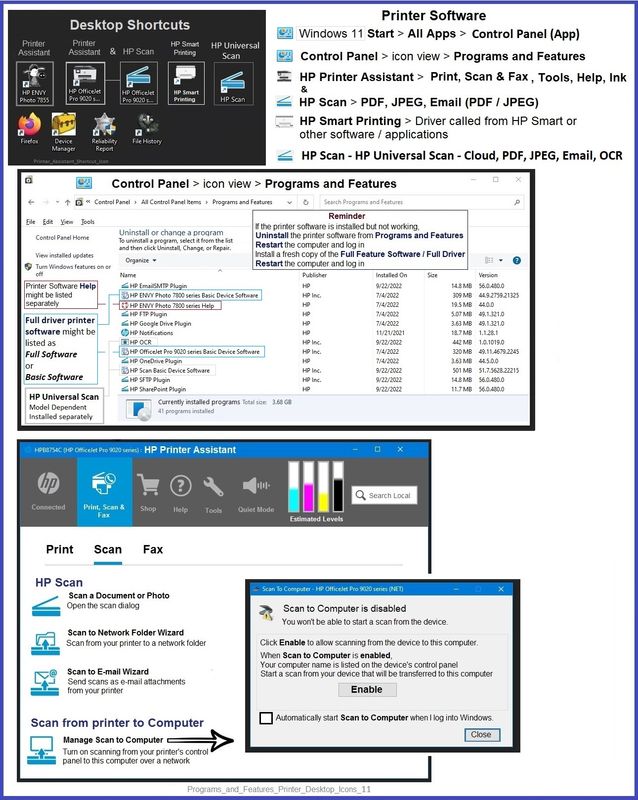
The installation of the full driver adds at least two shortcuts to the Desktop:  

Printer Assistant 

HP Scan


>>> Open the Printer Assistant > tab Scan Manage Scan to Computer Enable


Example - Windows - Full Feature Software - Installed in Programs and Features

Programs_and_Features_Printer_Desktop_Icons_11Programs_and_Features_Printer_Desktop_Icons_11


=+=+=+=+=+=+=+=+=+=+=+=+=+=+=+=+=+=+=+=+=+=

HP Printer Home Page - References and Resources

Learn about your Printer  - Solve Problems

“Things that are your printer”

When the website support page opens, Select (as available) a Category > Topic Subtopic

NOTE:  Content depends on device type and Operating System

Categories:  Alerts, Access to the Print and Scan Doctor (Windows), Warranty Check, HP Drivers / Software / Firmware Updates, How-to Videos, Bulletins/Notices, Lots of How-to Documents, Troubleshooting, Manuals > User Guides, Product Information (Specifications), Supplies, and more

Open

HP ENVY Photo 7858 All-in-One Printer


Thank you for participating in the HP Community --

People who own, use, and support HP devices.

Click Yes to say Thank You

Question / Concern Answered, Click my Post "Accept as Solution"


Dragon-Fur

† The opinions expressed above are the personal opinions of the authors, not of HP. By using this site, you accept the <a href="https://www8.hp.com/us/en/terms-of-use.html" class="udrlinesmall">Terms of Use</a> and <a href="/t5/custom/page/page-id/hp.rulespage" class="udrlinesmall"> Rules of Participation</a>.