-
×InformationNeed Windows 11 help?Check documents on compatibility, FAQs, upgrade information and available fixes.
Windows 11 Support Center. -

-
×InformationNeed Windows 11 help?Check documents on compatibility, FAQs, upgrade information and available fixes.
Windows 11 Support Center. -
- HP Community
- Printers
- Printer Wireless, Networking & Internet
- Change networks for the printer

Create an account on the HP Community to personalize your profile and ask a question
07-14-2023 12:29 PM
Welcome to the HP Community --
Printer Supports 2.4GHz wireless (only)
Printer Specifications for HP DeskJet 3700 Printers
Section Connectivity
Connection method | Requirement |
Wired (Ethernet) | n/a |
Wireless | 802.11b/g/n (Single band 2.4 GHz) |
USB | Hi-speed 2.0 USB |
Wi-Fi Direct | Wireless network |
Near Field Communication (NFC) | n/a |
Restore Wi-Fi setup mode on your HP printer See the one-minute summary video to the top of the document.
Restore Network Defaults / Install / Connect – InkJet and Laser printers
HP printer setup (Wi-Fi network)
and
Page 62
and
Troubleshoot a Wi-Fi connection to an HP printer
Start with first section: General Wi-Fi network requirements and checking connection status
=-=-=-=-=-=-=-=-=-=-=-=-=-=-=-=-
Dual Band Network - Considerations
Reminders
Some printers, particularly older models, only support 2.4GHz
Some printers support both 5GHz and 2.4GHz – but not at the same time
Regardless, if the printer won't work or cannot connect to your 5GHz frequency, try 2.4GHz.
If you are running a Dual Band Network,
Check that the router is set up to broadcast all frequencies it supports.
Next,
If your router supports it,
Create a separate SSID named network for each frequency (5GHz and 2.4GHz).
and
Connect the printer to the SSID network on the frequency / band you want it to use.
In general,
- 2.4GHz is less fussy about obstacles and supports a longer distance (separation) between router and device (printer)
- 5GHz is faster
=-=-=-=-=-=-=-=-=-=-=-=-=-=-=-=-
Embedded Web Server - EWS
If you can get the printer onto the network,
Check / Adjust / Configure the network using the Embedded Web Server (EWS)
EWS > HP Document / How-to
Open your Browser > Type / enter the Printer IP address into URL / Address bar
Tab Network > Wireless (802.11) > IPv4 Configuration
As Available:
Tab Network > Wireless (802.11) > Advanced
Network Interface on / off, Network SSID name, Security Settings, Passphrase / Password
Select and connect to the correct SSID / network name for the bandwidth you are using.
Note: It is not mandatory that you use a manual / static IP address. Doing so can improve stability.
Example - EWS - iPv4 setup / SSID named network
EWS_9025_Network_IPv4_Configuration_3
References / Resources
HP DeskJet 3700 printers - Blinking lights
Good Information here:
HP - Wireless Printing Center > Common Questions > Wireless Connection Issues
AND
HP - Wireless Printing Center – Static IP Address
Some of the more common remedies grouped here:
HP - Wireless Printing Center > Common Questions > Printer no longer works on network
Videos - Plain and Fancy
HP Deskjet 3720 | 3723 | 3730 | 3755: How to resolve a Printer Offline issue
HP Deskjet 3720 3755 3730 3723: Using the HP Smart apps to connect wirelessly and print
HP Deskjet 3720 3755 3730 3723 Download software install and connect wirelessly
Printer Software
In many cases, particularly if you have been able to get the preliminary network connection working, you can finalize the setup by installing the Full Feature Software.
Relevant to supported versions of Windows
If you have not done so, consider
- HP Full Feature Software / Full Driver printer software - supports printing and scanning from the web, printing in in other software and programs (for example, Word), and provides access to the full range of Printing Preferences / Shortcuts. The full driver adds at least two shortcuts to the Desktop: Printer Assistant and HP Scan. If the printer model includes built-in Fax hardware, the software supports the setup and use of the Fax driver. No Sign-in required.
If the full driver printer software is (already) installed but not working,
- Uninstall any printer software from Control Panel > icon view > Programs and Features
- Restart the computer and sign in.
Next,
- Check (for the Printer) in Devices and Printers > If found, Right-Click Printer and Remove -- If any changes are made, that is, you remove anything, Restart the computer and sign in.I
Next,
- If using a printer USB cable between the printer and the computer, disconnect the cable before installing the printer software.
- Download and Save the Full Feature Software installation package or the Easy Start Software
Details Page - Driver - For your Printer
>>> Full Feature Software - Web Pack Installation Package - Information - Download <<<
HP DeskJet and Ink Advantage 3700 All-in-One Print and Scan Driver and Accessories
Installation
- Open File Explorer (formally Windows Explorer)
- Navigate to the folder in which you saved the installation file (likely Downloads)
- Right-Click on the installation package and “Run as Administrator”
- If using a printer USB cable between the printer and the computer, connect the cable when instructed (near the end of the installation).
- After the software is installed, Restart the computer and log in
=+=+=+=+=+=+=+=+=+=+=+=+=+=+=+=+=+=+=+=+=+=
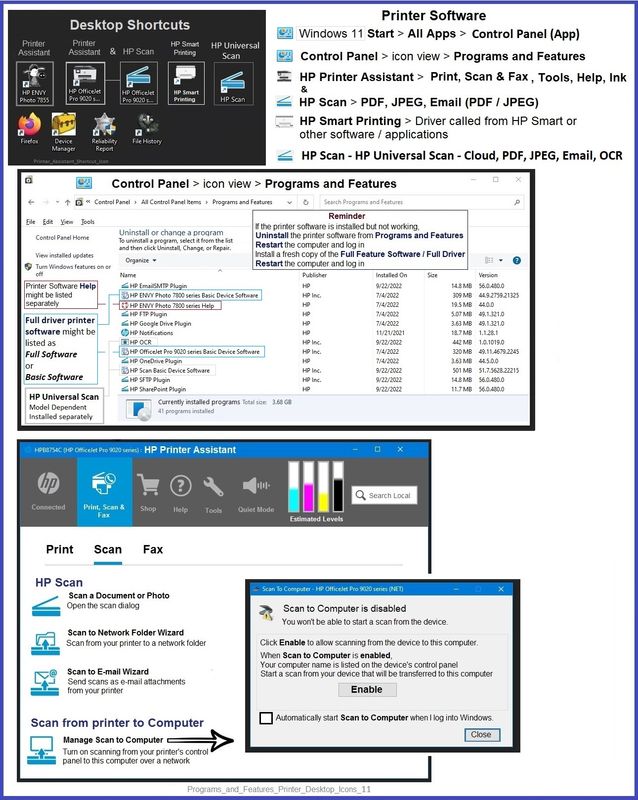
Example - Windows - Full Feature Software - Installed
Programs_and_Features_Printer_Desktop_Icons_11
=+=+=+=+=+=+=+=+=+=+=+=+=+=+=+=+=+=+=+=+=+=
HP Printer Home Page - References and Resources
Learn about your Printer - Solve Problems
“Things that are your printer”
When the website support page opens, Select (as available) a Category > Topic > Subtopic
NOTE: Content depends on device type and Operating System
Categories: Alerts, Access to the Print and Scan Doctor (Windows), Warranty Check, HP Drivers / Software / Firmware Updates, How-to Videos, Bulletins/Notices, Lots of How-to Documents, Troubleshooting, Manuals > User Guides, Product Information (Specifications), Supplies, and more
Open
HP DeskJet 3722 All-in-One Printer
Thank you for participating in the HP Community --
People who own, use, and support HP devices.
Click Yes to say Thank You
Question / Concern Answered, Click my Post "Accept as Solution"