
-
×InformationNeed Windows 11 help?Check documents on compatibility, FAQs, upgrade information and available fixes.
Windows 11 Support Center. -
-
×InformationNeed Windows 11 help?Check documents on compatibility, FAQs, upgrade information and available fixes.
Windows 11 Support Center. -
- HP Community
- Printers
- Printer Wireless, Networking & Internet
- Re: Connectivity

Create an account on the HP Community to personalize your profile and ask a question
Your account also allows you to connect with HP support faster, access a personal dashboard to manage all of your devices in one place, view warranty information, case status and more.
Common problems for Connectivity Issues
We would like to share some of the most frequently asked questions about Printer Wi-Fi, Connectivity Issues and Offline Status. Check out this link: HP printer is offline or unavailable.

08-12-2026 03:45 AM
 HP Recommended
Product: HP ENVY 6032e All-in-One Printer
Operating System: iOS
I’ve changed my iPhone & internet provider. I’ve followed all the reset guides but, the printer is not found on the app & I’ve also tried putting in the IP address, which is also not recognised? Any ideas?
4 REPLIES 4


08-13-2026 08:25 AM
HP Recommended
Hello @Cp212, Welcome to the HP Support Community.
Since you have changed both your iPhone and internet provider, the most likely cause is that the HP ENVY 6032e is still trying to use the old Wi-Fi network. Entering the printer's previous IP address will not work once the printer has been moved to a different network, because the printer needs to be connected to the new network first.
Restore Wi-Fi setup mode
Use the Cancel and Wireless buttons to restore Wi-Fi setup mode.
1. Press the Cancel button to ready the printer.
2. Press and hold the Wireless button and Cancel button
simultaneously until the Power button blinks.
Note: Your control panel might look different than the following example, but the steps are the same.
3. Wait 60 seconds until the Wireless light blinks blue.
4. Within two hours, return to the app or software to find and add your printer.
You should not need to enter the printer's IP address manually during this setup. Once the printer successfully joins the new network, the HP app should be able to discover it automatically.
If the printer is still not found
Keep the printer in Wi-Fi setup mode and complete the setup in the HP app within two hours, as the temporary setup mode will eventually expire.
Once setup is complete, the printer should receive a new IP address from your new router, so the old IP address from your previous internet provider should no longer be used.
If the HP app still cannot find the printer after the Wireless light is blinking blue, let me know whether the Wireless light is blinking or solid and what happens when you select Add Printer in the HP app.
Have a great day!
I'm an HP Employee.
If this reply helped resolve your issue, please select the Accept as Solution as it helps others in the community quickly find the answer they’re looking for.
And if you found this reply helpful, clicking Yes below is a great way to let us know we’re providing the support you need, as it encourages us to keep improving and sharing helpful guidance.


08-13-2026 08:39 AM
HP Recommended
Hi,
Thanks for using the HP Support Community.
Can try to reset wireless to defaults and try setting up again?
If that fails, try a Factory reset. This example will be useful:
For more resources on the printer:
https://www.youtube.com/playlist?list=PLUV0sXfF6zPh6CvwM2cDtFruOzbfD2fEk
Hope that helps!
I am an HP Employee. Although I am speaking for myself and not for HP.
Click Helpful = Yes to say Thank You.
Question / Concern Answered, Click "Accept as Solution"

Click Helpful = Yes to say Thank You.
Question / Concern Answered, Click "Accept as Solution"
Click on the link to subscribe and get the latest video uploads: https://goo.gl/y4Rcn1 Remember to like and share the video if you know of friends that would find this useful. Click on the bell so you will not miss out on any new videos. This tutorial shows how to Restore the wireless settings ...
Click on the link to subscribe and get the latest video uploads: https://goo.gl/y4Rcn1 Remember to like and share the video if you know of friends that would find this useful. Click on the bell so you will not miss out on any new videos. This tutorial shows how to Restore the wireless settings ...
08-24-2026 08:32 AM
HP Recommended
II’ve tried this and am still unable to connect the printer wirelessly. The wireless light is flashing blue, but when I go into the hp app, the printer is not found. I’ve tried removing the printer & re-installing it????
thanks
08-25-2026 12:50 PM - edited 08-25-2026 12:51 PM
HP Recommended
Thank you so much for the response @Cp212
We request that you try connecting the printer using the Wi-Fi Direct method and check if the printer can be connected to isolate the issue.
Please follow the instructions provided below. 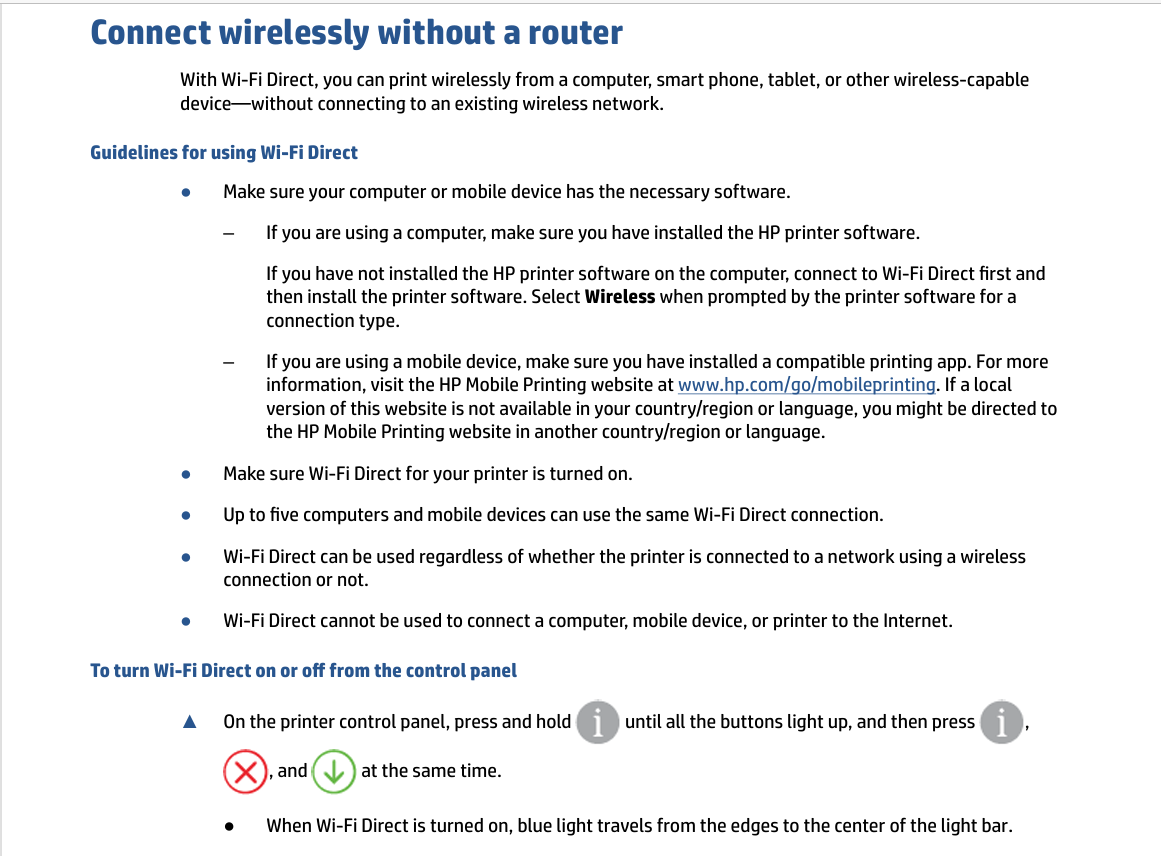
Please check the user guide for further steps - HP ENVY 6000e All-in-One series_ENWW (page number 30 to 33)
Have a great day!
I'm an HP Employee.
If this reply helped resolve your issue, please select the Accept as Solution as it helps others in the community quickly find the answer they’re looking for.
And if you found this reply helpful, clicking Yes below is a great way to let us know we’re providing the support you need, as it encourages us to keep improving and sharing helpful guidance.

Be alert for scammers posting fake support phone numbers and/or email addresses on the community.
If you think you have received a fake HP Support message, please report it to us by clicking on "Flag Post".
† The opinions expressed above are the personal opinions of the authors, not of HP. By using this site, you accept the Terms of Use and Rules of Participation.


Didn't find what you were looking for?
Ask the community
† The opinions expressed above are the personal opinions of the authors, not of HP. By using this site, you accept the <a href="https://www8.hp.com/us/en/terms-of-use.html" class="udrlinesmall">Terms of Use</a> and <a href="/t5/custom/page/page-id/hp.rulespage" class="udrlinesmall"> Rules of Participation</a>.