• ×
    Information
    Need Windows 11 help?
    Check documents on compatibility, FAQs, upgrade information and available fixes.
    Windows 11 Support Center.
  • post a message
  • ×
    Information
    Need Windows 11 help?
    Check documents on compatibility, FAQs, upgrade information and available fixes.
    Windows 11 Support Center.
  • post a message
Guidelines
Join the HP Community Solve‑a‑thon | Help Others & Share Your Solutions | Live on Zoom | 2:30 PM to 2:30 AM IST | Every Wednesday Click here to know more
Common problems for Connectivity Issues
We would like to share some of the most frequently asked questions about Printer Wi-Fi, Connectivity Issues and Offline Status. Check out this link: HP printer is offline or unavailable.
HP Recommended

Document feeder does not work when scanning. Works fine for printing. The bell rings and it says document is loaded, but feeded won't work.

1 REPLY 1
HP Recommended

Hi @Smiley61,


Welcome to the HP Support Community


I understand you are facing a document feeder issue with your HP Officejet Pro 7740. Not to worry I will help you to get a resolution to resolve the issue.


Please follow the below steps:


Step 1: Clean the ADF rollers and the separator pad


Clean the paper feed rollers and the separator pad in the ADF.

Gather the following materials:

A lint-free cloth or swab

Distilled, filtered, or bottled water (tap water might damage the printer)

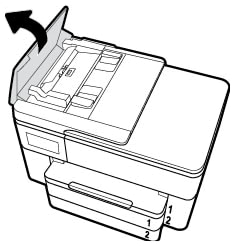
Lift the cover of the ADF.

Figure : Lifting the ADF cover

  1. Example of lifting the ADF cover

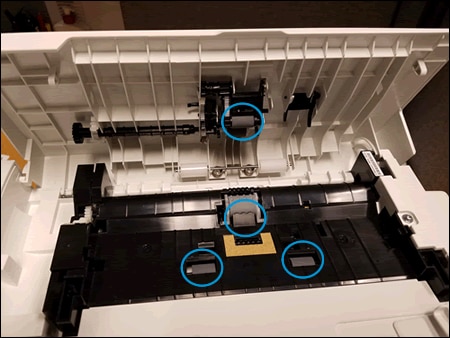
Lightly dampen a clean, lint-free cloth with bottled or distilled water, and then squeeze any excess liquid from the cloth.

Press the cloth against the rollers, and then rotate them upward with your fingers. Apply a moderate amount of pressure to remove any dust or dirt buildup.

Figure : Cleaning the rollers and separator pad

  1. Image: Clean the rollers and separator pad.

Allow the rollers to dry completely (approximately 10 minutes).

Close the ADF cover tightly at both ends.

Try to print. If the error persists, continue to the next step.

Step 2: Reset the printer

Sometimes an error persists even though there is no paper feed issue. Reset the printer, and then try to print.

Turn the printer on, if it is not already on.

Wait until the printer is idle and silent before you continue.

With the printer turned on, disconnect the power cord from the rear of the printer.

Unplug the power cord from the wall outlet.

Wait at least 60 seconds.

Plug the power cord back into the wall outlet.

   NOTE:

HP recommends connecting the printer power cord directly to the wall outlet.

Reconnect the power cord to the rear of the printer.

Turn on the printer, if it does not automatically turn on.

Wait until the printer is idle and silent before you proceed.

Try to copy. 


You may also refer to this video: Fixing ADF Paper Pick-Up Issues


I hope this helps! Keep me posted. 


Please click “Accepted Solution” if you feel my post solved your issue, it will help others find the solution. Click the “Kudos/Thumbs Up" on the bottom right to say “Thanks” for helping!


ANAND_ANDY
I am an HP Employee

† The opinions expressed above are the personal opinions of the authors, not of HP. By using this site, you accept the <a href="https://www8.hp.com/us/en/terms-of-use.html" class="udrlinesmall">Terms of Use</a> and <a href="/t5/custom/page/page-id/hp.rulespage" class="udrlinesmall"> Rules of Participation</a>.