
-
×InformationNeed Windows 11 help?Check documents on compatibility, FAQs, upgrade information and available fixes.
Windows 11 Support Center. -
-
×InformationNeed Windows 11 help?Check documents on compatibility, FAQs, upgrade information and available fixes.
Windows 11 Support Center. -
- HP Community
- Printers
- Printer Wireless, Networking & Internet
- Re: Factory Reset Instructions for HP LaserJet Color M251nw

Create an account on the HP Community to personalize your profile and ask a question
Your account also allows you to connect with HP support faster, access a personal dashboard to manage all of your devices in one place, view warranty information, case status and more.
Common problems for Connectivity Issues
We would like to share some of the most frequently asked questions about Printer Wi-Fi, Connectivity Issues and Offline Status. Check out this link: HP printer is offline or unavailable.

It has been a while since anyone has replied. Simply ask a new question if you would like to start the discussion again.

02-04-2021 06:15 PM
 HP Recommended
Product: Color Laser Jet 200
Operating System: macOS 10.15 Catalina
Have posted twice about my wife’s printer - it will no longer connect to the WiFi network it has connected to for years. Haven’t had a single reply to either post. Need help. Next step is to purchase a new printer.
8 REPLIES 8


02-08-2021 06:49 AM
HP Recommended
Hi @BrianNB,
I'd like to help!
We can perform a factory defaults on the printer to resolve the issue
- The reset instructions are specific for your printer and performing those steps on a different printer may corrupt the device.
- I've sent you a private message with reset instructions, follow the reset instruction to perform a full reset and re-initialize the printer.
- In order to access your private messages, click the private message icon on the upper right corner of your HP Forums profile, next to your profile Name or simply click on this link: https://h30434.www3.hp.com/t5/notes/privatenotespage
Hope this helps! Keep me posted.
And, Welcome to the HP Support Community.
Please click “Accept as Solution” if you feel my post solved your issue, it will help others find the solution.
Click the “Kudos, Thumbs Up" on the bottom right to say “Thanks” for helping
02-19-2021 09:35 AM
HP Recommended
Change the connection type through HP Utility software, or add the wireless printer through System Preferences.
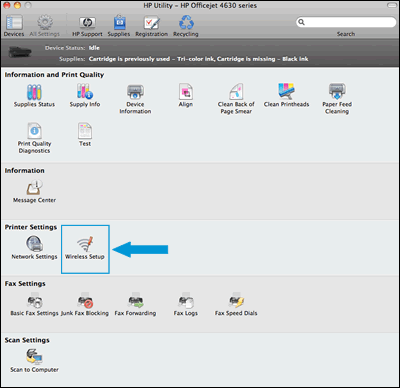
Wireless Setup tool in HP Utility:
-
Open Finder
 , click Go in the top menu bar, click Applications, double-click the HP folder, and then double-click HP Utility.
 -
From the All Settings tab, click Wireless Setup to launch the utility.
NOTE:
If Wireless Setup is not listed, continue with the method to add the printer through System Preferences.
Figure : Wireless Setup tool in HP Utility
Add the printer through System Preferences:
-
Connect the printer to the network. Steps to connect vary by printer control panel type.
-
Printers with touchscreen or LCD menu displays: On the printer, select the Setup, Network, or Wireless menu, select Wireless Setup Wizard, and then follow the on-screen instructions to connect the printer.
-
Printers without displays: Press the Wireless button
 to turn on the wireless radio. If the wireless light is on and solid, the printer is connected to the network. If the light is blinking, move the printer close to your wireless router, press the Wi-Fi Protected Setup (WPS) button on the router, and then wait until the wireless light is solid.
-
-
Click the Apple menu, click System Preferences, and then click Print & Scan or Printers & Scanners.
-
Check if your printer name displays in the Printers list with Bonjour or Bonjour Multifunction as the Kind, and then do one of the following steps.
-
If your printer is listed, remove and re-add the printer to confirm it is set up correctly. Click the printer name, click the minus sign
 to delete the printer, click the plus sign
  , click Add Printer or Scanner, click the printer name and then continue to the next step.
 -
If your printer is not listed, click the plus sign, click Add Printer or Scanner, click the name of your printer, and then continue to the next step.
-
If your printer is not listed in the Add Printer or Scanner window, make sure the printer is connected to the same wireless network as your Mac. Try to add the printer again, and then continue to the next step.
-
-
Click the Use or Print Using menu, and then select AirPrint or the printer name to complete the setup.
Let me know how this goes!
02-19-2021 11:03 AM
HP Recommended
Jay_G24 - Thanks but instructions aren’t clear. You asked if I have a USB cable, answered Yes. But the instructions don’t mention a USB cable. And there was no HP folder in Applications.
I connected the USB cable and found an HP folder on one of my other computers. Install and ran the HP Utility. I found the Wireless setup and ran it. Three times. Each time it would not accept the WiFi password. I reconfirmed with my WiFi network (again) that I am using the correct password / passphrase.
Tried accessing via my “guest” SSID. Same results.
When connected via USB cable, System Preferences does show the printer and I can connect via USB and print fine.
When the USB cable is not connected, System Preferences does not show the printer as available at all.
What’s next?
02-23-2021 02:42 AM
HP Recommended
Please print and share the printer configuration report -
Use the following steps to print a configuration report from the printer control panel.
-
Load letter or A4 unused, plain white paper into the input tray.
-
On the HP printer control panel, touch the Setup icon (
 ).
). -
Touch Reports, and then touch Configuration Report. The HP printer prints the configuration report.
Let me know!


02-24-2021 04:32 PM
HP Recommended
Jay_G24 - Thanks for the response. Can you tell me what you saw in the reports that lead you to this conclusion? I'll need something to discuss with the ISP.
BTW - this printer worked for YEARS on the same WiFi network, same ISP, same SSID, same password. All my other WiFi devices have NO problem connecting to the network.
02-25-2021 03:23 AM - edited 03-01-2021 03:51 AM
HP Recommended
The Wifi security failed and the network is found and the wireless card on the printer is working and able to find networks.
Please consult the ISP about the encryption type and also check if there were any recent updates performed.
Hope this helps!

Be alert for scammers posting fake support phone numbers and/or email addresses on the community.
If you think you have received a fake HP Support message, please report it to us by clicking on "Flag Post".
† The opinions expressed above are the personal opinions of the authors, not of HP. By using this site, you accept the Terms of Use and Rules of Participation.


Didn't find what you were looking for?
Ask the community
† The opinions expressed above are the personal opinions of the authors, not of HP. By using this site, you accept the <a href="https://www8.hp.com/us/en/terms-of-use.html" class="udrlinesmall">Terms of Use</a> and <a href="/t5/custom/page/page-id/hp.rulespage" class="udrlinesmall"> Rules of Participation</a>.