• ×
    Information
    Need Windows 11 help?
    Check documents on compatibility, FAQs, upgrade information and available fixes.
    Windows 11 Support Center.
  • post a message
  • ×
    Information
    Need Windows 11 help?
    Check documents on compatibility, FAQs, upgrade information and available fixes.
    Windows 11 Support Center.
  • post a message
Guidelines
Seize the moment! nominate yourself or a tech enthusiast you admire & join the HP Community Experts!
Common problems for Connectivity Issues
We would like to share some of the most frequently asked questions about Printer Wi-Fi, Connectivity Issues and Offline Status. Check out this link: HP printer is offline or unavailable.
HP Recommended
HP ENVY Pro 6475 All-In-One Printer
Microsoft Windows 10 (64-bit)

My HP ENVY Pro 6475 All-In-One Printer will not stay connected to wifi. I was on the phone with HP for two hours not too long ago getting it fixed but it did not stay online. I have restarted it over and over and uninstalled it and reinstalled it with no luck. I need to know how to get it online and keep it online. As soon as I do get it online it kicks itself back off again and nothing will print. Every once in a blue moon it will print something  on its own then go off line again. There is no screen on this one for settings. Just light up buttons that when pushed light up and print an information page about the printer then go off again. Any help you can give me would be greatly appreciated. At this point I will probably sell it for a regular printer.

1 REPLY 1
HP Recommended

@Nano2seven 


Welcome to the HP Community Forum.


Not sure what I can add to what you might have already tried...


After the usual solutions have all been applied, the number of "other" things to try are fewer than when you started.


Restart Everything, including the router that controls your network

Next,

Known solutions, presented in the order to be completed / considered

  HP printer is offline or not responding - Windows / Mac  


=============================================================

Some ideas:

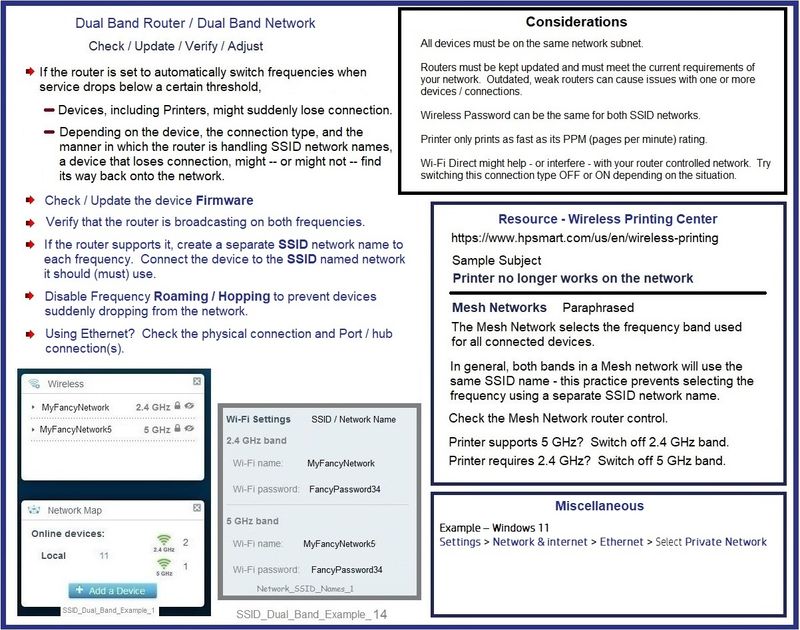
Dual Band Network


The printer supports both 2.4GHz and 5GHz, though not at the same time.


Perhaps significant:  The printer likely does not "hop" -- that means if the frequency broadcast by your router suddenly changes from one frequency to another, the printer can lose connection and perhaps cannot find a way to reconnect to the network.


Example - Dual Band Network - Considerations

SSID_Dual_Band_Example_14SSID_Dual_Band_Example_14


Wireless Center > Section: Common Questions > Topic Printer no longer works on network

Section:  Mesh Networks


Wireless Printing Center > Common Questions > Wireless Connection Issues

AND

Wireless Printing Center – Static IP Address


Some of the more common remedies grouped here:

Wireless Printing Center > Common Questions > Printer no longer works on network


=+=+=+=+=+=+=+=+=+=+=+=+=+=+=+=+=+=+=+=+=+=+

Talking to the printer - Embedded Web Server (EWS)


True - printers that lack text-input-capable printer control panels require other means to adjust and check on the settings.


Although not directly related to an "offline" condition, using EWS can help you manage your printer.


EWS > HP Document / How-to

Use the HP printer Embedded Web Server (EWS)


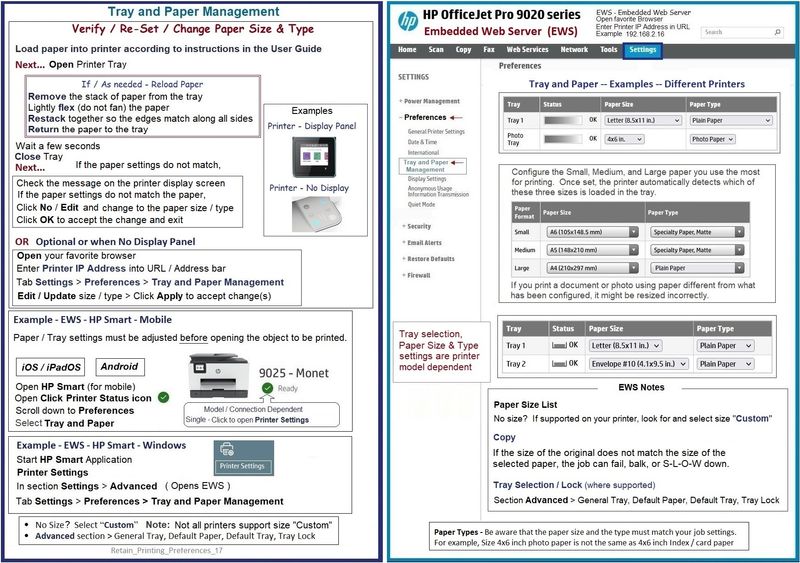
Example - EWS – Browser – Tray and Paper Management

Open your favorite browser > type / enter Printer IP address into URL / Address bar

Tab Settings > Preferences > Tray and Paper Management

Model Dependent:  Advanced section


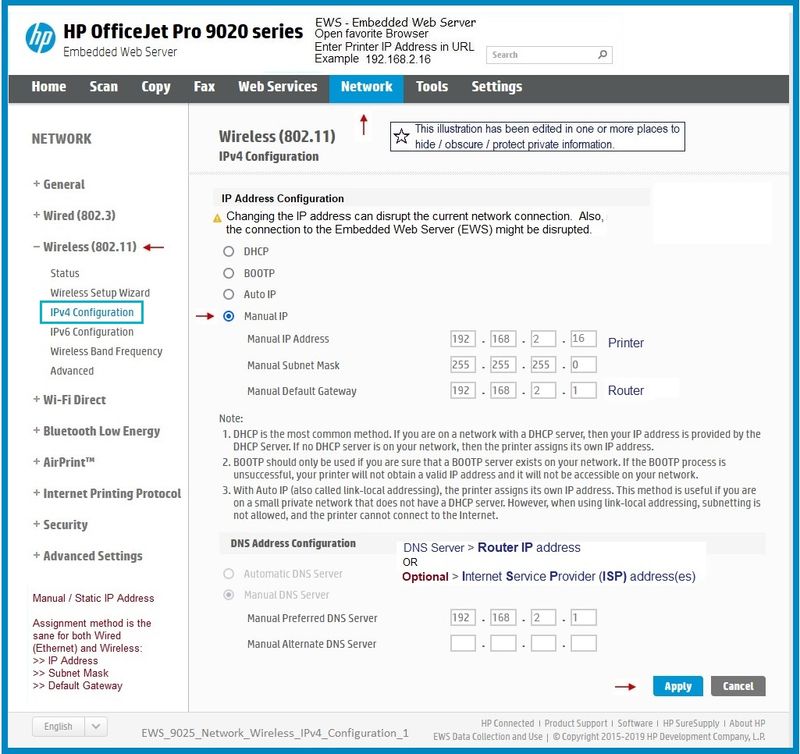
Example - EWS - Browser - Network > Wireless

Open your favorite browser > type / enter Printer IP address into URL / Address bar

Tab Network > Wireless (802.11) > IPv4 Configuration

And – Model Dependent

Tab Network > Wireless (802.11) > Advanced


In Advanced

Having named SSID / networks separately for each bandwidth at the router level,

Select and connect to the correct SSID / network name for the bandwidth you are using.


General Examples - FYI only to illustrate use of EWS

Retain_Printing_Preferences_17Retain_Printing_Preferences_17


EWS_9025_Network_Wireless_IPv4_Configuration_1EWS_9025_Network_Wireless_IPv4_Configuration_1


=+=+=+=+=+=+=+=+=+=+=+=+=+=+=+=+=+=+=+=+=+=+

References / Resources


Technology Tips – Video Gallery  -- From our HP Expert greenturtle

"Technology Tips" envy 6400


User Guide - HP ENVY 6400e All-in-One series


 Product Specifications for the HP ENVY 6475e All-In-One Printer (223R9A)


User Guide - HP ENVY 6400e All-in-One series


HP Envy 6000 series & HP Envy Pro 6452 | 6455 AiO Printer : Reset Wireless to defaults


HP Envy Pro 6452| 6455 AiO printer : Unbox, Setup, Connect to 5Ghz, Load paper, Scan alignment page


=+=+=+=+=+=+=+=+=+=+=+=+=+=+=+=+=+=+=+=+=+=+

HP Printer Home Page - References and Resources

Learn about your Printer  - Solve Problems

“Things that are your printer”

When the website support page opens, Select (as available) a Category > Topic Subtopic

NOTE:  Content depends on device type and Operating System

Categories:  Alerts, Access to the Print and Scan Doctor (Windows), Warranty Check, HP Drivers / Software / Firmware Updates, How-to Videos, Bulletins/Notices, Lots of How-to Documents, Troubleshooting, Manuals > User Guides, Product Information (Specifications), Supplies, and more

Open

HP ENVY 6475e All-In-One Printer 


Thank you for participating in the HP Community --

People who own, use, and support HP devices.

Click Yes to say Thank You

Question / Concern Answered, Click "Accept as Solution"


Dragon-Fur

† The opinions expressed above are the personal opinions of the authors, not of HP. By using this site, you accept the <a href="https://www8.hp.com/us/en/terms-of-use.html" class="udrlinesmall">Terms of Use</a> and <a href="/t5/custom/page/page-id/hp.rulespage" class="udrlinesmall"> Rules of Participation</a>.