• ×
    Information
    Need Windows 11 help?
    Check documents on compatibility, FAQs, upgrade information and available fixes.
    Windows 11 Support Center.
  • post a message
  • ×
    Information
    Need Windows 11 help?
    Check documents on compatibility, FAQs, upgrade information and available fixes.
    Windows 11 Support Center.
  • post a message
Guidelines
Join the HP Community Solve‑a‑thon | Help Others & Share Your Solutions | Live on Zoom | 2:30 PM to 2:30 AM IST | Every Wednesday Click here to know more
Common problems for Connectivity Issues
We would like to share some of the most frequently asked questions about Printer Wi-Fi, Connectivity Issues and Offline Status. Check out this link: HP printer is offline or unavailable.
HP Recommended
HP Envy 7858
Microsoft Windows 10 (64-bit)

Printer is connected to wireless Orbi router,  but HP Smart cannot locate printer.  Laptop and printer connected to same SSID.

Tried removing and reinstalling HP Smart, same trouble.  Printer status in HP Smart shows ready, but not online.  Tried using Print and Scan Doctor but it could not find my printer either. 

1 REPLY 1
HP Recommended

@Samuel-8768


Welcome to the HP support community.


I understand that you are getting printer offline errors and have tried few troubleshooting steps.

Follow these steps to fix the issue:-

Assign a manual IP address and that should fix the issue.

Find the printer IP address to assign it manually.

  1. Load plain U.S. letter or A4 paper in the input tray.

  2. On the printer control panel, swipe down to open the Dashboard, and then touch the Setup icon .

  3. Swipe up on the display, and then touch Reports.

  4. Touch Network Configuration Page to print the page, which can be up to four pages long.

Setting a Static IP Address

Once you know your printer’s IP address from the page you printed, entering it is pretty easy. Here’s what you do:

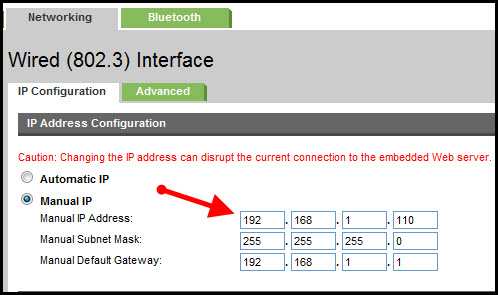
HP Printer Static IP Address

  1. Run your Web browser.
  2. In the Web browser’s address bar, type the IP address of your printer and press Enter. Assuming you entered the right address, the HP printer control panel should appear.
  3. Click the Networking tab.
  4. Under Connections, click Wireless.
  5. Under IP Address Configuration, click Manual IP.
  6. Enter the IP address, subnet mask, and default gateway in the appropriate boxes.
  7. Click Apply.

You can refer to this HP document for more assistance:- Click here


Let me know how it goes.

To thank me for my efforts to help you, please mark my post as an accepted solution so that it benefits several others.

Cheers.

Sandytechy20
I am an HP Employee

† The opinions expressed above are the personal opinions of the authors, not of HP. By using this site, you accept the <a href="https://www8.hp.com/us/en/terms-of-use.html" class="udrlinesmall">Terms of Use</a> and <a href="/t5/custom/page/page-id/hp.rulespage" class="udrlinesmall"> Rules of Participation</a>.