• ×
    Information
    Need Windows 11 help?
    Check documents on compatibility, FAQs, upgrade information and available fixes.
    Windows 11 Support Center.
  • post a message
  • ×
    Information
    Need Windows 11 help?
    Check documents on compatibility, FAQs, upgrade information and available fixes.
    Windows 11 Support Center.
  • post a message
Guidelines
Seize the moment! nominate yourself or a tech enthusiast you admire & join the HP Community Experts!
Common problems for Connectivity Issues
We would like to share some of the most frequently asked questions about Printer Wi-Fi, Connectivity Issues and Offline Status. Check out this link: HP printer is offline or unavailable.
HP Recommended
HP Photosmart C7280 All-in-One
Microsoft Windows 10 (64-bit)

Printer was working with HP All-in-One solutions centre till beginning of the year, 2021. The error message is now No longer supported" Have tried HP Smart app but does not allow connection to Wi-Fi greater than 2.7mbs. Will not find printer using USB cable either. Printer works fine using Microsoft Apps for scanning etc but wondered why the HP app is not compatible. Any help would be appreciated.

1 REPLY 1
HP Recommended

@RominTA8 


==============================================================

Welcome to the HP Community.

Reminder to those reading:

Do NOT respond to individuals who post phone numbers or email addresses.

These might be scammers trying to steal your information / money.

HP does not post phone numbers or email in Community messages.

==============================================================


The old Solution Software is not going to be updated.

The part that broke is the GUI that controls the main Solution Center menu.

That said, there are solutions for Scan and the Print software still works with applications.

For example, you can still print from Word and you can still print PDF files, too.


Start...


HP Document:

HP Printers - HP Solution Center doesn't open 


==============================================================

By now...

The Community is flooded with options to "fix", to work around, hack at the central issue (Flash doesn't work), or to generally comment about the injustice of it all.


Following are a few of the more benign options - If you don't like what you find here, there are plenty of other opinions on the subject.


================================================================


Flash Player is permanently disabled as of 12-Jan-2021.


The HP Solution center software is based on Flash:

https://www.adobe.com/products/flashplayer/end-of-life.html


Some of the possible solutions for Scan...


Start Scan using HP Scan executable.


You might be able to simply start HP Scan / Scan using the program executable.

Doing so "side steps" the problem of the main Solution Center not opening.


For example:

Nelis81 reports that the old Solution Center Scan software is located in "Digital Imaging"

 C:\Program Files (x86)\HP\Digital Imaging\bin\

OR

 C:\Program Files\HP\Digital Imaging\bin\

Double-Click on File name / executable:  hpiscnapp.exe 


Original Content...

What else?


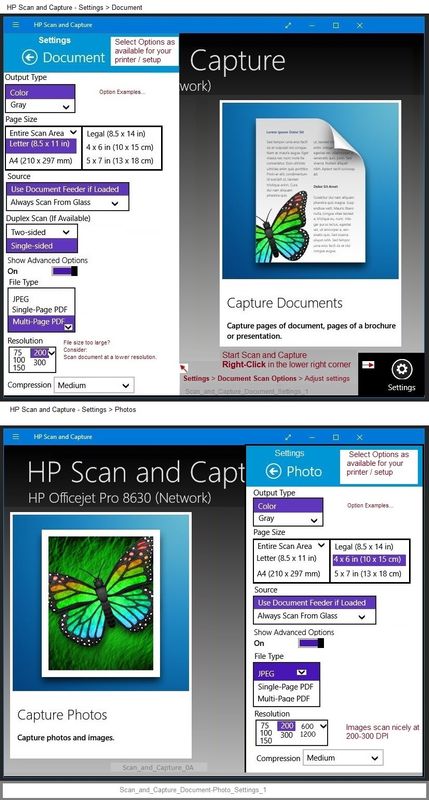
HP Scan and Capture - Microsoft Store (formally Windows Store) - Requires Windows 8 or higher

Scan_and_Capture_Document-Photo_Settings_1Scan_and_Capture_Document-Photo_Settings_1


What else?

HP Scan Extended apparently still works for scanning and does not include a requirement for Flash.


The Caveat:  HPSE is perhaps dependent on the Full Feature Software (previously "HP Solution Center").


HP Scan Extended

  • Download-Save-Install >  HP Scan Extended 
  • HPSE is a subset an older Full Feature Software suite. 
  • HPSE features are very similar to the HP Scan Software released after 2015.
  • Although HPSE appears to be a separate software, HPSE is dependent on the infrastructure provided by the Full Feature Software.  The Full Feature Software for your printer should be installed before installing and using HPSE.
  • OPTIONAL:  Add HP Scan Extended shortcut to Taskbar / Send to Desktop / Pin to Start
    • Open File Explorer > Navigate to C:\Program Files (x86)\HP\HP Scan Extended\bin
    • Right-Click HPScan.exe > Select Pin to Taskbar
    • Right-Click HPScan.exe > Select Send to Desktop (Create a Shortcut)
    • Right-Click HPScan.exe > Select Pin to Start


  • HP Scan Extended features include (and are not limited to): Single, Multiple scans, Image and PDF scans, Email as PDF / JPEG, Source selection, Page Size choices include Auto-Detect (extracts image / document boundary).  Might include OCR (Save as Editable Text).


Examples

NOTE:  Image / PDF scanning settings are similar in some ways.

Be sure to check / adjust the settings in More >

HPSE_Scan-to-PDF_1HPSE_Scan-to-PDF_1HPSE_Scan-to-PDF_1EHPSE_Scan-to-PDF_1E


What else?

Programs / Software like  Paint (mspaint) can be used to scan.

and...

NAPS2 – “Not Another PDF Scanner”

  • Download-Save-Install >  NAPS2 
  • Not another PDF Scanner – free program scans PDF files and image(s) as .jpeg or PDF file(s).
  • Includes an OCR feature – may need Ghostscript add-on (See NAPS2 forum entry)
  • Read the Support pages for information
  • Download, save, and install the NAPS2 software to use.


Thank you for participating in the HP Community.

The Community is a separate wing of the HP website - We are not a business group of HP..

Our Community is comprised of volunteers - people who own and use HP devices.

Click Thumbs Up to say Thank You.

Question Resolved / Answered, Click "Accept as Solution" .


Dragon-Fur

† The opinions expressed above are the personal opinions of the authors, not of HP. By using this site, you accept the <a href="https://www8.hp.com/us/en/terms-of-use.html" class="udrlinesmall">Terms of Use</a> and <a href="/t5/custom/page/page-id/hp.rulespage" class="udrlinesmall"> Rules of Participation</a>.