
-
×InformationNeed Windows 11 help?Check documents on compatibility, FAQs, upgrade information and available fixes.
Windows 11 Support Center. -
-
×InformationNeed Windows 11 help?Check documents on compatibility, FAQs, upgrade information and available fixes.
Windows 11 Support Center. -
- HP Community
- Printers
- Printer Wireless, Networking & Internet
- Hp usb print server

Create an account on the HP Community to personalize your profile and ask a question
Your account also allows you to connect with HP support faster, access a personal dashboard to manage all of your devices in one place, view warranty information, case status and more.
Common problems for Connectivity Issues
We would like to share some of the most frequently asked questions about Printer Wi-Fi, Connectivity Issues and Offline Status. Check out this link: HP printer is offline or unavailable.

It has been a while since anyone has replied. Simply ask a new question if you would like to start the discussion again.

08-16-2026 06:05 AM
 HP Recommended
Product: Hp laserjet p2035
Would.like to connect my hp laserjet p2035 to my network
Solved! Go to Solution.
1 ACCEPTED SOLUTION
Accepted Solutions


08-17-2026 08:12 AM
HP Recommended
Hello @BobP2035, Welcome to the HP Support Community.
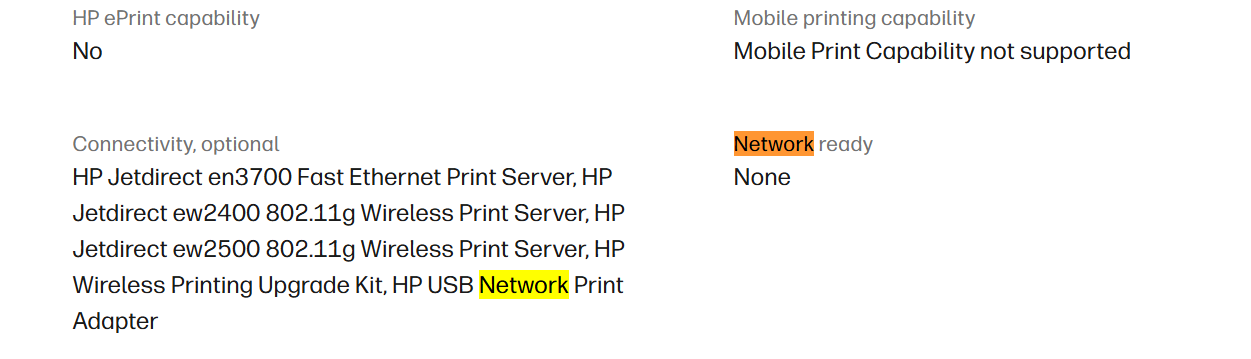
If you have the standard HP LaserJet P2035, you can connect it to your network, but there is an important limitation: the P2035 does not have built-in Wi-Fi or Ethernet networking. It is designed to connect directly to a computer through USB.
If you have the P2035n, that is different the “n” model includes an Ethernet network port and can be connected directly to a wired network.
Option 1: Share the P2035 through a computer
This is usually the simplest solution if you already have a Windows PC that stays connected to the network.
- Connect the P2035 to the computer using a USB cable.
- Open Control Panel > Devices and Printers.
- Right-click HP LaserJet P2035 and select Printer properties.
- Open the Sharing tab.
- Select Share this printer and apply the settings.
- Other computers on the same local network can then add the shared printer through the computer hosting the printer.
Important: The host computer generally needs to be powered on and connected to the network whenever another computer wants to print.
Option 2: Use a USB print server
If you don't want to keep a computer connected to the printer, you can use a USB print server.
- Connect the P2035's USB cable to a compatible USB print-server device.
- Connect the print server to your router/network using Ethernet.
- Configure the print server according to its manufacturer's instructions.
- Install/add the network printer on your computers using the network address provided by the print server.
- Compatibility can vary between USB print servers and older HP printers, so check that the device specifically supports the P2035 before purchasing one.
Option 3: Use a router with USB printer sharing
Some routers include a USB port and support printer sharing.
- Check your router's specifications to confirm that its USB port supports printer sharing/print-server functionality.
- Connect the P2035 to the router's USB port.
- Enable the router's printer-sharing feature if required.
- Follow the router manufacturer's instructions to add the printer to your computers.
- Not every router USB port supports printers; some are intended only for storage or other devices.
If you actually have an HP LaserJet P2035n
If the label on the printer says P2035n, you have the network-capable version. In that case, you can connect an Ethernet cable directly from the printer's network port to your router or network switch and configure it as a network printer.
Please check the link for the specifications of the printer.
HP LaserJet P2035 Printer - Specifications & Accessories | HP® Support
Have a great day!
I'm an HP Employee.
If this reply helped resolve your issue, please select the Accept as Solution as it helps others in the community quickly find the answer they’re looking for.
And if you found this reply helpful, clicking Yes below is a great way to let us know we’re providing the support you need, as it encourages us to keep improving and sharing helpful guidance.
3 REPLIES 3
08-17-2026 08:12 AM
HP Recommended
Hello @BobP2035, Welcome to the HP Support Community.
If you have the standard HP LaserJet P2035, you can connect it to your network, but there is an important limitation: the P2035 does not have built-in Wi-Fi or Ethernet networking. It is designed to connect directly to a computer through USB.
If you have the P2035n, that is different the “n” model includes an Ethernet network port and can be connected directly to a wired network.
Option 1: Share the P2035 through a computer
This is usually the simplest solution if you already have a Windows PC that stays connected to the network.
- Connect the P2035 to the computer using a USB cable.
- Open Control Panel > Devices and Printers.
- Right-click HP LaserJet P2035 and select Printer properties.
- Open the Sharing tab.
- Select Share this printer and apply the settings.
- Other computers on the same local network can then add the shared printer through the computer hosting the printer.
Important: The host computer generally needs to be powered on and connected to the network whenever another computer wants to print.
Option 2: Use a USB print server
If you don't want to keep a computer connected to the printer, you can use a USB print server.
- Connect the P2035's USB cable to a compatible USB print-server device.
- Connect the print server to your router/network using Ethernet.
- Configure the print server according to its manufacturer's instructions.
- Install/add the network printer on your computers using the network address provided by the print server.
- Compatibility can vary between USB print servers and older HP printers, so check that the device specifically supports the P2035 before purchasing one.
Option 3: Use a router with USB printer sharing
Some routers include a USB port and support printer sharing.
- Check your router's specifications to confirm that its USB port supports printer sharing/print-server functionality.
- Connect the P2035 to the router's USB port.
- Enable the router's printer-sharing feature if required.
- Follow the router manufacturer's instructions to add the printer to your computers.
- Not every router USB port supports printers; some are intended only for storage or other devices.
If you actually have an HP LaserJet P2035n
If the label on the printer says P2035n, you have the network-capable version. In that case, you can connect an Ethernet cable directly from the printer's network port to your router or network switch and configure it as a network printer.
Please check the link for the specifications of the printer.
HP LaserJet P2035 Printer - Specifications & Accessories | HP® Support
Have a great day!
I'm an HP Employee.
If this reply helped resolve your issue, please select the Accept as Solution as it helps others in the community quickly find the answer they’re looking for.
And if you found this reply helpful, clicking Yes below is a great way to let us know we’re providing the support you need, as it encourages us to keep improving and sharing helpful guidance.
08-17-2026 12:05 PM
HP Recommended
We are glad to hear the information was helpful and that you have found a solution that works for your setup. @BobP2035
The print server route is often a practical option for printers that do not have built-in network connectivity, allowing multiple devices to access the printer across the network while continuing to use the printer's existing USB connection.
We wish you the very best with the setup, and if you have any questions along the way, please don't hesitate to reach out.
Have a great day as well!
I'm an HP Employee.
If this reply helped resolve your issue, please select the Accept as Solution as it helps others in the community quickly find the answer they’re looking for.
And if you found this reply helpful, clicking Yes below is a great way to let us know we’re providing the support you need, as it encourages us to keep improving and sharing helpful guidance.

Be alert for scammers posting fake support phone numbers and/or email addresses on the community.
If you think you have received a fake HP Support message, please report it to us by clicking on "Flag Post".
† The opinions expressed above are the personal opinions of the authors, not of HP. By using this site, you accept the Terms of Use and Rules of Participation.


Didn't find what you were looking for?
Ask the community
† The opinions expressed above are the personal opinions of the authors, not of HP. By using this site, you accept the <a href="https://www8.hp.com/us/en/terms-of-use.html" class="udrlinesmall">Terms of Use</a> and <a href="/t5/custom/page/page-id/hp.rulespage" class="udrlinesmall"> Rules of Participation</a>.