• ×
    Information
    Need Windows 11 help?
    Check documents on compatibility, FAQs, upgrade information and available fixes.
    Windows 11 Support Center.
  • post a message
  • ×
    Information
    Need Windows 11 help?
    Check documents on compatibility, FAQs, upgrade information and available fixes.
    Windows 11 Support Center.
  • post a message
Guidelines
Ready to level up? Join the Expert Program—
Common problems for Connectivity Issues
We would like to share some of the most frequently asked questions about Printer Wi-Fi, Connectivity Issues and Offline Status. Check out this link: HP printer is offline or unavailable.
HP Recommended
HP OfficeJet 4655 All-in-One Printer

My pc is connected to a new wireless network and now my printer is no longer connected to the pc. I tried turning on the old hot spot that both were connected to but still no luck. I would like to use both the pc and the printer on the new network.

1 REPLY 1
HP Recommended

@jrd1984 


Welcome to the HP Community --


If the printer has already been set back to network defaults and the printer will not connect to your network,

Consider the connection method and how you have configured your new network.


Reference

Wireless
802.11 b/g/n – 2.4 GHz networks only


=-=-=-=-=-=-=-=-=-=-=-=-=-=-=-=

Dual Band Network - Considerations


Reminders 


Do not ignore your router --

A router that is weak, outdated, poorly located, or incorrectly configured can cause all sorts of odd network behavior issues.


If the printer supports it, connecting using Ethernet is generally a better choice.


Some printers, particularly older models, only support Wireless at 2.4GHz

Some printers support Wireless at both 5GHz and 2.4GHz – but not at the same time


Regardless, if the printer won't work or cannot connect to your 5GHz SSID named network, connect to the 2.4GHz network.


If you are running a Dual Band Network,

 Check that the router is set up to broadcast all frequencies it supports.

Next,

If your router supports it,

On your router:

 Create a separate SSID named network for each frequency supported by the router

 What?  Create one SSID named network for 5GHz and one SSID named network for 2.4GHz

and

 Connect the printer to the SSID named network on the frequency / band you want it to use.


In general,

  • 2.4GHz is less fussy about obstacles and supports a longer distance (separation) between router and device (printer)
  • 5GHz is faster

=-=-=-=-=-=-=-=-=-=-=-=-=-=-=-=


Example – EWS – IPv4


EWS > HP Document / How-to

Use the HP printer Embedded Web Server (EWS)


Ethernet

Open your Browser > Type / enter the Printer IP address into URL / Address bar

Tab Network > Wired (802.3) > IPv4 Configuration


Wireless

Open your Browser > Type / enter the Printer IP address into URL / Address bar

Tab Network > Wireless (802.11) > IPv4 Configuration

As Available:

Tab Network > Wireless (802.11) > Advanced

Network Interface on / off, Network SSID name, Security Settings, Passphrase / Password

Select and connect to the correct SSID / network name for the bandwidth you are using.


Note:   It is not mandatory that you use a manual / static IP address.  Doing so can improve stability.


Example - EWS - IPv4

EWS_9025_Network_IPv4_Configuration_3EWS_9025_Network_IPv4_Configuration_3


Example - EWS - IPv4 - Advanced > SSID

EWS_9025_Network_Wireless_IPv4_Advanced_2EWS_9025_Network_Wireless_IPv4_Advanced_2


=-=-=-=-=-=-=-=-=-=-=-=-=-=-=-=


Next,

You might have to uninstall / reinstall the printer software.


This will be the same procedure you've used in the past --

For example,

If you are running a supported version of Windows, the Web Pack is still the same version as you have installed in the past.


Example

Source

Details Page - Example - Driver - For your Printer

>>> Full Feature Software - Web Pack Installation Package - Information - Download / Save / Install  <<<

HP OfficeJet 4650 series Print and Scan Driver and Accessories 

After the software is installed, Restart the computer and log in.


====================================


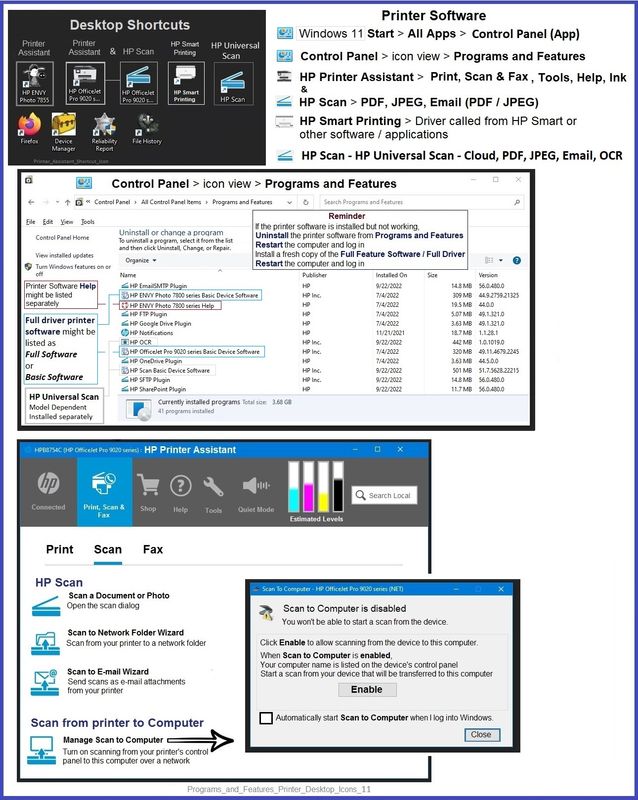
The installation of the full driver adds at least two shortcuts to the Desktop:  

Printer Assistant 

HP Scan


>>> Open the Printer Assistant > tab Scan Manage Scan to Computer Enable


Example - HP Full Feature Software - Installed in Programs and Features

Programs_and_Features_Printer_Desktop_Icons_11Programs_and_Features_Printer_Desktop_Icons_11


=+=+=+=+=+=+=+=+=+=+=+=+=+=

References / Resources


Change network settings > Page 59


HP Printer Home Page - References and Resources

Learn about your Printer - Solve Problems

“Things that are your printer”

When the website support page opens, Select (as available) a Category > Topic > Subtopic

NOTE: Content depends on device type and Operating System

Categories: Alerts, Troubleshooting, Ink & Paper, HP Software / Drivers / Firmware Updates , Setup & User Guides, Product Specifications, Account & Registration, Warranty & Repair

Open

HP OfficeJet 4655 All-in-One Printer  


Thank you for participating in the HP Community --

People who own, use, and support HP devices.

Click Yes to say Thank You

Question / Concern Answered, Click my Post "Accept as Solution"


Dragon-Fur

† The opinions expressed above are the personal opinions of the authors, not of HP. By using this site, you accept the <a href="https://www8.hp.com/us/en/terms-of-use.html" class="udrlinesmall">Terms of Use</a> and <a href="/t5/custom/page/page-id/hp.rulespage" class="udrlinesmall"> Rules of Participation</a>.