• ×
    Information
    Need Windows 11 help?
    Check documents on compatibility, FAQs, upgrade information and available fixes.
    Windows 11 Support Center.
  • post a message
  • ×
    Information
    Need Windows 11 help?
    Check documents on compatibility, FAQs, upgrade information and available fixes.
    Windows 11 Support Center.
  • post a message
Guidelines
Seize the moment! nominate yourself or a tech enthusiast you admire & join the HP Community Experts!
Common problems for Connectivity Issues
We would like to share some of the most frequently asked questions about Printer Wi-Fi, Connectivity Issues and Offline Status. Check out this link: HP printer is offline or unavailable.
HP Recommended
Macintosh
macOS 11.0 Big Sur

Hi,


It appears from my research that there is a fix for duplexing available for Windows, but I haven't located any information for Macintosh.


Curiously, which I went to my email, the option for double sided showed up as an option.

However when I am trying to print a word document, I don't have that option. I even went through the Word setup for printing, and wasn't able to turn it on from there either.


The only option I could find was to print several pages on one document. With the various arrow choices.


Two screenshots are included. Many thanks.

First shot is from printing from email, Second is printing from Word.


Trying to print from wordTrying to print from wordfrom emailfrom email

1 REPLY 1
HP Recommended

Hi @Q-for-U,


I'd like to help!


I understand that the two-sided option is not available on a word document.


Set up a two-sided (duplex) printing job from a Mac computer with an HP printer.

  1. To avoid page ordering issues, load enough paper into the paper tray to complete your print job.

    NOTE: 

    To avoid paper jams, do not print on both sides of envelopes, photo paper, glossy paper, or transparencies. Do not print on paper lighter than 60 g/m2 (16 lb) or heavier than 105 g/m2 (28 lb).

  2. Determine if you want the pages to read as a booklet or a tablet.

    Select booklet or tablet layout

    Callout

    Description

    1.Booklet layout

    2.ablet layout

  3. Open the document, click File > Print, and then click Show Details.

    • If the Two-Sided setting is available, select the checkbox to enable it. Then from the unnamed print options menu, select Layout, select Long-Edge binding for booklet layout or Short-Edge binding for tablet layout from the Two-Sided menu, and then click Print.

      Duplex printing settings in macOS

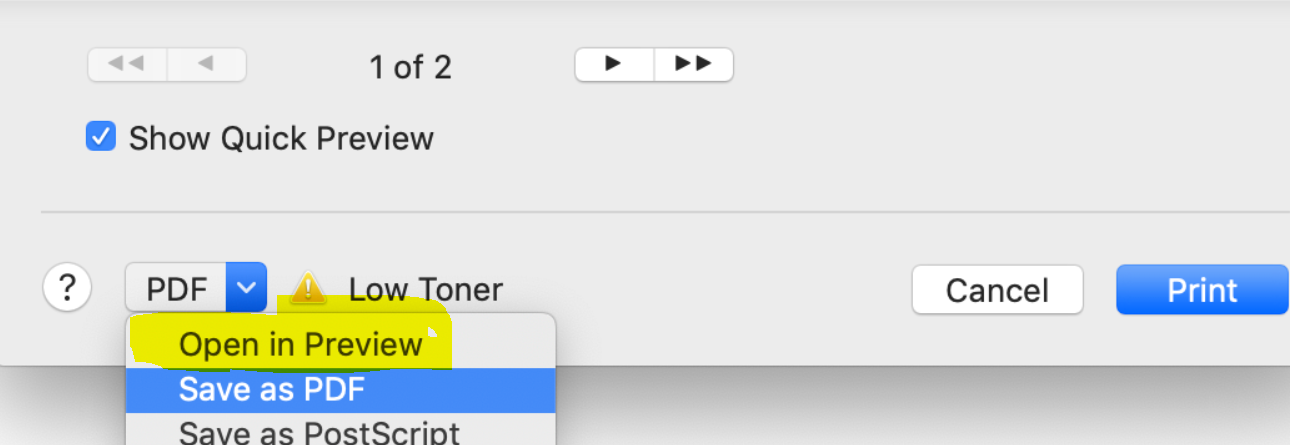
 If the issue persists, try opening the document with a mac preview window


 and then check if the two-sided printing option shows up.


Hope this helps! Keep me posted. 


And, Welcome to the HP Support Community. 


Please click “Accept as Solution” if you feel my post solved your issue, it will help others find the solution.

Click the “Kudos, Thumbs Up" on the bottom right to say “Thanks” for helping

† The opinions expressed above are the personal opinions of the authors, not of HP. By using this site, you accept the <a href="https://www8.hp.com/us/en/terms-of-use.html" class="udrlinesmall">Terms of Use</a> and <a href="/t5/custom/page/page-id/hp.rulespage" class="udrlinesmall"> Rules of Participation</a>.