-
×InformationNeed Windows 11 help?Check documents on compatibility, FAQs, upgrade information and available fixes.
Windows 11 Support Center. -

-
×InformationNeed Windows 11 help?Check documents on compatibility, FAQs, upgrade information and available fixes.
Windows 11 Support Center. -
- HP Community
- Printers
- Printer Wireless, Networking & Internet
- Offlne Printer

Create an account on the HP Community to personalize your profile and ask a question
06-08-2022 12:23 PM
My printer keeps going offline. I have to turn off the printer, unplug power, uninstall the software, then reinstall everything as it was new. Then, it works for a few days, then goes offline again. Rinse and repeat!
06-11-2022 10:01 AM
@jkirkmd
Welcome to the HP support community.
I understand that you are getting a printer offline error, I am glad to assist you.
Use HP Print and Scan Doctor to fix connectivity and printing issues.
Download HP Print and Scan Doctor.
- Run HPPSdr.exe from the download location on your computer.
- Once HP Print and Scan Doctor opens, click Start, and then select your printer.
- If your printer is not in the list, turn it off and on, and then click Retry.
- If there is a connection problem, follow the instructions in HP Print and Scan Doctor.
- If a screen prompts you to turn on printer updates, click Yes.
- If a screen prompts you to make your printer the default printer, click Yes.
- Try to print.
.Assign a manual IP address to manually connect the printer.
Find the printer IP address to assign it manually.
- Load plain white paper into the input tray.
- From the printer control panel home screen, swipe left, and then touch Setup.
- Swipe up, touch Print Reports, and then touch Network Configuration Report.
Setting a Static IP Address
Once you know your printer’s IP address from the page you printed, entering it is pretty easy. Here’s what you do:

- Run your Web browser.
- In the Web browser’s address bar, type the IP address of your printer and press Enter. Assuming you entered the right address, the HP printer control panel should appear.
- Click the Networking tab.
- Under Connections, click Wireless.
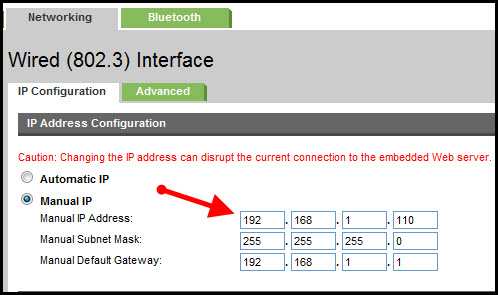
- Under IP Address Configuration, click Manual IP.
- Enter the IP address, subnet mask, and default gateway in the appropriate boxes.
- Click Apply.
You can try steps 2 and steps 4 in this HP document for more assistance:- Click here
Let me know how it goes.
If this helps, please mark the public post as an accepted solution so that it benefits several others.
Cheers.
Sandytechy20
I am an HP Employee