• ×
    Information
    Need Windows 11 help?
    Check documents on compatibility, FAQs, upgrade information and available fixes.
    Windows 11 Support Center.
  • post a message
  • ×
    Information
    Need Windows 11 help?
    Check documents on compatibility, FAQs, upgrade information and available fixes.
    Windows 11 Support Center.
  • post a message
Guidelines
Join the HP Community Solve‑a‑thon | Help Others & Share Your Solutions | Live on Zoom | 2:30 PM to 2:30 AM IST | Every Wednesday Click here to know more
Common problems for Connectivity Issues
We would like to share some of the most frequently asked questions about Printer Wi-Fi, Connectivity Issues and Offline Status. Check out this link: HP printer is offline or unavailable.
HP Recommended
HP DeskJet 2620

I’ve recently changed from a laptop to using an iPad pro. How can I define the paper size (e.g. A5)?

1 REPLY 1
HP Recommended

@Liam49 


Reference

Product Specifications for the HP DeskJet 2620 All-in-One Printer (Y5H80A) 

Section  Paper handling


=========================================================================


Answer:

 HP Smart - Mobile Printing -

The paper size / type must be selected before you open your document / image to be printed.


Check / Adjust / Retain the Paper at the Printer Display Panel


Section is not applicable to printers lacking a printer display panel.


Open Printer Tray,

If you have not yet done so, Remove / add desired paper size - type

else

Wait a few seconds

Close Tray

IF applicable for your printer:

On the Printer Control Display Panel,

Click Modify / Change / No-Yes (wording varies), adjust the paper size and type, Click OK


No Size?  If the size of the Paper Size is not in the Drop-down list, Select Custom

Note:  Not all printers allow selection of “Custom”


=-=-=-=-=-=-=-=-=-=-=-=-=-=-=-=-=-=-=-=-=-=-=-=-=-=-=-=-=-=-=-=-=-=-=-=-=-=-=


What else?


EWS – Browser – Tray and Paper Management

Open your favorite browser > type / enter Printer IP address into URL / Address bar

Tab Settings > Preferences > Tray and Paper Management

If applicable, check the Advanced section (at the bottom of the Tray and Paper Management menu)

Click Apply to save changes


No Size?  If the size of the Paper Size is not in the Drop-down list, Select Custom

Note:  Not all printers allow selection of “Custom”


EWS - HP Smart for Mobile - iOS

Reminder:  Paper Size / type settings should be done before opening the item to be printed.

Open HP Smart (for mobile)

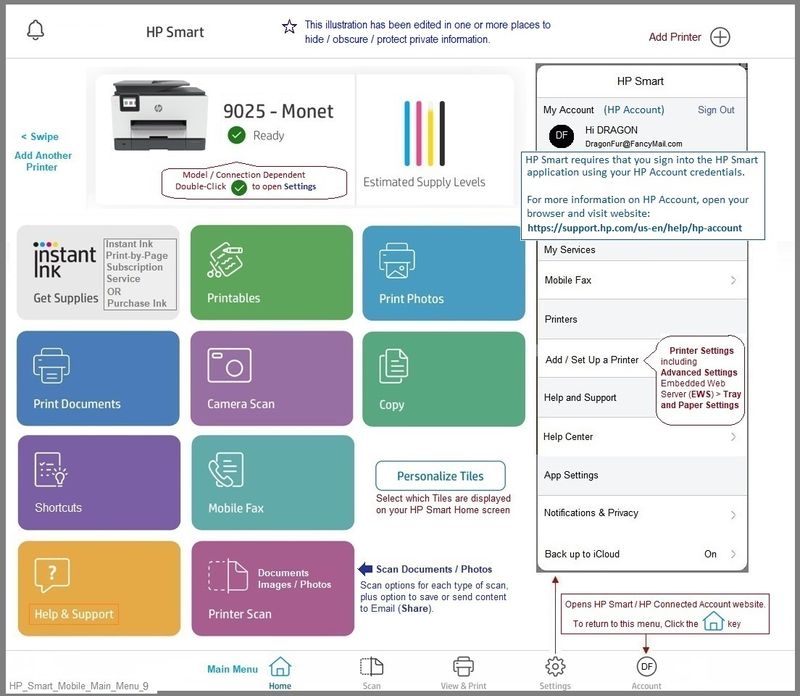
Open Settings

Open Add / Set Up a Printer 

Scroll down, Click, Tray and Paper

As Available:  Check / Adjust settings in Advanced

Click Apply to save changes


No Size?  If the size of the Paper Size is not in the Drop-down list, Select Custom

Note:  Not all printers allow selection of “Custom”


EWS - HP Smart – Windows

Start HP Smart Application

Printer Settings

In section Settings > Advanced

Tab Settings > Preferences

Tray and Paper Management

As Available:  Check / Adjust settings in Advanced

Click Apply to save changes


No Size?  If the size of the Paper Size is not in the Drop-down list, Select Custom

Note:  Not all printers allow selection of “Custom”


General Example - HP Smart Mobile - Main Menu

HP_Smart_Mobile_Main_Menu_9HP_Smart_Mobile_Main_Menu_9


References / Resources


HP Smart - iOS and Android >>> Download, How-to, and FAQ

 HP Printers - Using the HP Smart App (Android, Apple iOS)


HP Printer Support Home Page - References and Resources – Learn about your Printer  - Solve Problems

 “Things that are your printer”

NOTE:  Content depends on device type and Operating System

Categories:  Alerts, Access to the Print and Scan Doctor (Windows), Warranty Check, HP Drivers / Software / Firmware Updates, How-to Videos, Bulletins/Notices, Lots of How-to Documents, Troubleshooting, Manuals > User Guides, Product Information (Specifications), more

When the website support page opens, Select (as available) a Category > Topic > Subtopic

HP DeskJet 2620 All-in-One Printer 


Thank you for participating in the HP Community.

The Community is a separate wing of the HP website - We are not an HP business group.

Our Community is comprised of volunteers - people who own and use HP devices.

Click Thumbs Up to say Thank You.

Question / Concern Answered, Click "Accept as Solution"

Dragon-Fur

† The opinions expressed above are the personal opinions of the authors, not of HP. By using this site, you accept the <a href="https://www8.hp.com/us/en/terms-of-use.html" class="udrlinesmall">Terms of Use</a> and <a href="/t5/custom/page/page-id/hp.rulespage" class="udrlinesmall"> Rules of Participation</a>.