• ×
    Information
    Need Windows 11 help?
    Check documents on compatibility, FAQs, upgrade information and available fixes.
    Windows 11 Support Center.
  • post a message
  • ×
    Information
    Need Windows 11 help?
    Check documents on compatibility, FAQs, upgrade information and available fixes.
    Windows 11 Support Center.
  • post a message
Guidelines
Seize the moment! nominate yourself or a tech enthusiast you admire & join the HP Community Experts!
Common problems for Connectivity Issues
We would like to share some of the most frequently asked questions about Printer Wi-Fi, Connectivity Issues and Offline Status. Check out this link: HP printer is offline or unavailable.
HP Recommended
Hp envy 5000
Android 8.0 Oreo and older

I just changed internet providers and I am now having problems connecting my printer to the new wifi. I go through all the steps and I choose the correct WiFi to connect to and it tries to do so but every time it says unable to connect to WiFi.

7 REPLIES 7
HP Recommended

Hi @Frustratedenvyu,


I'd like to help!


To better assist -

  1.  I would like to know, is your router set to work on 2.4 GHz network or 5 GHz network band?
  2. Is the printer connected to a home or public network?

While you respond, Try the steps below to connect the printer to the network


Access the Wireless Setup Wizard through the printer control panel to establish a wireless connection between your printer and network.


  1. From the home screen of your printer control panel, touch the Wireless icon .

  2. Touch the Setup icon .

  3. Touch Restore Network Defaults or Restore Network Settings, and then touch Yes to confirm your selection.

  4. After the default network settings are restored, touch the back arrow, touch Wireless Settings, and then touch Wireless Setup Wizard.

    The printer searches for available networks.

  5. Touch the name of your wireless network.

  6. If your wireless network does not display in the list of wireless networks, touch Enter New Network Name, and then type the name of your wireless network.

    NOTE: 

    Type the exact network name, including any uppercase and lowercase letters.

  7. Type the WEP or WPA key (network password), and then touch Done.

    If you do not know your network password, go to Find Your Wireless WEP, WPA, WPA2 Password..

    Once the printer connects to the wireless network, the blue Wireless light on the control panel turns on solid.


Hope this helps! Keep me posted. 


And, Welcome to the HP Support Community. 


Please click “Accept as Solution” if you feel my post solved your issue, it will help others find the solution.

Click the “Kudos, Thumbs Up" on the bottom right to say “Thanks” for helping

HP Recommended

My router is set up for both 2.4 and 5 GHz. It is connected to a home network.


I have tried doing the steps suggested with no success. When I use the wireless wizard setup, I choose the proper WiFi but it won't give me a step to be able to enter the password. And will not connect to wifi telling me there was an error and to try again. I have done this about a dozen times at least still with no success.

HP Recommended

Does the 2.4 and 5GHz networks have different network names or share the same?


Is your phone connected to 2.4GHz?

HP Recommended

I have 2 different networks with the same name except one has 2.4GHz after it and the other 5GHz. For example: network2.4GHz and network5GHz. My phone is connected to the 2.4GHz

HP Recommended

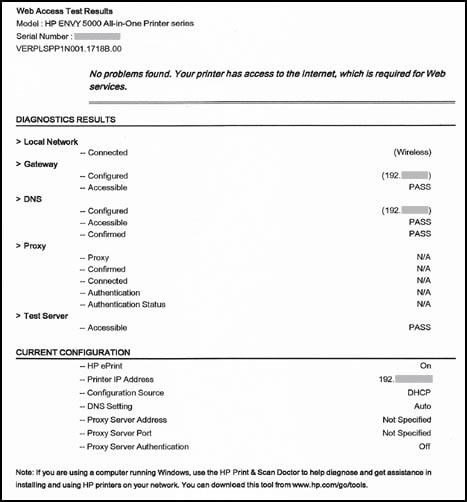
Please print and share the  Web Access Report-


The Web Access Test Results page provides information about the printer status, DNS setting, and the IP address. If the printer is connected to a wireless network, the test report displays details about the network settings. It also indicates any wireless connectivity issues and might explain how to fix them.

  1. Make sure there is U.S. letter or A4 size, unused, plain paper in the input tray.

  2. On the printer control panel, touch the Setup icon .

  3. Touch Tools.

  4. Swipe down the display, and then touch Web Access Report.

    A Web Access Test Results page prints.

    Figure : Example of a Web Access Test Results page

    Example of a Web Access Test Results page

Keep me posted!

HP Recommended

When I try to connect to my WiFi get the message: "Network: 'the name of my network'

Serurity: No encryption"

Even though my WiFi is indeed password protected

And when I then try to connect  I get the message "Unable to connect to the network. Touch 'retry' to connect again."

web access test.jpg

HP Recommended

Seems like the wireless feature is failed.


 I’d recommend you contact HP Phone Support in your region regarding service options for your printer.


Follow the instructions below to reach them:


1) Click on this link - https://support.hp.com/us-en/contact-hp

2) Select your product type below.

3) Enter the serial of your device. 

4) Select the country from the drop-down. 

5) Select the chat or get phone number options based on your preferences. 

6)Fill the web-form and proceed further.


Have a great day !

† The opinions expressed above are the personal opinions of the authors, not of HP. By using this site, you accept the <a href="https://www8.hp.com/us/en/terms-of-use.html" class="udrlinesmall">Terms of Use</a> and <a href="/t5/custom/page/page-id/hp.rulespage" class="udrlinesmall"> Rules of Participation</a>.