-
×InformationNeed Windows 11 help?Check documents on compatibility, FAQs, upgrade information and available fixes.
Windows 11 Support Center. -

-
×InformationNeed Windows 11 help?Check documents on compatibility, FAQs, upgrade information and available fixes.
Windows 11 Support Center. -
- HP Community
- Printers
- Printer Wireless, Networking & Internet
- Printer not found

Create an account on the HP Community to personalize your profile and ask a question
01-03-2021 05:31 AM
Hello all.
I’ve come on to ask for support as the Samaritans is engaged.
I have a envy 4520 all-in-one printer. It’s been running perfectly well for a couple of years, no problems.
Yesterday I was unable to print from my Acer laptop.
I’ve tried every fix suggested by PrintDoctor and it still will not print.
For information it will print from multiple other devices ie: iPad, iPhones etc.
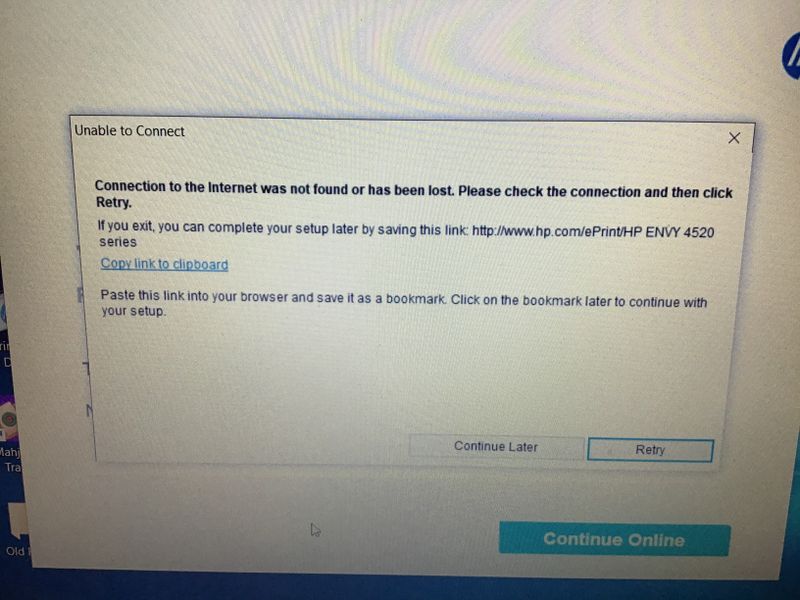
I get a message as this photo
I’ve also tried to print from my wife’s laptop, both using Windows 10 but that doesn’t work either.
This driving me nuts (as Peter Kay would say)
Please, please help me if you can. I’m at my wits end with it.
Kind regards and a Happy New Year.
David
01-05-2021 08:13 AM
Hi @davidwm1,
I'd like to help!
Try the below suggestions -
Restart the computer, printer, and router
To resolve many connectivity issues, restart the computer, printer, and router.
NOTE:The following steps temporarily disconnect network and Internet connections, and require restarting your computer. Complete any tasks or downloads in progress before you continue.
-
Turn off the router by pressing the power button or disconnecting the power cord.
-
Turn off the printer.
-
Close all running programs on your computer, and then shut down the computer.
-
Press the power button or reconnect the power cord to the router, and then wait for the Internet activity light to display a normal connected status.
-
Turn on the printer.
-
Turn on the computer.
Use HP Print and Scan Doctor to check connectivity
Download a special version of HP Print and Scan Doctor specifically created to help with printer offline conditions.
- Download HP Print and Scan Doctor.
- Run HPPSdr.exe from the download location on your computer.
- Once HP Print and Scan Doctor opens, click Start, and then select your printer.
- If your printer in not in the list, turn it off and on, and then click Retry.
- If there is a connection problem, follow the instructions in HP Print and Scan Doctor.
- If a screen prompts you to turn on printer updates, click Yes.
- If a screen prompts you to make your printer the default printer, click Yes.
Set a manual IP-
To set a manual IP and try the steps below -
--->Touch on the wifi icon ((i)) on the printer, and take down the IP address
--->Open a web browser (ex Chrome or Mozilla) and type in the printer's IP
--->then go to network ---> general ---> network protocols ---> select IPV4 only-->apply
--->go to wireless ---> wireless 802.11---> select manual ip ---> apply
--->Enter 8.8.8.8 for the first DNS and 8.8.4.4 for the second DNS.
--->then go to settings on the main ews page --> power management ---> select sleep mode to max 15min
Connect the printer to TCP/IP port
--->Touch on the wifi icon ((i)) on the printer, and take down the IP address
a. Click Start/Devices and Printers. Right-click on your HP Printer. Select Printer Properties. Select the Ports tab at the top.
b. Select Add Port. Select Standard TCP/IP Port. Select New Port.
c. Follow the Add Port Wizard. Under Printer Name or IP Address, . Example: 192.168.1.15. The IP address will be copied under Port Name.
d. Select Next and Finish the Wizard.
Hope this helps! Keep me posted.
And, Welcome to the HP Support Community.
Please click “Accept as Solution” if you feel my post solved your issue, it will help others find the solution.
Click the “Kudos, Thumbs Up" on the bottom right to say “Thanks” for helping.