• ×
    Information
    Need Windows 11 help?
    Check documents on compatibility, FAQs, upgrade information and available fixes.
    Windows 11 Support Center.
  • post a message
  • ×
    Information
    Need Windows 11 help?
    Check documents on compatibility, FAQs, upgrade information and available fixes.
    Windows 11 Support Center.
  • post a message
Guidelines
Seize the moment! nominate yourself or a tech enthusiast you admire & join the HP Community Experts!
Common problems for Connectivity Issues
We would like to share some of the most frequently asked questions about Printer Wi-Fi, Connectivity Issues and Offline Status. Check out this link: HP printer is offline or unavailable.
HP Recommended
HP LaserJet Pro MFP M28w Printer
Microsoft Windows 10 (64-bit)

Hi, my printer keeps going offline. I tried to fix it with the smart app, didn't work. I tried to reinstall, but somewhere I get lost in the instructions. Who can help me please? It drives me crazy! 

1 REPLY 1
HP Recommended

@Jolanda2404


Welcome to the HP support community.


I understand that you are getting a printer offline error, I am glad to assist you.


Use HP Print and Scan Doctor to fix connectivity and printing issues.

  • Download HP Print and Scan Doctor.
  • Run HPPSdr.exe from the download location on your computer.
  • Once HP Print and Scan Doctor opens, click Start, and then select your printer.
  • If your printer is not in the list, turn it off and on, and then click Retry.
  • If there is a connection problem, follow the instructions in HP Print and Scan Doctor.
  • If a screen prompts you to turn on printer updates, click Yes.
  • If a screen prompts you to make your printer the default printer, click Yes.
  • Try to print.

.Assign a manual IP address to manually connect the printer.

Find the printer IP address to assign it manually.

  • Turn on the printer.
  • On the printer control panel, press and hold the Start Copy button , and then release it when the Ready light blinks.

Setting a Static IP Address

  • Once you know your printer’s IP address from the page you printed, entering it is pretty easy. Here’s what you do:
  • HP Printer Static IP Address
  • Run your Web browser.
  • In the Web browser’s address bar, type the IP address of your printer and press Enter. Assuming you entered the right address, the HP printer control panel should appear.
  • Click the Networking tab.
  • Under Connections, click Wireless.
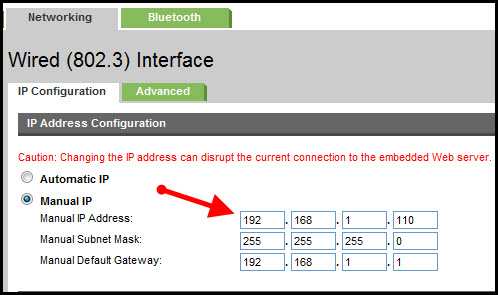
  • Under IP Address Configuration, click Manual IP.
  • Enter the IP address, subnet mask, and default gateway in the appropriate boxes.
  • Click Apply.

You can try steps 2 and steps 4 in this HP document for more assistance:- Click here


Download and install the printer using the HP Smart app:- Click here


Let me know how it goes.

If this helps, please mark the public post as an accepted solution so that it benefits several others.

Cheers.

Sandytechy20
I am an HP Employee

† The opinions expressed above are the personal opinions of the authors, not of HP. By using this site, you accept the <a href="https://www8.hp.com/us/en/terms-of-use.html" class="udrlinesmall">Terms of Use</a> and <a href="/t5/custom/page/page-id/hp.rulespage" class="udrlinesmall"> Rules of Participation</a>.