• ×
    Information
    Need Windows 11 help?
    Check documents on compatibility, FAQs, upgrade information and available fixes.
    Windows 11 Support Center.
  • post a message
  • ×
    Information
    Need Windows 11 help?
    Check documents on compatibility, FAQs, upgrade information and available fixes.
    Windows 11 Support Center.
  • post a message
Guidelines
Seize the moment! nominate yourself or a tech enthusiast you admire & join the HP Community Experts!
Common problems for Connectivity Issues
We would like to share some of the most frequently asked questions about Printer Wi-Fi, Connectivity Issues and Offline Status. Check out this link: HP printer is offline or unavailable.
HP Recommended
Inkjet Advantage 2600
Microsoft Windows 10 (64-bit)

I need help with my printer. I can get it to print wirelessly from my iPhone, but not from my Windows desktop PC.

Makes no sense!

I ran the HP Print Scan DOctor, which said it corrected detected problems, but did not print the test page, saying there was an ERROR on the printer.
He asked me to print an internal test page, which was not printed, but ... I had a document printed by cell phone and it was printed without problem.
The application had the printer restarted by unplugging the power cord, etc ... I did this and had the test page printed again and ERRORed again.
I don't know what else to do, because HP's support here in Brazil doesn't answer me.


1 REPLY 1
HP Recommended

@AlexSaba


Welcome to the HP support community.


I understand that you are getting printer connectivity issues between the printer and your computer.

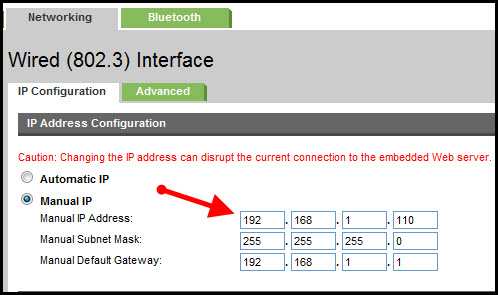
Assign a manual IP address and that should fix the issue.

Find the printer IP address to assign it manually.

  1. On the printer's control panel, press the Wireless button  and the Information button  at the same time.

Setting a Static IP Address

Once you know your printer’s IP address from the page you printed, entering it is pretty easy. Here’s what you do:

HP Printer Static IP Address

  1. Run your Web browser.
  2. In the Web browser’s address bar, type the IP address of your printer and press Enter. Assuming you entered the right address, the HP printer control panel should appear.
  3. Click the Networking tab.
  4. Under Connections, click Wireless.
  5. Under IP Address Configuration, click Manual IP.
  6. Enter the IP address, subnet mask, and default gateway in the appropriate boxes.
  7. Click Apply.

You can refer to this HP document for more assistance:- Click here


Let me know how it goes.

To thank me for my efforts to help you, please mark my post as an accepted solution so that it benefits several others.

Cheers.

Sandytechy20
I am an HP Employee

† The opinions expressed above are the personal opinions of the authors, not of HP. By using this site, you accept the <a href="https://www8.hp.com/us/en/terms-of-use.html" class="udrlinesmall">Terms of Use</a> and <a href="/t5/custom/page/page-id/hp.rulespage" class="udrlinesmall"> Rules of Participation</a>.