• ×
    Information
    Need Windows 11 help?
    Check documents on compatibility, FAQs, upgrade information and available fixes.
    Windows 11 Support Center.
  • post a message
  • ×
    Information
    Need Windows 11 help?
    Check documents on compatibility, FAQs, upgrade information and available fixes.
    Windows 11 Support Center.
  • post a message
Guidelines
Seize the moment! nominate yourself or a tech enthusiast you admire & join the HP Community Experts!
Common problems for Connectivity Issues
We would like to share some of the most frequently asked questions about Printer Wi-Fi, Connectivity Issues and Offline Status. Check out this link: HP printer is offline or unavailable.
HP Recommended
HP ENVY 5020
Microsoft Windows 10 (64-bit)

During a session with HP Virtual Agent due to an issue with ePrint - Web Services were switched off and on again.

Set Up now shows Wed Services as on, but when clicking the icon in the display screen the following message comes up.


Setup Unsuccessful - Web Services could not be set up at this time.   The printer will try again later.  This message has appeared for several hours.


I have reset the router and the printer - no change.


I can print from iPhone and Laptop wirelessly despite this message.


HP Print & Scan Doctor shows the printer as being visible from this computer - but then fails to communicate with it.


HP Connected Instant Ink account recognises that the printer is on line - but cannot check usage.


I have been going round in circles for hours and if anyone can help I would be extremely grateful.


3 REPLIES 3
HP Recommended

Hi @Liz-W,


I'd like to help!


Try the below suggestions-


 Check the Internet proxy server settings

For networks that use proxy servers, update the Web Services settings in the printer EWS with the proxy information.

  1. Locate the Internet proxy settings.

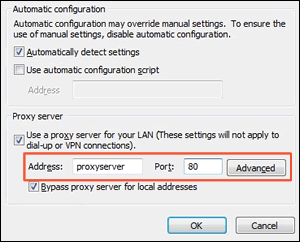
    • Windows: Search Windows for Internet, and then click Internet Options in the list of results. On the Internet Properties window, click the Connections tab, select your network, if necessary, and then click Settings.

      The network settings menu displays with the proxy settings.

      Figure : Example of proxy settings in Windows

      Example of proxy settings in Windows
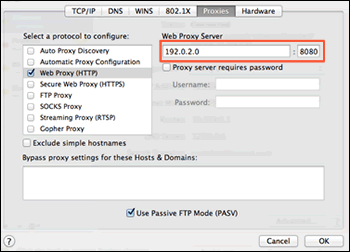
    • Mac: Open System Preferences, and then click Network. On the Network window, click Advanced, click the Proxies tab, and then select your proxy, if necessary.

      Figure : Example of proxy settings in Mac

      Example of proxy settings in Mac
  2. Write down the Address and Port values for your proxy server connection.

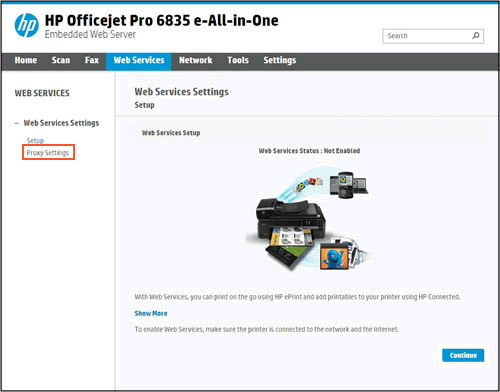
  3. From the EWS, click the Web Services tab, and then click Proxy Settings.

    Figure : Clicking Proxy Settings

    Clicking Proxy Settings
  4. Type the Address and Port values for your proxy server connection, and then click Apply.

  5. Try to turn on Web Services.

try updating the printer's firmware - HP Printers - Updating or Upgrading Printer Firmware 


Set a manual IP-


To set a manual IP and try the steps below -


--->Touch on the wifi icon ((i)) on the printer, and take down the IP address 

--->Open a web browser (ex Chrome or Mozilla) and type in the printer's IP

--->then go to network ---> general ---> network protocols ---> select IPV4 only-->apply 

--->go to wireless ---> wireless 802.11---> select manual ip ---> apply

--->Enter 8.8.8.8 for the first DNS and 8.8.4.4 for the second DNS.  

--->then go to settings on the main ews page --> power management ---> select sleep mode to max 15min


Hope this helps! Keep me posted. 


And, Welcome to the HP Support Community. 


Please click “Accept as Solution” if you feel my post solved your issue, it will help others find the solution.

Click the “Kudos, Thumbs Up" on the bottom right to say “Thanks” for helping

HP Recommended

Many thanks for the response.  I am pleased to report that I was able to speak to a HP agent over the weekend and the issue was resolved.  It would certainly  have been beyond me to sort out by myself but looking at your reply this certainly looks like some of the steps that I took with the agent's assistance.


HP Recommended

That's great! I am glad the issue is resolved.


 If you need further assistance feel free to reach out to us.


Have a great day ahead!


Please click “Accepted Solution” on my public post if you feel my post solved your issue, it will help others find the solution. Click the “Kudos/Thumbs Up" on the bottom right to say “Thanks” for helping!

† The opinions expressed above are the personal opinions of the authors, not of HP. By using this site, you accept the <a href="https://www8.hp.com/us/en/terms-of-use.html" class="udrlinesmall">Terms of Use</a> and <a href="/t5/custom/page/page-id/hp.rulespage" class="udrlinesmall"> Rules of Participation</a>.