• ×
    Information
    Need Windows 11 help?
    Check documents on compatibility, FAQs, upgrade information and available fixes.
    Windows 11 Support Center.
  • post a message
  • ×
    Information
    Need Windows 11 help?
    Check documents on compatibility, FAQs, upgrade information and available fixes.
    Windows 11 Support Center.
  • post a message
Guidelines
Seize the moment! nominate yourself or a tech enthusiast you admire & join the HP Community Experts!
Common problems for Connectivity Issues
We would like to share some of the most frequently asked questions about Printer Wi-Fi, Connectivity Issues and Offline Status. Check out this link: HP printer is offline or unavailable.
HP Recommended
HP ENVY 17t-j100 Leap Motion QE CTO Notebook PC (ENERGY STAR)
Microsoft Windows 10 (64-bit)

I need to set-up my printer "HP Color Laser MFP 179fnw" to my local network via WiFi, but I'm not able to find the "!" Special character when entering the password. 

Thanks, 

1 REPLY 1
HP Recommended

Hi @USgustavo,


Welcome to the HP Support Community


I understand you are facing an issue entering the password with your HP Color Laser MFP 179fnw. Not to worry I will help you to get a resolution to resolve the issue.


I would suggest using a Wi-Fi direct connection to your printer to access the printer homepage on your computer or mobile device.

  1. Place the printer close to your computer or mobile device.
  2. Turn on the printer, and then make sure ink cartridges are installed and paper is loaded in the tray.
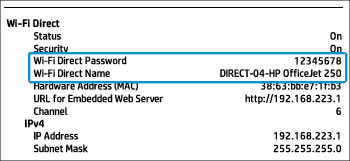
  3. Get the Wi-Fi Direct printer name (Example: DIRECT-72-HP Officejet Pro 6970) and password.
    • Printers with a control panel menu: Touch the Wi-Fi Direct icon to open the Wi-Fi Direct settings menu to get the name and password.
  • Printers without a control panel menu: Print an information page. Use a method that matches the control panel buttons on your printer.
    • Press the Information button .
    • Press and hold the Wi-Fi Direct button for 3 seconds.
    • Press the Wireless and Information buttons at the same time.
    • Press and hold the Resume button or for up to ten seconds or until the report prints.
      The name and password are listed under the Wi-Fi Direct section.
    • Location of the Wi-Fi Direct section on a network configuration report
  1. On your computer or mobile device, open the Wi-Fi or wireless settings to view the list of available wireless networks.
  2. Select your Wi-Fi Direct printer name from the list of networks, and then enter the password to connect to the printer.
  3. In a web browser, type 192.168.223.1 into the address bar, and then press Enter.
  4. Typing the IP address in the internet browser address bar
  5. If a login or certificate window displays, complete the information to finish opening the EWS.
    • If a website security certificate displays, click Continue to open the printer homepage.

 You can now configure the printer with other devices to print/scan.


Note:  Disconnect the WiFi-Direct connection and switch the computer/phone to your regular network.


I hope this helps! Keep me posted. 


Please click “Accepted Solution” if you feel my post solved your issue, it will help others find the solution. Click the “Kudos/Thumbs Up" on the bottom right to say “Thanks” for helping!


ANAND_ANDY
I am an HP Employee

† The opinions expressed above are the personal opinions of the authors, not of HP. By using this site, you accept the <a href="https://www8.hp.com/us/en/terms-of-use.html" class="udrlinesmall">Terms of Use</a> and <a href="/t5/custom/page/page-id/hp.rulespage" class="udrlinesmall"> Rules of Participation</a>.