• ×
    Information
    Need Windows 11 help?
    Check documents on compatibility, FAQs, upgrade information and available fixes.
    Windows 11 Support Center.
  • post a message
  • ×
    Information
    Need Windows 11 help?
    Check documents on compatibility, FAQs, upgrade information and available fixes.
    Windows 11 Support Center.
  • post a message
Guidelines
Seize the moment! nominate yourself or a tech enthusiast you admire & join the HP Community Experts!
Common problems for Connectivity Issues
We would like to share some of the most frequently asked questions about Printer Wi-Fi, Connectivity Issues and Offline Status. Check out this link: HP printer is offline or unavailable.
HP Recommended
HP Neverstop Laser MFP 1202w

Hi! we recently moved and I’m having issues setting up our printer on new wifi. I tried to do it via the HP smart app but can’t find the printer via wifi so I set up the printer via the app on computer and can now print via laptop and printer shows wifi connection but when i open the hp smart app on iphone i can’t find the printer - any suggestions on how to connect it?

1 REPLY 1
HP Recommended

Hi @texasyabo,


Welcome to the HP Support Community


I understand you are facing an issue in adding your HP Neverstop Laser MFP 1202w on HP Smart. Not to worry I will help you to get a resolution to resolve the issue.


To assist you better:

  • Could you please help me with the iPhone model number and the iOS version on your device?
  • Do you get any specific error messages when you try adding it using HP Smart?

While you respond to that, please try the below steps to resolve the issue.


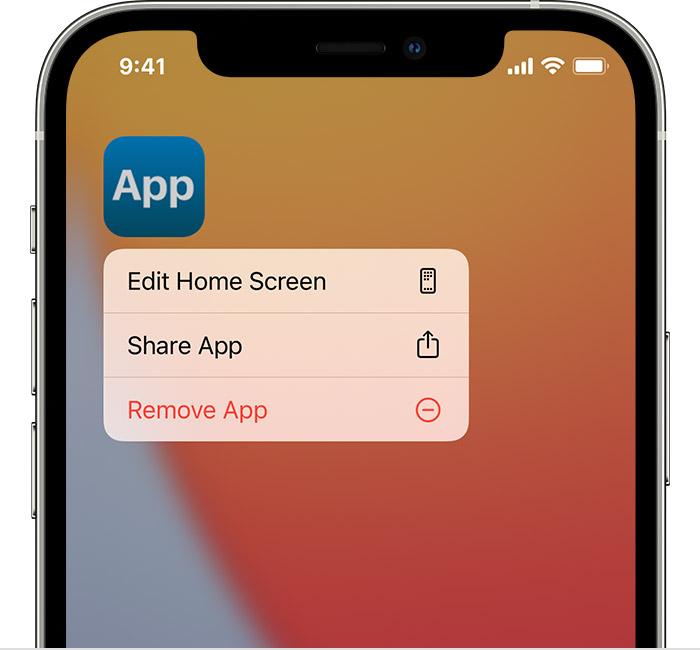
Remove HP Smart App from your phone;

  1. Touch and hold the app.
  2. Tap Remove App Remove App icon.
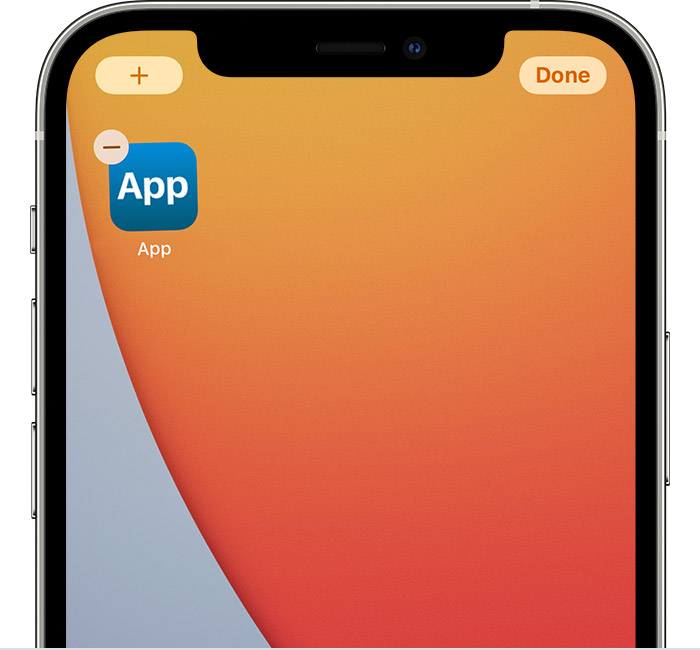
    An iPhone screen showing the menu that appears when you touch and hold an app. Remove App is the third option in the menu.An iPhone screen showing an app with the Remove icon in the upper-left corner of the app. There's also an Add button in the top left corner of the screen and a Done button in the top right corner of the screen.
  3. Tap Delete App, then tap Delete to confirm.

If the issue persists, then update the printer firmware and try adding the print on your iOS device again.


  • Click here to download and install the latest printer firmware from your product
  • Click here to know different methods of updating printer firmware.

You may also try using the Apple AirPrint feature to print.

Print with AirPrint

  1. Open the app that you want to print from.
  2. To find the print option, tap the app’s share icon reply icon  or share icon or tap  share icon.
  3. Scroll down and tap pinter icon or Print. If you can’t find the print option, check the app’s User Guide or Help section. Not all apps support AirPrint.
  4. Tap Select Printer and choose an AirPrint-enabled printer
  5. Choose the number of copies or other options, like which pages you want to print.
  6. Tap Print in the upper-right corner.

Hope this helps! Keep me posted. 


Please click “Accepted Solution” if you feel my post solved your issue, it will help others find the solution. Click the “Kudos/Thumbs Up" on the bottom right to say “Thanks” for helping!


ANAND_ANDY
I am an HP Employee

† The opinions expressed above are the personal opinions of the authors, not of HP. By using this site, you accept the <a href="https://www8.hp.com/us/en/terms-of-use.html" class="udrlinesmall">Terms of Use</a> and <a href="/t5/custom/page/page-id/hp.rulespage" class="udrlinesmall"> Rules of Participation</a>.