-
×InformationNeed Windows 11 help?Check documents on compatibility, FAQs, upgrade information and available fixes.
Windows 11 Support Center. -

-
×InformationNeed Windows 11 help?Check documents on compatibility, FAQs, upgrade information and available fixes.
Windows 11 Support Center. -
- HP Community
- Printers
- Printer Wireless, Networking & Internet
- my printer continues to loose connection

Create an account on the HP Community to personalize your profile and ask a question
10-31-2021
11:42 AM
- last edited on
10-31-2021
01:43 PM
by
RodrigoB
I have installed the driver each time with success. I can print with ease and no problems. I leave the computer for a bit of time or over night and boom. I can not print. I now say the printer is offline. The only way to correct it is to reinstall all the drivers again. I have done this now for 4 days. this can not continue. I must be doing something wrong. please help.
11-18-2021 01:17 PM
Welcome to the HP support community.
I am glad to assist you with the printer offline errors, follow these steps to fix the issue.
Use HP Print and Scan Doctor to fix connectivity and printing issues.
Download HP Print and Scan Doctor.
-
Run HPPSdr.exe from the download location on your computer.
-
Once HP Print and Scan Doctor opens, click Start, and then select your printer.
-
If your printer is not in the list, turn it off and on, and then click Retry.
-
If there is a connection problem, follow the instructions in HP Print and Scan Doctor.
-
-
If a screen prompts you to turn on printer updates, click Yes.
-
If a screen prompts you to make your printer the default printer, click Yes.
-
Try to print.
.Assign a manual IP address to manually connect the printer.
Find the printer IP address to assign it manually.
-
Touch the Wireless button (
), and then touch Run Wireless Network Test. The product prints a Wireless Network Test Report. -
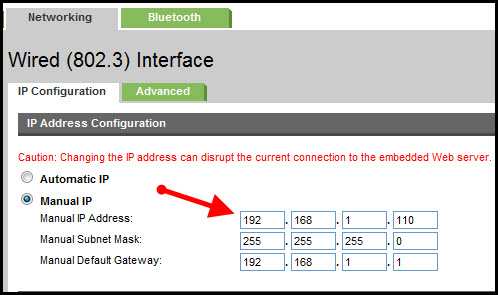
In the Configuration Summary section of the report, find the IP Address assigned to the product on the network.
Setting a Static IP Address
Once you know your printer’s IP address from the page you printed, entering it is pretty easy. Here’s what you do:

- Run your Web browser.
- In the Web browser’s address bar, type the IP address of your printer and press Enter. Assuming you entered the right address, the HP printer control panel should appear.
- Click the Networking tab.
- Under Connections, click Wireless.
- Under IP Address Configuration, click Manual IP.
- Enter the IP address, subnet mask, and default gateway in the appropriate boxes.
- Click Apply.
You can try steps 2 and steps 4 in this HP document for more assistance:- Click here
Let me know how it goes.
To thank me for my efforts to help you, please mark my post as an accepted solution so that it benefits several others.
Cheers.
Sandytechy20
I am an HP Employee

