• ×
    Information
    Need Windows 11 help?
    Check documents on compatibility, FAQs, upgrade information and available fixes.
    Windows 11 Support Center.
  • post a message
  • ×
    Information
    Need Windows 11 help?
    Check documents on compatibility, FAQs, upgrade information and available fixes.
    Windows 11 Support Center.
  • post a message
Guidelines
Seize the moment! nominate yourself or a tech enthusiast you admire & join the HP Community Experts!
Common problems for Connectivity Issues
We would like to share some of the most frequently asked questions about Printer Wi-Fi, Connectivity Issues and Offline Status. Check out this link: HP printer is offline or unavailable.
HP Recommended
HP OfficeJet 9010
Microsoft Windows 10 (64-bit)

I rcently installed a new HP 9010 all in one printer. It connects to my computer, scans from computer, etc. But keeps saying it cannot connect to the HP network. It is connected to my wifi and internet through a wired connection. When I test Web Access on the printer, I get this error: printer is currently configured with gateway address that cannot be accessed. I tried resetting the printer many times but nothing helps.

3 REPLIES 3
HP Recommended

@jacky41


Welcome to the HP support community.


I understand that you are getting printer connectivity to the server issue, follow these steps to fix the issue.


Turn On Web Services

  • Make sure the printer is connected to a wired (Ethernet) or wireless network with an active internet connection.

    NOTE: 

    If you connect your printer to a computer with a USB cable, web-connected printing services do not work.

    • If your printer is connected with a wired (Ethernet) connection, check the cable and the lights on the printer’s Ethernet  port. The green link light should be steady, and the orange activity light should blink when the cable is connected.

    • If your printer is connected with a wireless connection, make sure the wireless feature is on and the printer is connected to the same network as your computer.

      Some printers have a wireless icon  and a blue light on the front of the printer. If the printer has a blue light, and the light is on and not blinking, your printer is connected.

  • On your control panel, press the HP ePrint icon.

    If your control panel does not have an HP ePrint icon, navigate to Web Services Setup, Network Setup, or Wireless Settings to open the Web Services menu.

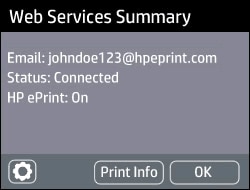
    • If a summary screen displays, Web Services is already on.

      Example of Web Services Summary screen

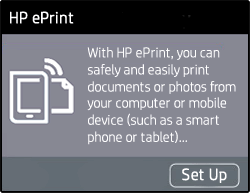
    • If a prompt to turn on Web Services or set up HP ePrint displays, follow the prompts to turn it on or set it up.

      Example of the HP ePrint set up screen

  • If you are prompted to update the firmware, press OK.

Refer to this HP document for more assistance:- Click here


Let me know how it goes.

To thank me for my efforts to help you, please mark my post as an accepted solution so that it benefits several others.

Cheers.

Sandytechy20
I am an HP Employee

HP Recommended

this is what happens when I follow the steps you suggested: (1) I pressed the eprint icon and printer screen says "acquiring email address" (2) get message " printer cannot connect to the server DNS/Gateway Problem" I press ok and then(3) screen comes up the states: web services connected and eprint is on but no email address.   So this did not solve the problem.

HP Recommended

@jacky41


This might require one on one interaction to fix the issue.

I request you to talk to HP support.

They might have multiple options to help you with this.

  1. Click on this link - https://support.hp.com/us-en/contact-hp?openCLC=true
  2. Select the country.
  3. Enter the serial of your device.
  4. Select the country from the drop-down.
  5. Click on "Show Options".
  6. Fill the web-form. A case number and phone number will now populate for you.

Sandytechy20
I am an HP Employee

† The opinions expressed above are the personal opinions of the authors, not of HP. By using this site, you accept the <a href="https://www8.hp.com/us/en/terms-of-use.html" class="udrlinesmall">Terms of Use</a> and <a href="/t5/custom/page/page-id/hp.rulespage" class="udrlinesmall"> Rules of Participation</a>.