• ×
    Information
    Need Windows 11 help?
    Check documents on compatibility, FAQs, upgrade information and available fixes.
    Windows 11 Support Center.
  • post a message
  • ×
    Information
    Need Windows 11 help?
    Check documents on compatibility, FAQs, upgrade information and available fixes.
    Windows 11 Support Center.
  • post a message
Guidelines
Join the HP Community Solve‑a‑thon | Help Others & Share Your Solutions | Live on Zoom | 2:30 PM to 2:30 AM IST | Every Wednesday Click here to know more
Common problems for Connectivity Issues
We would like to share some of the most frequently asked questions about Printer Wi-Fi, Connectivity Issues and Offline Status. Check out this link: HP printer is offline or unavailable.
HP Recommended
office jet pro 7720
Microsoft Windows 10 (64-bit)

despite many many run throughs of troubleshooter and hp scan Dr. and chat bot and restarts I keep getting an offline message.

Also as I go through the scan doctor it asks me if I want to change the printer to the default printer Y/N. But when I click Yes, nothing happens! And when I try to manually set the printer as the default through the print manager window, there is no option there to do that. I've been trying to figure this out for 2 days.

1 REPLY 1
HP Recommended

@moondeva


Welcome to the HP support community.


I am glad to assist you with the printer offline errors.

.

Assign a manual IP address to manually connect the printer.

Find the printer IP address to assign it manually.

  1. Make sure there is U.S. letter or A4 size, unused, plain paper in the input tray.

  2. On the printer control panel, swipe down to open the Dashboard, and then touch the Setup icon .

  3. Swipe up on the display, and then touch Reports.

  4. Touch Network Configuration Page.

Setting a Static IP Address

Once you know your printer’s IP address from the page you printed, entering it is pretty easy. Here’s what you do:

HP Printer Static IP Address

  1. Run your Web browser.
  2. In the Web browser’s address bar, type the IP address of your printer and press Enter. Assuming you entered the right address, the HP printer control panel should appear.
  3. Click the Networking tab.
  4. Under Connections, click Wireless.
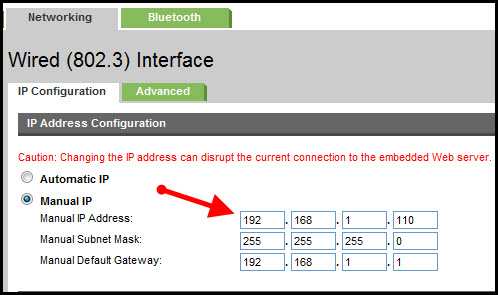
  5. Under IP Address Configuration, click Manual IP.
  6. Enter the IP address, subnet mask, and default gateway in the appropriate boxes.
  7. Click Apply.

You can try steps 2 and steps 4 in this HP document for more assistance:- Click here


Let me know how it goes.

To thank me for my efforts to help you, please mark my post as an accepted solution so that it benefits several others.

Cheers.

Sandytechy20
I am an HP Employee

† The opinions expressed above are the personal opinions of the authors, not of HP. By using this site, you accept the <a href="https://www8.hp.com/us/en/terms-of-use.html" class="udrlinesmall">Terms of Use</a> and <a href="/t5/custom/page/page-id/hp.rulespage" class="udrlinesmall"> Rules of Participation</a>.