
-
×InformationNeed Windows 11 help?Check documents on compatibility, FAQs, upgrade information and available fixes.
Windows 11 Support Center. -
-
×InformationNeed Windows 11 help?Check documents on compatibility, FAQs, upgrade information and available fixes.
Windows 11 Support Center. -
- HP Community
- Archived Topics
- Printers Archive
- Re: Calibration Fails

Create an account on the HP Community to personalize your profile and ask a question
Your account also allows you to connect with HP support faster, access a personal dashboard to manage all of your devices in one place, view warranty information, case status and more.
 This topic has been archived. Information and links in this thread may no longer be available or relevant. If you have a question create a new topic by clicking here and select the appropriate board.

02-10-2017 10:12 AM
 HP Recommended
Product: David 3D Scanner 2.0
Operating System: Microsoft Windows XP (64-bit)
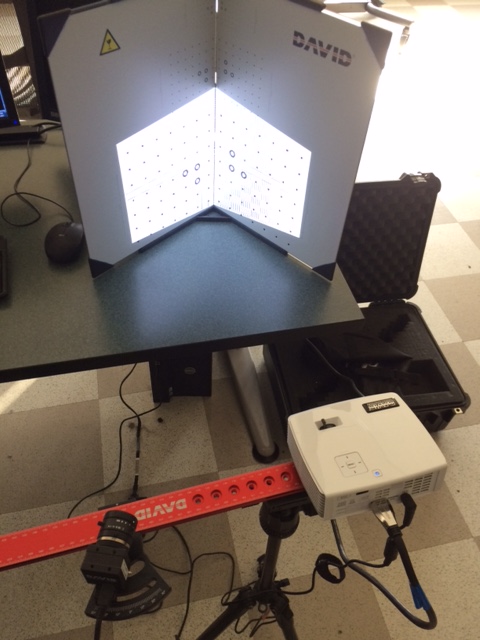
Recently installed and set up the David SLS-2 3D scanner. Software is Pro v5.0.7.
We can not get it to calibrate.
Our error is:
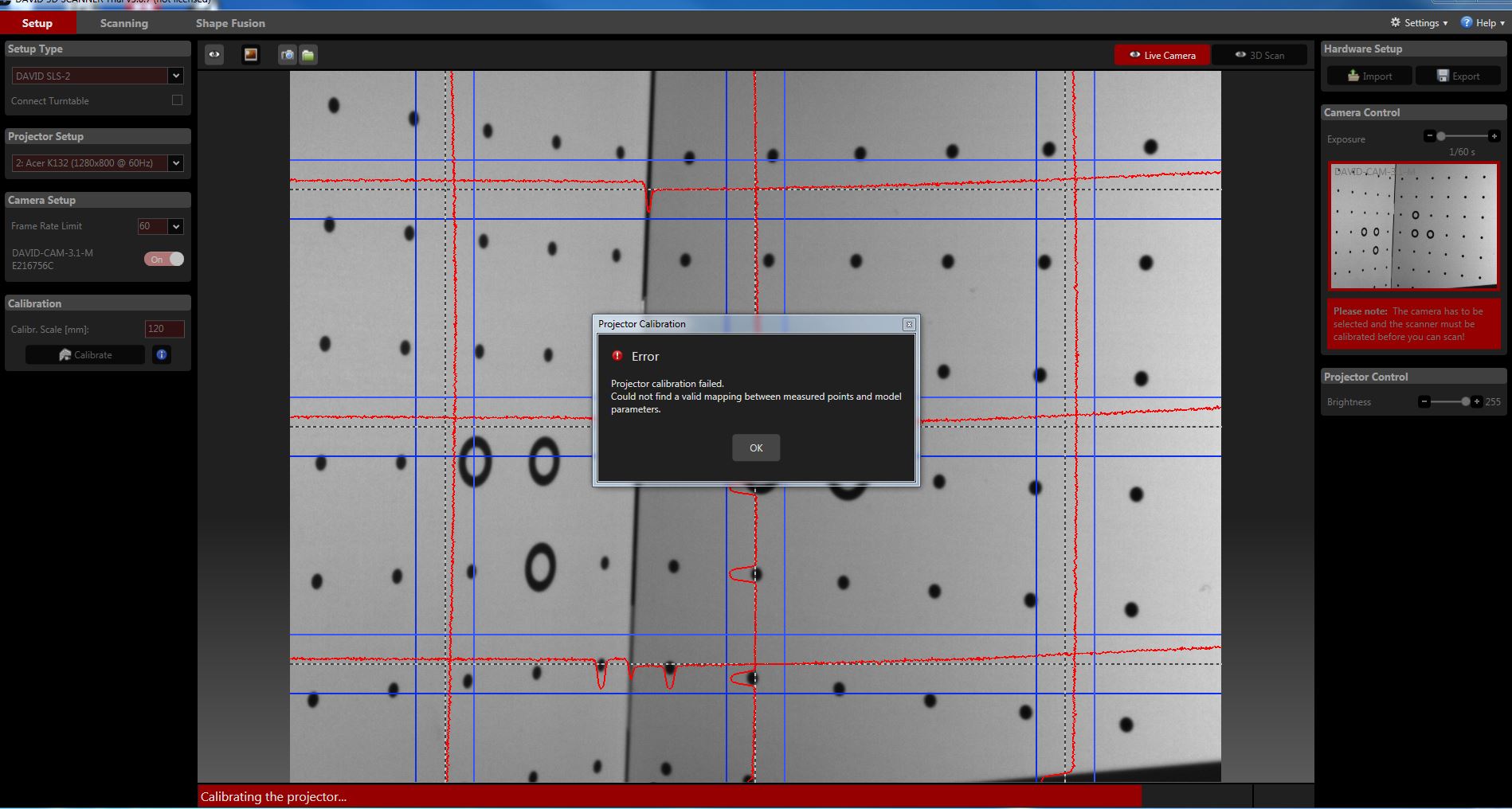
"Projection calibration failed, could not find a valid mapping between measured points and model parameters"
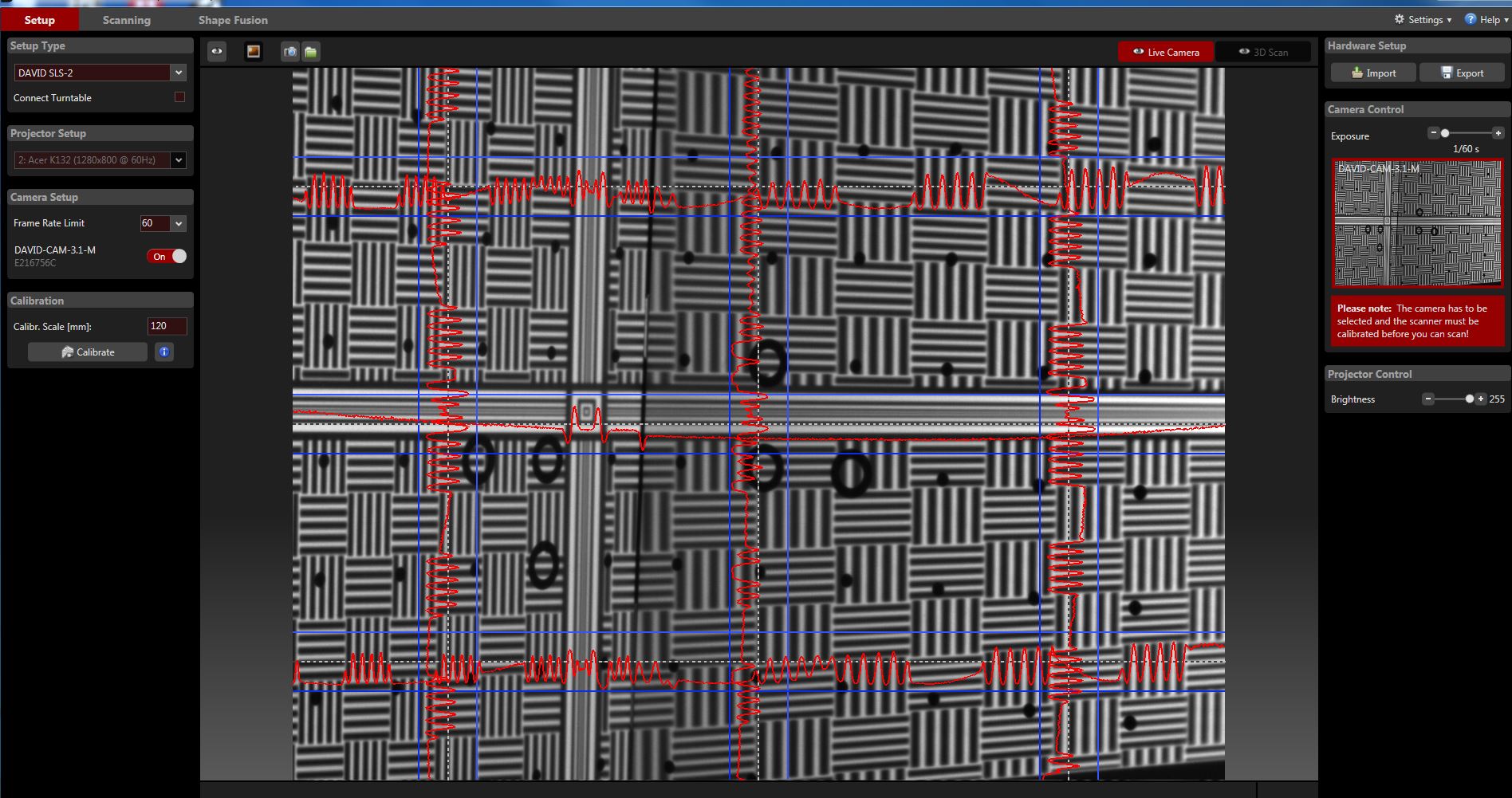
Sine waves fit between the blue lines; 6 major reference circles are visible.
Exposure under camera control is not red.
Looked through the setup documentation.
We're going insane.
Thanks in advance.
14 REPLIES 14

02-15-2017 04:30 AM
HP Recommended
Your setup looks OK. I do not have too much expirience with the DAVID 5 and SLS-2. What would I suggest is that you rotate the calibration panel towards projector (for 5 to 10 degrees) and recalibrate, if it´s not working then rotate more (5 to 10 degrees). Try to rotate in both directions (towards projector and towards cam) until you find right position.
I am an HP Employee
Original David Team Member
Original David Team Member
02-15-2017 07:12 AM
HP Recommended
Just a thought:
Make sure the speed of acquisition is correct and not too fast.
Advanced settings -> Acquisition ->
make sure Maxpatternholdingtime is high to begin with. Default is 1000-
If David is unable to capture correctly the images, there is no warning except the failed calibration.
Are you able to calibrate with David 4 ?
Jeff
02-17-2017 09:03 AM
HP Recommended
I tried all of the suggestions and a few combinations of them without success.
- Maxpatternholdingtime increased from 1000 to 1100
- David 4 successfully showed the green x marks (not able to obtain in David 5)
- Rotating the calibration panel towards the projector and then toward the camera, trying to calbrate after each rotation
02-19-2017 10:22 AM
HP Recommended
Let's keep trying:
1) In Advanced settings, unselect:
Calibration -> OptimizeMultiCameracalibration
2) Place the central vertical line of the calibration panel in the center of the camera view.
Is this a positive calibration panel ?
Jeff
This topic has been archived. Information and links in this thread may no longer be available or relevant. If you have a question create a new topic by clicking here and select the appropriate board.
† The opinions expressed above are the personal opinions of the authors, not of HP. By using this site, you accept the Terms of Use and Rules of Participation.


Didn't find what you were looking for?
Ask the community
† The opinions expressed above are the personal opinions of the authors, not of HP. By using this site, you accept the <a href="https://www8.hp.com/us/en/terms-of-use.html" class="udrlinesmall">Terms of Use</a> and <a href="/t5/custom/page/page-id/hp.rulespage" class="udrlinesmall"> Rules of Participation</a>.